Tip of the Week: Voki activation emails

Tip of the Week: Voki activation emails

Are you not receiving your activation emails after you signed up for your Voki account? Activation emails are sent immediately after you signed up for an account. Make sure that “notifications@voki.com” is in your safe senders list. This will ensure that you receive the email notification you need.

So if you’re still not receiving your activation emails, here’s what you can do:

  1. Activation emails may be stuck in your junk/spam box. Double check your junk/spam box to see if your activation email is there.
  2. If you are using your school email, your school filter may have blocked your activation email from arriving. So talk to your IT department about allowing Voki emails to go through.

Have any questions, comments, or feedback? Email them to feedback@voki.com!

Until next time,

The Voki Team

Voki Podcast on TeacherCast

Voki Podcast on TeacherCast

Hey Voki users! Recently, Voki did a podcast with Jeff Bradbury at TeacherCast.

TeacherCast was created by Jeff to help teachers use technology in their classrooms. Follow @JeffBradbury and @TeacherCast on Twitter to get great updates on cool technologies to use in class! If you have any cool apps or would love to share your ideas with Jeff, feel free to reach out to him!

If you missed it on TeacherCast, listen to it here!

If you want Voki to be a guest blogger on your site or record a podcast with you, just send us an email at feedback@voki.com!


Until next time,

The Voki Team

Voki Tip of the Week: Changing Your Voki Login Emails

Voki Tip of the Week: Changing Your Voki Login Emails

So you’re a long time Voki fan and want to have a new email address associated with your Voki account. This is the scoop on how this feature works in Vok and Voki Classroom.

For Basic Voki Users:

Basic Voki users’ emails cannot be changed, but you can easily create a new account with a different email! To copy your Voki to your new account, check our blog post on How to Copy a Voki. You can also log into your old account as much as you need.

For Voki Classroom Users:

Voki Classroom users can change their emails. Here’s what you can do:

  1. Log into your Voki Classroom account.
  2. Click on the My Account tab.
  3. Under Personal Settings, click the Edit option on the Email Address line.
  4. Type in your new email and click Save. You will receive a notification informing you that your email address has been updated.

Click here to learn more about other advanced features in Voki Classroom!

Until next time,

The Voki Team

The Voki Classroom User Guide

The Voki Classroom User Guide

If you are a Voki Classroom user, you might want some help getting started. Depending on how much detail you want, you should take a look at the Voki Classroom Getting Started Guide, or the complete User Guide. This post is about some of the things you can learn in the User Guide.

If you have a question about Voki Classroom, the Voki Classroom User Guide probably has the answer! Chock full of step-by-step instruction and interesting tidbits, we have composed an easy to follow guide that will ensure a fun and successful Voki Classroom experience for teachers and students. Divided into three parts, the Voki Classroom User Guide takes you on a tour from initial set-up to reviewing and embedding your students’ Vokis.

Part I

What is Voki Classroom? Why should teachers use it? What are the benefits to using Voki Classroom? How is it organized?All of the questions above are answered in Part I, accompanied by visuals and information to help distinguish the difference between our free Voki service and Voki Classroom.

The Voki Classroom hierarchy is an important concept for every teacher to be familiar with as it is the key to understanding how data is organized and how it can be utilized efficiently. The classroom hierarchy serves as a useful visual that can help you understand the role of Voki Classroom for the teacher and the students. Once you understand how Voki Classroom is structured, the other elements become even easier to follow!

Part II

Next up is everything you need to know about getting started with Voki Classroom. Here, you will learn about the interface, as well as how to use some of the available tools to make logging in quick and easy.

Ultimately you, the teacher, are in charge of the information displayed in your account. Personal settings can be edited as you see fit and editing is a cinch! In this section you will also learn about Voki Classroom support and feedback.

As a Voki Classroom user, you are able to get unlimited e-mail support from our dedicated Support team (only available to Voki Classroom users). By taking advantage of the support tab in Voki Classroom, you won’t have to wait to get the answers you need. One of our support representatives will get back to you promptly with an answer!

Part III

Last but not least, our guide takes you through the process of putting Voki Classroom to use! Adding and editing students and their logins, creating and editing classes, and embedding and reviewing Vokis are all covered in Part III.

Here you will learn how to enter in your students’ information individually or by importing a list. Once you have added your students, you can assign them to the classes you created. The guide will show you how to do all this, as well as other tricks, such as making an Assignment “hidden” (making it invisible to the student until it is time to complete the assignments).

One of the advantages of using Voki Classroom is that you are no longer required to embed student Vokis onto a separate webpage. Voki Classroom provides a configurable Web page for each Assignment , and student Vokis are displayed automatically!

Voki Classroom is easy and fun but if you have any questions, keep in mind that you have the Voki Classroom User Guide and unlimited e-mail  support to help you out.

To view the Voki Classroom User Guide, visit Voki.com and click on the “Learn” tab. There, you will find the User Guide among many other useful tools to help you get the most out of your Voki experience.

Thank you for your support and on behalf of the entire Voki Team, we wish you a happy school year!

Introducing Voki Classroom – Part 3

Introducing Voki Classroom – Part 3

We hope that you’re having a great summer, and you’re probably starting to think about the start of the upcoming school year ? Below is the final, and most informative post of our 3-part announcement about Voki Classroom.

In Part 1 of the Voki Classroom announcement, we introduced you to Voki’s new classroom management system. In Part 2, we told you more about some of the features you’ll have access to with Voki Classroom. In this final post, Part 3, we’re going to discuss some additional features included in Voki Classroom, as well as the pricing and schedule.

Last time, we discussed:

This time, we’ll talk about:
  • Student View
  • Assignment Showcase
  • Voki Classroom Support
  • Voki Classroom Pricing
Student view. After logging in to Voki Classroom, students can easily view all of their Vokis by Assignments, and by complete or incomplete Assignments. Under each Assignments, they will see the instructions that the teacher has provided. Clicking the Edit button will open the Voki editor (the same editor you’ve always used in Voki.com/Create) and let them create (or edit) their Vokis. With Voki Classroom, students will create their Vokis in a secure and ad-free environment.

Bonus: As an added feature, when students create their Vokis in Voki Classroom, they will be able to create audio messages that are 50% longer than the current limit! The longer 90-second audio limit will enable students to prepare more detailed Voki messages.

Assignment Showcase. Each of your Assignment automatically generates its own Web page (an Assignment Page), where you can showcase your students’ work. You can easily configure each Assignment Page – select a layout and font. You can also set the Assignment to Private and add password protection to the Assignment Page. TIP: you can also set the Assignment Page as “hidden” so it not viewable while students are working on their Vokis.

Unlimited Support. Voki Classroom also includes unlimited email support from our dedicated support team. While logged in, simply click on Contact Support, choose your topic, and send us a note! Our support team is here to help you with any questions you might have.

Voki Classroom Pricing. We know all too well that teachers don’t usually have much of a budget to work with for technology. With that in mind, we’ve made every effort to reduce the price of Voki Classroom down to a very manageable amount. Below is the pricing of Voki Classroom. Here are a couple of things to keep in mind:

  • Currently, the pricing is based on an annual or bi-annual plan. The 1-year and 2-year plans help reduce the monthly cost.
  • We’re very confident that educators who use Voki will Love Voki Classroom, and we’re backing it up with a full 30-day money-back guarantee. Here’s what that means: If you’re not satisfied for any reason within, 30 days of purchasing Voki Classroom, simply contact support and ask for a refund. You’ll receive a Full (100%) refund of your purchase price.

Without further ado, here is the pricing for Voki Classroom:

  • 1 Year Subscription: $29.95/year ($2.50/month)
  • 2 Year Subscription: $44.95/2 years ($22.48/year, or $1.87/month) – a 25% discount
Additional Discounts. In addition to the 2-Year discount of 25%, schools can get an further discounts when they purchase multiple accounts (Multiple-Account Discounts):
  • 10% Discount when purchasing 5 to 9 accounts
  • 15% Discount when purchasing 10 or more accounts
Note: The 2-Year account discount and multiple-account discounts are separate from each other. You don’t need one to get the other, but you can get both!
.
So, when is this happening?
All this talk about Voki Classroom – but we haven’t told you when Voki Classroom will be Live! Well, we can now tell you that Voki Classroom will be ready and live around Mid August, just in time for the upcoming school year.
.
That’s it, you’re officially schooled on Voki Classroom. Don’t worry, since school is out, there won’t be a quiz.
.
Let us know what you think in the comments area below. We’d love to hear your thoughts/ questions/ concerns about Voki Classroom.
.
Until next time,
The Voki Team
Introducing Voki Classroom – Part 2

Introducing Voki Classroom – Part 2

In Part 1 of the Voki Classroom announcement, we introduced you to Voki’s classroom management system. We received some great feedback and we’d like to share more about Voki Classroom. In Part 2, we’re going to tell you more about some of the additional features you’ll have access to with Voki Classroom.

Last time, we discussed:

This time, we’ll discuss:
  • Managing Classes and Assignments
  • Reviewing Student Work
Just a quick note – we wanted to let you know that we’re very close to the launch of Voki Classroom – it’s only a matter of weeks now. We want to make sure that we polish every edge, and end up with a product that is completely intuitive, easy to use, and foolproof for even the least tech-savvy user! In short, using Voki Classroom will be even easier than using Voki itself. And now, more about Voki Classroom:

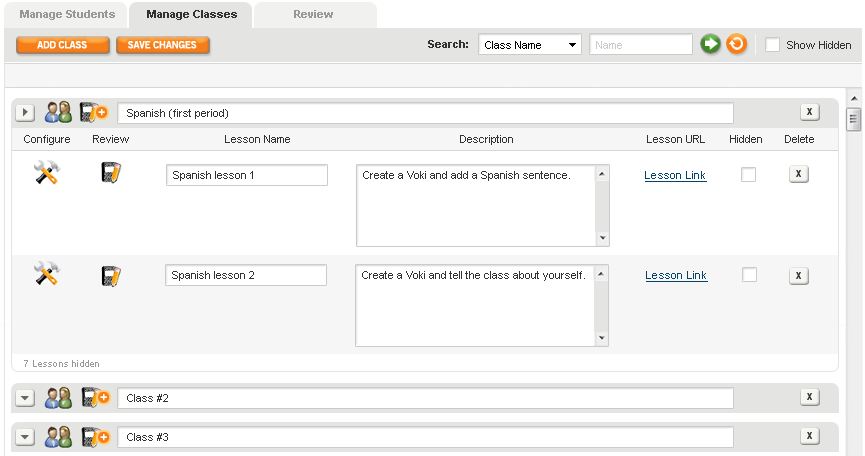
Manage Classes & Assignments. Voki Classroom lets you add and manage your Classes, as well as Aassignments within each class. When you add a new class, a new row will appear (see below). You can then name your Class – i.e. “Spanish (first period)” and add Assignments to it.
.
To add an Assignment, simply click on the Notepad+ icon next tot he class name. Then, give your Assignment a name, and add a description. You can also customize the layout and coloring of each Assignment by clicking on the Configure icon. Each Assignment comes with an Assignment Page – a Web page where you can feature all of the approved Vokis created for that Assignment. Or, if you prefer, you can set the Assignment Page to Private and require a password to view it. If you have your own class site, you can still easily embed each Voki using the embed code.
Voki Classroom - Manage Classes and Lessons
Review Student Work. Review and approve your students’ Vokis within your Voki Classroom account, all in one page. You can view all students Vokis for a given Assignment (view “By Assignment”), or look up and review all Vokis created by an individual student (view “By Student”). You can also choose to view only incomplete, completed or un-reviewed Vokis.
Clicking the Preview icon (the little person button) will open a new window with the Voki scene. If approved, just click the Approve icon (green check mark), and the Voki will appear on the Assignment Page. To get the code, click on the Code icom (<>).
Voki Classroom - Review by Lesson
That’s all for Part 2 of our introduction to Voki Classroom.
Next time, we’ll discuss
  • Student View
  • Assignment Showcase
  • Voki Classroom Support
  • Voki Classroom Pricing
As always, we’re eager to get your thoughts – comments or questions – about Voki Classroom. Feel free to leave a comment below!
Introducing Voki Classroom – Part 1

Introducing Voki Classroom – Part 1

For the last several months, we at Voki have been working on an exciting and **top-secret** project, which we can officially introduce today. Very soon, we will be launching a major addition to Voki, something that will vastly improve the way teachers utilize Voki in the classroom.

Introducing: Voki Classroom! 

Voki Classroom logo

Voki Classroom is a classroom management system for Voki. We created Voki Classroom in response to numerous requests from teachers. Voki Classroom is designed to enhance the way you manage your students’ Voki assignments. In short, Voki Classroom helps students and teachers get more from Voki.

Without further ado, here are the main features of the new Voki Classroom. We’ve also included screen shots to help you visualize the new site:

Class Accounts. They are finally here! No longer will your students need to register with Voki to create their own accounts, using their own email addresses. Now you, the teacher, will be the one to assign each student’s Voki login information (created automatically). Since there is no need for students to register, you can spend more time on the lesson, and less time on creating accounts and helping students log in.

Added benefit: This feature will enable students of any age to use Voki without sharing contact information. If they can use a computer, they can use Voki.

Manage students. You can add and manage all of your students (up to 100) in Voki Classroom. Easily assign students to one or more classes, or review all of the Vokis created by a student. You can either add each student or upload a list of students.

Voki CLassroom - Manage Students

Tip: In this view, you can also print login instructions for the entire class, or separately for each student.

Voki Classroom - Print Class Login Information

Full disclosure: Voki Classroom is a paid service, and we know that teachers don’t have an unlimited budget. So, we are working hard to ensure that Voki Classroom will be very affordable. We can’t yet say exactly what the cost will be, but you shouldn’t have to sacrifice more than one Small Skinny Macchiato, per month. In addition to low cost, we’re introducing a couple of extra discounts, such as:

  • Long-term discounts: choosing the longer term option (2 years vs. 1 year) will save teachers 25%.
  • Multiple Accounts: to make Voki Classroom even more affordable, we’re enabling a multiple account discount for schools wishing to use 5 or more accounts. This discount will range from 10% (5 to 9 accounts) to 15% (10 or more accounts). This is in addition to the 2-year discount.

Wait – what about Voki?
We are very excited about the launch of Voki Classroom and all of the benefits it offers teachers. At the same time, we’d like to reassure you that Voki, and all of its great features, will remain Free to use. We will not be removing or decreasing any Voki features that are currently available for Free. 🙂

In Part 2, we’ll discuss:

  • Manage Classes and Assignments
  • Review Student Work

So, what do you think? We’d love to hear your thoughts about Voki Classroom, the features we mentioned, and the features you’d like to see.

Disappearing Voki scenes

Disappearing Voki scenes

Several Voki educators have reported “disappearing Voki scenes” recently. The scenario goes something like this:

You planned a great lesson using Voki in your classroom. Come class time, you have all of your students log on and create their Voki scenes, and then save them. Or, perhaps you had your students log on from home and create a Voki as part of a homework assignment.

You’re excited to see what they came up with. So, you log in to check their Vokis, and nothing! All (or most) of the Voki scenes that should be in your account, aren’t! What happened??

What happened
Well, we found out that this was due to special characters being used in the Voki titles. The less-than and greater-than characters (<, >) were actually causing all (or most) of the saved Voki scenes to disappear! (Note: although you could not see them, your saved Vokis are always saved in your account…)

What we’re doing about it
We’re happy to say that this issue has been resolved. When you log in to your account, you should see all of your scenes (if you don’t make sure to clear your browser’s cache and then refresh). Any new Voki scenes that are created can have the less-than and greater-than characters in the title. For the existing Voki scenes, we have replaced those characters with a space. So, a scene named “I just ❤ this” is now named “I just  3 this” – you can go back and rename these scenes however you lik
e.

If you have any questions or concerns, please leave a comment or drop us a line in the Teacher’s Corner.

Voki Tip of the Week: Creating Class Accounts

Voki Tip of the Week: Creating Class Accounts

Setting up a class account is not is not difficult at all. In fact, it’s as easy as setting up your own account.

1. Create a generic email address and register it with Voki.com. Make sure the email address is class-appropriate. You may want to create an email address for each of your classes. If you’d prefer to use a school email address, ask your network admin (the IT person(s)) for help.

2. Once you’re done, pick an easy to remember password.

3. Logging in: Here, you have a couple of options. You can choose to give your students the login info, so they can login in and create/ save Vokis from home. This obviously requires an honor system. Alternately, you can log them in yourself, on multiple machines, during every class. This would give you control over the account password.

Students can access the account at the same time, edit and save their work all in one place. And you have access to every Voki all in one dashboard.

Enjoy!