Voki Tip of the Week: Embed Voki on Prezi

Voki Tip of the Week: Embed Voki on Prezi

We have a lot of teachers who uses Prezi for class and Prezi does not have an option to insert an embed code. Don’t worry; we have a solution for showing off your Voki on Prezi. Just follow these simple steps!

  1. Go to www.voki.com.
  2. Create and publish your Voki.
  3. Save your Voki as a video file. (Note: For instructions on how to save your Voki as a video, please read this Tip of the Week.)
  4. Go to www.prezi.com.
  5. Log into your Prezi account.
  6. Click on New Prezi.Prezi1
  7.  Select a template.Prezi2
  8. Click on Insert.
  9. Select From File (PDF, video)…Prezi3
  10. Find your Voki video file and wait for the video to process.Prezi4
  11. Save your Prezi.Prezi5
  12. To save and close your Prezi, click Exit.Prezi6

If you have any feedback, comments, or questions, send an email to feedback@voki.com!

Until next time,

The Voki Team

Voki Tip of the Week: Voki on Pinterest

Voki Tip of the Week: Voki on Pinterest

Many teachers use Facebook, Twitter, blogs, QR codes, and other technologies in class. We also know that many teachers use Pinterest to share teaching materials, classroom ideas and activities. Continue reading to find out how you can pin your Voki!

  1. Go to www.voki.com.
  2. Create and publish your Voki.
  3. Click the Print Screen button on your keyboard.
  4. Open Paint and paste the screen shot.
  5. Crop your Voki. Then save.Pinterest4
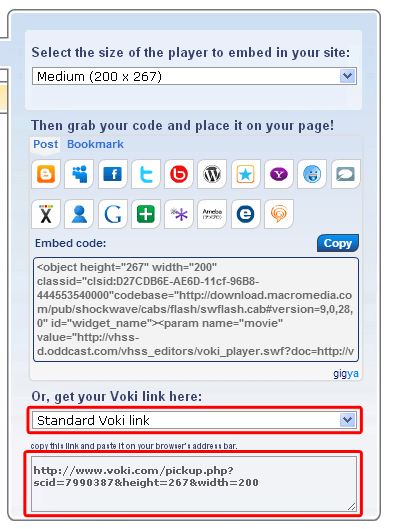
  6. Return to your published Voki and select Standard Voki link to get the URL.
  7. Highlight and copy the URL.Pinterest
  8. Go to www.pinterest.com.
  9. Log into your Pinterest account.Pinterest2
  10. Click Add+.Pinterest3
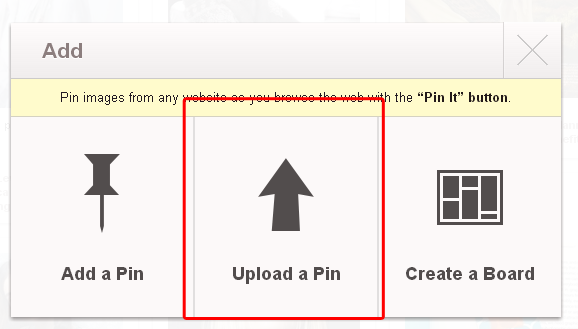
  11. Select Upload a Pin.Pinterest6
  12. Find your Voki picture and upload.
  13. Paste your Voki link into the description box.Pinterest5
  14. Pin it!

If you have any feedback, comments, or questions, send an email to feedback@voki.com!

Until next time,

The Voki Team

Voki Tip of the Week: Voki on Popplet

Voki Tip of the Week: Voki on Popplet

We know that some of our Voki teachers use Popplet in their class! What if you want to have your Voki character there? We have the solution here!

Direct Link

  1. Go to www.voki.com.
  2. Create and publish your Voki.
  3. Select your Voki size and copy your Voki link.1
  4. Go to www.popplet.com and sign in.2
  5. Click to Make new popplet and double click to create a popple.3
  6. Paste your Voki link into the popple.4
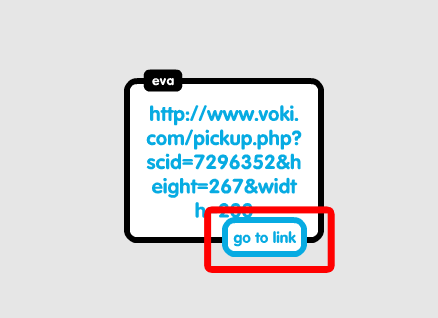
  7. Hover your mouse over the Voki link and click on Go to link.5

Now you go to your Voki from Popplet!

Note: If you want your Voki to appear in full screen, read this Tip of the week to learn how!

Voki Video

  1. To save your Voki as a video file, check out this Tip of the week.
  2. Upload it on YouTube.
  3. 6Go to www.popplet.com and sign in.2
  4. Click to Make new popplet and double click to create a popple.3
  5. Click on the upload icon.
  6. Click on the YouTube icon.7
  7. Search for your video.8
  8. Select your video and click Add to popple.9

Now you can view your Voki directly on Popplet!

If you have any feedback, comments, or suggestion for Voki, send us an email at feedback@voki.com!

Until next time,

The Voki Team

New Voki Characters: Fairy Tale Characters

New Voki Characters: Fairy Tale Characters

Thanks to the feedback of Voki fans, we decided to create a new set of Voki characters! This month, we are expanding our collection of Voki characters to the magical land of Happily Ever After. Our new Voki fairy tale characters include some of your favorites.

We have a beautiful princess, a charming prince, a noble knight, a mischievous fairy, a funny jester, and a majestic unicorn and they’re available to all Voki users! Click here then go to the Fairy Tale category to see them in action!

Let’s take a look at some examples below:

Oh, and stay tuned for more fairy tale characters! We have more brewing in our cauldron!

If you have any feedback, comment, or question for Voki, send an email to feedback@voki.com!

Until next time,
The Voki Team

Guest Blogger: A Voki Spin on an Old Math Favorite – Jessica Johnston

Guest Blogger: A Voki Spin on an Old Math Favorite – Jessica Johnston

As an Instructional Technology Specialist, I love it when teachers find easy ways to incorporate technology into their everyday lessons.  Technology shouldn’t be separate from what you’re doing in the classroom – it should be woven into what you’re already doing in the classroom.  Voki is a tool that we use in just about every grade level and subject area in my district.  It’s versatile, easy to use, and the kids (and teachers!) love it!

It was no surprise when Staci Stephens, 6th grade math teacher at Brenham Middle School, emailed and asked if I could help her with a Voki lesson in her classroom.  Our school got a new Chromebook cart this year and we were brainstorming ways to use the cart in her math class.  Staci decided to let her kids draw a math problem from the “problem paper bag” – like they had done a dozen times before – but this time they would have to script how they solved the problem.  With a little help from Google Docs, the kids worked through their math problems and typed out every single step.

Normally students would groan about this kind of activity – math AND writing?!  However, when you hold a flashy tool like Voki in front of them, all of a sudden writing about math looks like fun instead of work!  Staci and I were amazed at the detail the students included in their writing and we marveled at the level of engagement and deep thinking that was going on in the classroom.  You could have heard a pin drop – until the avatars started speaking!

Watching the students light up as their writing came to life in the form of a Voki avatar was priceless.  In a single class period, the students had created virtual speaking tutors for dozens of fraction problems.  In the process, not only did they ask meaningful questions about math and writing, but also about technology.  Voki got the students to really THINK about how they solve a math problem, but in a fun and non-threatening way!  Even struggling learners can feel successful with an activity like this.  Here’s what some of the students had to say about this lesson and using Voki:

  • Katherine: I think it helped me because if you are visual learner or you need to hear it it helps you.  You can hear the problem and it helps you work it out.  The Voki was very helpful to all students whether they know it or not.
  •  Rylie: Voki really helped me in Math.  It brought the math problem to life.  I now understand math a lot easier.
  •  Estefania: Well Voki taught me how to cut short sentences for only the important things.  Voki also is very fun to create your own character, to express who you are on your Voki.
  • Jesse: I like Voki because it is fun to do.  It helps me learn because when I hear about stuff it gets stuck in my mind.  It is fun to do because you help other people learn.
  • Arreyus: It’s technology and technology is well known in our century.  It’s fun, but we still learn while having fun.  Voki is a wonderful way for kids in this century to learn things.

Staci published the completed avatars on her teacher website with images of the problems being solved.  Publishing completed work gives the students an audience which makes the learning real and more meaningful.  See the completed avatars here: http://goo.gl/kDjbU.  Here’s what Staci had to say about this lesson:

I like that Voki motivates students to communicate their thinking in a new and exciting way.  Instead of solving 20 addition and subtraction of fraction problems, I learn much more about their problem solving process by having them explain 1 problem step by step.  It is so difficult to hear the voices of each of my students on a daily basis, especially my shy students, but Voki enables each student to explain what they were thinking without the fear often involved with speaking up in class.  I’m a big believer that learning mathematics is more than just solving problems- it is a problem solving process, but often when I ask students to write about or explain the process my students are very hesitant.  Generally, they do not like writing, and do not feel they are good writers, but Voki gives them a way to communicate their thinking in a way they enjoy!
If you are looking for an easy (and FREE!) tool to use with any age students in any content area, I can highly recommend Voki and I know my staff and students would say the same.  Brenham ISD loves Voki and I am certain your organization will, as well!
__________________________________________________________________________

For Jessica’s blog, go here: EdTechChic

Follow Jessica on Twitter: @EdTechChic

Like Jessica’s Facebook page: EdTechChic Facebook


Voki Tip of the Week: Voki Book Report

Voki Tip of the Week: Voki Book Report

Are you planning to assign a book report? Why not add a twist with Voki! Instead of a traditional book report, have your students create a Voki about the latest book they read.

Check out our example here:

Send an email to feedback@voki.com if you have any questions, comments, or feedback!

Until next time,

The Voki Team

Voki Tip of the Week: Auto-play Voki

Voki Tip of the Week: Auto-play Voki

Recently we’ve had some Voki users asked us if their Voki can automatically play when you view them. The answer is yes! Here’s how:

Look in the top right-hand corner of the Voki editor and click on the small icon that looks like 3 gears. It is located on top of the Customize Your Character box.

It will bring up Scene Setting. To have your Voki play automatically, click the check box for Play audio automatically when Voki loads.

Now, when you open your Voki, it will play automatically!

If you have any feedback, comments, or questions, send an email to feedback@voki.com!

Until next time,

The Voki Team

Voki Tip of the Week: Review Classroom Rules and School Rules

Voki Tip of the Week: Review Classroom Rules and School Rules

It’s a new year and after a long break, your students may have forgotten about the rules in the classroom and at school! Create a Voki to remind them of all the do’s and don’ts.

Check out the example here:

If you have any feedback, comments, or questions, send an email to  feedback@voki.com!

Until next time,

The Voki Team

Voki Lesson Plans: December Holiday Lesson Plans

Voki Lesson Plans: December Holiday Lesson Plans

It’s finally the last month of the year! December is a month filled with holiday cheers and joy! This month, different cultures around the world get together and celebrate the meaning of family, togetherness, and culture. We have three holiday lesson plans this month on three special holidays: Hanukkah, Kwanzaa, and Boxing Day!


Note: If you are looking for a Christmas lesson plan, check out our Holiday lesson plans post!


Hanukkah – This lesson plan will teach students about the origin of Hanukkah. They will learn the story behind Hanukkah. Students will discuss the traditional food and symbols of Hanukkah. They will be required to create a Voki to present a scene that represents Hanukkah from the Hanukah story.

Kwanzaa – Students will learn about the 7 principles of Kwanzaa. They will discuss about the different symbols that represent Kwanzaa and how Kwanzaa is celebrated. Students will learn how Kwanzaa began and the meaning of Kwanzaa. Students will write a story on one of the symbols or principles of Kwanzaa to share with the class.

Boxing DayIn this lesson plan, students will learn about the origination of Boxing Day, which countries celebrate it, and how it is celebrated. They will be required to research how people celebrate Boxing Day and Boxing Day traditions. Students will create a Voki to present their research on Boxing Day traditions.

Remember: The grade level assigned to each lesson plan is not set in stone. You can use Voki lesson plans for a higher, or lower, grade than the one you teach. These Voki lesson plans can be adapted to fit your style or your students’ abilities!

We would love to hear some of your lesson plan ideas for Voki! Just send us an email at lessonplans@voki.com!

Until Next Time,

The Voki Team

Voki Tip of the Week: Voki on PowerPoint

Voki Tip of the Week: Voki on PowerPoint

Many teachers use PowerPoint in their lessons and want to put Voki into their presentations. There are several ways of putting Voki onto your PowerPoint presentations.

So we compiled a list (from the simplest way to the hardest way!) on how to put your Voki onto your PowerPoint presentation! Let’s all take a look!

Direct Link to Voki Character

  1. After you published your Voki, select your Voki size.
  2. Select your Voki link.
  3. Highlight and copy your Voki link.
  4. Paste the link into your PowerPoint slide.

Note: You need internet connection during your PowerPoint presentation to view your Voki. You can also view your Voki in full screen by checking out this Tip of the Week.

Voki as a Video

  1. After you published your Voki, create a Voki video. Check out this Tip of the Week on how to turn your Voki into a video file.
  2. In your PowerPoint, click on the Insert tab.
  3. Click on Movie and select Movie from File.
  4. Find and insert your Voki video file.

Note: If you are saving your PowerPoint presentation onto a flash drive, remember to also save your Voki video file in the same location! This will make sure that your Voki video will play when you open your PowerPoint on a different computer!

Using Embed Code

For PowerPoint 2010 users

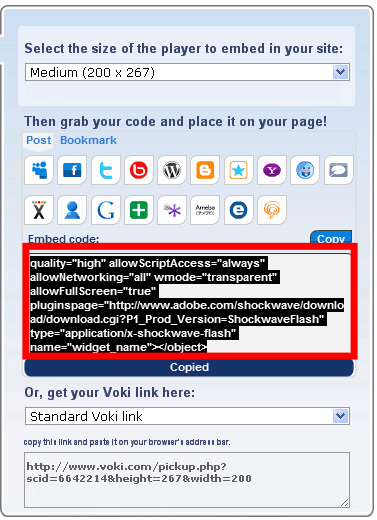
  1. Click and copy your Voki embed code.
  2. Click on the Insert tab.
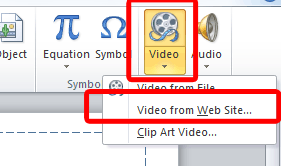
  3. Click on Video and select Movie from Website.
  4. Paste your embed code into the box.
  5. Click Insert.
  6. Now you have your Voki on your PowerPoint! To preview, just hit F5 on your keyboard!

For PowerPoint 2007

  1. Click and copy your Voki embed code.
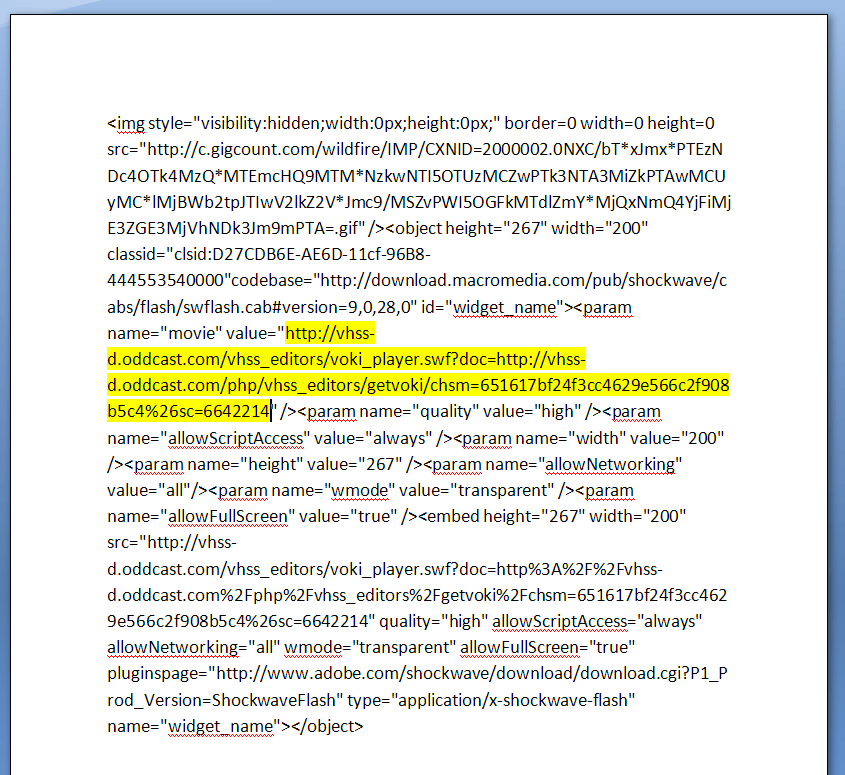
  2. Open word document and paste the embed code.
  3. Find the value code with a hyperlink.
  4. Select and copy that hyperlink.
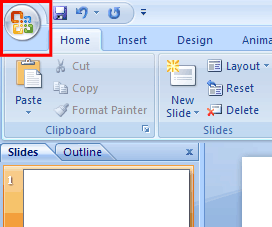
  5. Now, go into your PowerPoint and click on the Ribbon. The Ribbon opens the dropdown menu for PowerPoint.
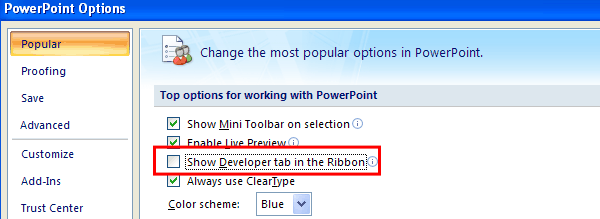
  6. Click on PowerPoint Options and a new menu will open up.
  7. Make sure that the option for Show Developer tab in the Ribbon is checked. If not, click on it and click OK. The Developer tab will be added to your Ribbon.
  8. Click on the Developer tab.
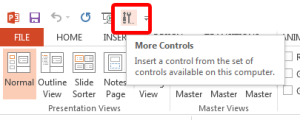
  9. Click on the More Controls icon (the one with a hammer and a wrench) and a new menu will pop up.
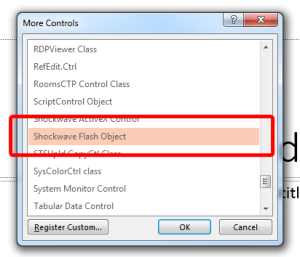
  10. Scroll down to find Shockwave Flash Objects and click OK.
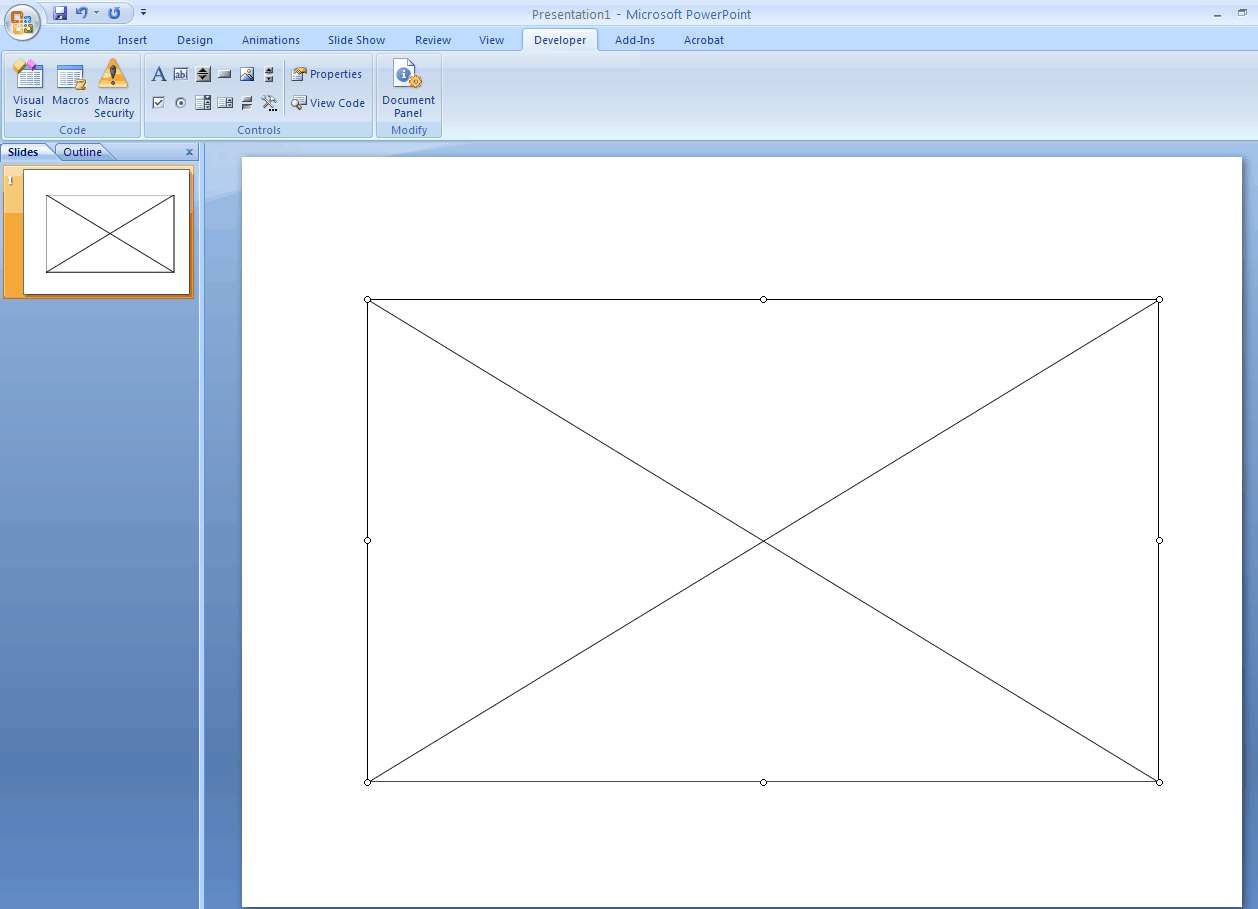
  11. You will see a + sign as your mouse cursor. Click and drag on a blank PowerPoint slide. This will create a big box with an X in the middle.
  12. Right-click on the box and click on Properties and a new menu will open.
  13. Find the Movie line and paste the Voki hyperlink into the blank area. Then close the Properties window.
  14. To preview, just hit F5 on your keyboard!

PowerPoint 2013

1. Click and copy your Voki embed code.

2. Open word document and paste the embed code.

3.Find the value code with a hyperlink.

4. Select and copy that hyperlink.

5. Now, go into your PowerPoint and click on File to open up the menu for PowerPoint and click on Option.

1

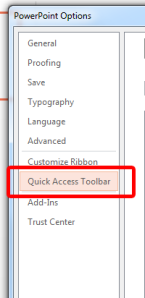
6. Click on Quick Access Toolbar.

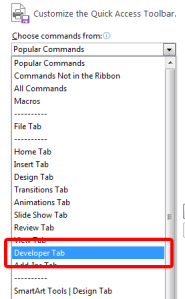
27. From the Choose commands from: drop-down menu, locate and click the Developer Tab.
3

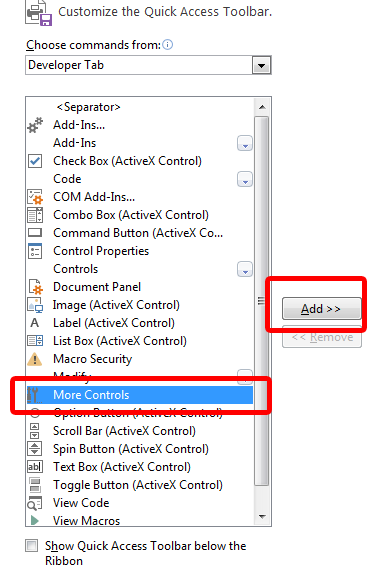
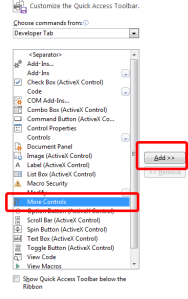
8. Locate and click on More Controls and click Add. It will appear on the top menu.
4

9. Click on More Controls.

5

10. Select Shockwave Flash Object.

6

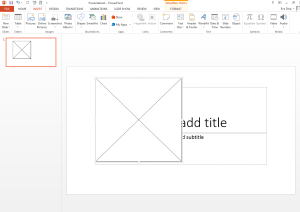
11. You will see a + sign as your mouse cursor. Click and drag on the PowerPoint slide. This will create a big box with an X in the middle.
7

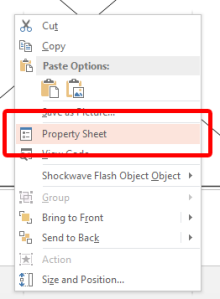
12. Right-click and select Property Sheet.
8

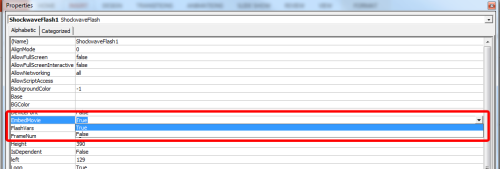
13. Find the Movie line and paste the Voki hyperlink into the blank area.

9

14. Find EmbedMovie and set it to True. Then close the Property window.
10

15. To preview, just hit F5 on your keyboard!

Note: To play your Voki using the embed code you must be connected to the internet.

Mac Users: Inserting Voki using the embed code may not work for Mac users, if you have any suggestions, please send it to feedback@voki.com. To insert Voki into your PowerPoint, use the direct link to your Voki or insert your Voki as a video.

Which method did you use to put your Voki on your PowerPoint presentation?

Have a comment or question for Voki? We are always here to help! Just send us an email at feedback@voki.com!

Until next time,

The Voki Team