The Rename Function is Fixed!

The Rename Function is Fixed!

Hey everyone! As you may have noticed, Voki was experiencing some difficulties when it came to renaming your already saved Vokis. We have now resolved the issue and you can go back to changing the names of your Vokis as you would like!

Follow the simple steps below if you would like to rename your Voki.

1. Log in to your Voki account.

2. From the My Voki screen, click the Eye Icon to view the Voki you want to rename. (insert pic of the icon)

3. Click the Rename button above your Voki and type in the title of your choice.

4. Click Submit.

Voila! Your Voki should reflect the new name after you click submit! We apologize for the inconvenience and if you ever spot an issue with Voki, please let us know by sending us an email to feedback@voki.com.

Celebrate National Poetry Month with Voki

Celebrate National Poetry Month with Voki

April is National Poetry Month in the U.S. and to celebrate, we would like to spread the joys of poetry throughVoki! Beginning April 1st (no joke!)we will post your Voki poets every Friday until the end of April. Do you have your own poem or a favorite poem that you would like to share with others? If so, send us the embed code of your Voki poet and we will include  it in our weekly poetry post  throughout the month of April. Please send the title, text, and author of the poem as well.

Draw a crazy picture, 
Write a nutty poem, 
Sing a mumble-gumble song, 
Whistle through your comb. 
Do a loony-goony dance 
‘Cross the kitchen floor, 
Put something silly in the world 
That ain’t been there before.
― Shel Silverstein


To submit your Voki Poet, email us the entire embed code to feedback@voki.com.

Check our blog each Friday to see your Voki give its poetry reading!

Check our blog every Friday to see one of your Vokis give a poetry reading!

There are lots of fun ways to participate in National Poetry Month. Take a stroll through Poets.org, brought to you by the Academy of American Poets, for 30 ideas on how to celebrate. Also, be sure to check back here for poetry lesson plans  and to see if your Voki poet has been published on our blog!

As always, if you have any great lesson plans or ideas you would like to share, please feel free to email us at feedback@voki.com.

Until next time,

The Voki Team

New Voki Classroom Features: Add Writing Assignments, Assignment Deadlines, and More

New Voki Classroom Features: Add Writing Assignments, Assignment Deadlines, and More

Voki Classroom is constantly improving thanks to your feedback! In this update, we would like to introduce the newest Voki Classroom features. Starting this week, teachers will be able to add a writing assignment to their Voki assignments, set Assignment deadlines, show/hide student names in the Assignment Pages, and give students feedback. Status types have also been updated in both the teacher and student accounts. Read below for more information!

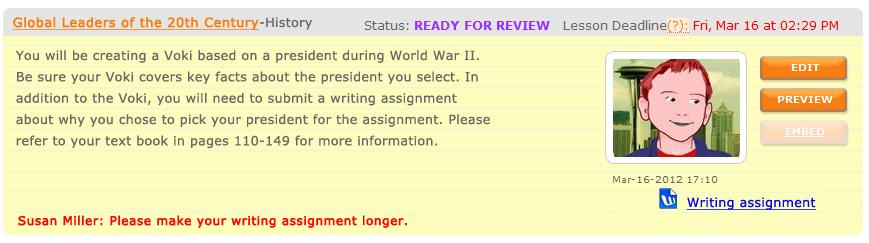
  • Writing Assignment – Many of the Voki Lesson Plans contain a written requirement. Now teachers will have the option to add a writing assignment to their Voki Classroom Assignments. By selecting this option, students will be able to submit a written portion of up to 500 characters with their Voki. Teachers will also have the ability to make the writing assignment visible on the Assignment Page.

Student View of New Voki Classroom Features

  • Assignment Deadline – Students usually have due dates for homework and classroom assignments so it only makes sense that teachers be able to set deadlines on Voki Classroom assignments! Now, teachers can assign the date and time the Voki assignment is due. If a student submits their work after the deadline, the teacher will see the date and time of assignment completion in red.
  • Show/Hide Student Names – We understand that privacy is an important factor when using online tools in the classroom. For this reason, teachers will have the option to replace the students’ full name with their initials in the Assignment Page.
  • Feedback Have you ever wanted to leave feedback on your students’ Voki assignments? Now you can! We added a feedback tool which will allow for expanded dialogue between you and your students. 
Teacher View of New Voki Classroom Features in the Review Tab
  • Statuses – Stay up-to-date with your students’ progress with our updated status types. The new categories are named and color coded as follows:
    • Get Started                                                              
    • Ready for Review
    • Try Again
    • Approved

We hope you continue to enjoy Voki Classroom and that your experience is enhanced by these improvements.. As always, we want Voki Classroom to be a tool that is useful for teachers and engaging for students.

If you have any suggestions, please feel free to click the FEEDBACK tab in Voki Classroom, or email us at feedback@voki.com. Your opinions and suggestions go a long way!

Until next time,

The Voki Team

Voki Tip of the Week: Edit Student Usernames on Voki Classroom

Voki Tip of the Week: Edit Student Usernames on Voki Classroom

If you are a Voki Classroom user, you have probably already noticed the changes we implemented  to make student logins much easier. Along with a simpler default username, Voki Classroom now allows you to edit your students’ login information as you or your school district deem most appropriate.

The new student logins are comprised of the student’s first name initial, last name, and 3 randomly generated numbers. If you do not want your students’ last names to appear or you would like to change any aspect of the username, go to your student roster and click the name in blue to edit.

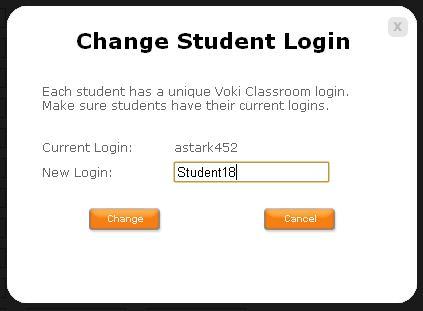
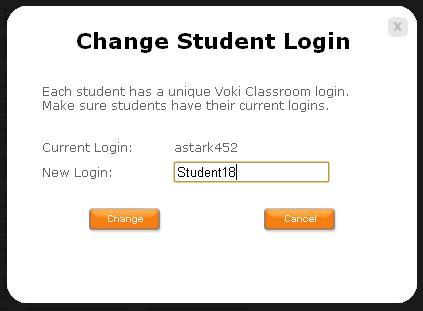
Once you click the blue username, the ‘Change Student Login’ box  will appear.

The rest is up to you! Once you enter the new login, click ‘Change’ and you are  finished!

We hope you are  pleased with this update. We are  always  eager to hear your your suggestions for Voki as we continue to improve your experience.

Should you have any questions, please leave a comment below and we will be happy to answer you, or email us at feedback@voki.com.

Until Next Time,

The Voki Team

Voki Classroom Student Logins Successfully Changed

Voki Classroom Student Logins Successfully Changed

The Voki Team is constantly working on improving your experience with Voki. We recently updated Voki Classroom Student Login names to make them shorter and easier to remember. This change was made due to the input we received from teachers like you and we have so far seen a very positive response!

You may read more about this new feature on our previous blog entry Voki Classroom Student Logins are Being Changed.

We are thrilled that everyone is pleased with the improvement and are happy to report that there was little confusion from students and teachers about this change.

Teacher feedback plays a large role in determining the direction for Voki. We greatly appreciate your suggestions. Should you have any ideas for improving Voki, please leave a comment below or email us at feedback@voki.com.

Thank you!

The Voki Team

Voki Classroom Student Logins are Being Changed

Voki Classroom Student Logins are Being Changed

We have some great news for all teachers using Voki Classroom, and (especially) their students!

As you know, we love receiving feedback and ideas from Voki users! Your feedback helps us learn what we are doing right, and how we can make Voki even more useful.

A great suggestion we have received from many teachers using Voki Classroom is to simplify the student login names. Teachers mentioned that the current student logins are rather long, and that students have a hard time remembering them. As you mentioned, students would have an easier time remembering a shorter, simplier login.

So, we have worked hard to implement a solution to this. We are simplifying student logins!

What you need to know:

Below are examples of the current student login formats.

  1. The default student logins are comprised of: First name . Middle name . Last name : Teacher email – this can lead to very long student logins. Also, many teachers don’t want their email address to be part of their students’ logins.
  2. Therefore, we implemented a minor solution called the Teacher ID. Basically, we allowed teachers to choose a unique ID that would replace their email in student logins. Student logins under teachers who had defined a Teacher ID were comprised of: First name . Middle name . Last name : Teacher ID – this led to shorter student logins, but it was not optimal.

The new and improved Student logins will be comprised of: First initial only + Last name + 3 digits – That’s all! This will make for even shorter and easier-to-remember Student logins. This is an example of the new student login format:

Much Better!

Additionally, teachers will be able to easily modify a student’s login name by simply clicking on it. Clicking on the blue login will open a small window where you may edit the student’s login. This is an example of the editing window:

Important! If you currently have a Voki Classroom account:

YOUR STUDENT LOGINS WILL BE AUTOMATICALLY UPDATED ON

SUNDAY, FEBRUARY 26TH, 2012

Everyone affected will receive an email notification, as well as another reminder the day before the change.

You will also see an alert in your Voki Classroom account, which will be dismiss-able after the change takes place. The alert looks something like this (it’s hard to miss):

What you need to do:

Technically, there’s nothing you need to do, since the change will happen automatically. However, you should provide your students with their new logins once the change occurs.

Tip: If you are unable to tell your students about the change, we’ll do it for you. When students log in using their old logins, they will see an alert. This alert will provide their new login and ask them to use it from now on.

Note: Student passwords are not affected, unless you decide to change them.

We hope that the new student logins makes logging in to Voki Classroom a much simpler process for your students!

Should you have any questions, please leave a comment below and we will be happy to answer you, or email us at feedback@voki.com.

Thanks for the great feedback – keep it coming!

The Voki Team

The Voki Favorites of 2011

The Voki Favorites of 2011

We are always impressed to see what educators and students can come up with using Voki. The year 2011 was a good one for Voki as was apparent through the emergence of class videos demonstrating Voki in action, well developed instructional videos for newbies, great lesson plans coming from all over the world, and so much more!

We decided to collect our favorite ways of using Voki here for all to see. Please browse through the list to learn more about Voki and how teachers from around the world use it to make class a virtual blast! Hopefully you will be inspired to come up with other ways to make Voki a part of your class. Below is a short list of some of our favorites but believe us, there are so many more out there!

10 Ways you can use Voki:

  1. Improve Confidence
  2. Learn Chinese
  3. Voki Introductions
  4. Interactive Instruction
  5. Break Barriers using Multiple Means of Engagement
  6. Become Digitally Literate
  7. Voki Dictation for Language Class
  8. “Pass it On” Buddy Method
  9. Update Students and Parents on Class Blogs
  10. Make Learning Exciting!

Thanks to all who made this list possible and to everyone that has made Voki a part of their classroom! We look forward to the new year and to hear back from you about the fun and innovative ways you use Voki in your lessons. Who knows? You and your students may find yourselves and your Vokis on our blog!

Happy New Year to all! May your 2012 be filled with happiness, gratitude, and new experiences!

Voki Classroom: More New Updates

Voki Classroom: More New Updates

We’ve just introduced some exciting updates to Voki Classroom, and we wanted to share them with you. There’s nothing you need to do; these changes are already “live” in your account!

Voki Classroom is getting easier to use and navigate thanks to your suggestions! Our newest upgrades and updates for version 1.2 include some minor changes that make a big difference and help make your (and your students’) Voki experience more valuable. Take a look at the main changes below – you might even recognize your suggestion!

  • Additional Students and Classes – The current student limit per teacher (100) is more than enough for most teachers. However, some of you superstars have even more than 100 students (incredible!) with whom you’d like to use Voki. The same holds true for the 5 class limit. So, if you need more student accounts, or more classes, you can now easily add more of each. Simply click on My Account, and you’ll see your current limit, as well as what you’re currently using. Next to your Classes and Student Account info, you’ll see a link to Add More. Additional Student accounts come in batches of 10 ($0.50 per student), and individual Classes cost $5.00 each. Remember: Each Voki Classroom Class can have multiple Assignments!
  • Review Tab Filters – Searching for submitted student work can be difficult, but with our new filtering options on the review tab, finding specific items is easier. When you go to the Review Tab, the display will always show scenes that belong to one class. You will be able to filter the information shown by Class, Assignments within the Class,  or Students for the selected Class or Assignment. Also, the Review tab view will now land on the Ready for Review view by default (as opposed to All). This means that your Review section will now load even faster! Finally, if you are reviewing Vokis in a certain Class, when you navigate away from Review, and then come back later, your last selection will be remembered, so you don’t have to re-select the Class you were working on!
  • Time Stamp on the Review & Student View – This one was very important to many of you… Now, when you review students work, you’ll see a “time stamp” (date and time the Voki was saved by the student). Like the teacher always says, “Don’t forget to put your name and date at the top of your paper!” The timestamp will be visible to both you and the student who created the Voki.
  • Embed Button in Student View – Many of you have class (or student) websites and blogs, where you would like students to embed their finished Vokis. Now, students have an EMBED button for each Voki, right there in the student view. After a Voki is approved by the teacher, the EMBED button in the Student View becomes clickable. When clicked, it will open the sharing/ embedding window. Note: students will only be able to click the EMBED button after you have approved their Voki.
To check out these updates now, Log in to your Voki Classroom account.
We hope you continue to enjoy Voki Classroom and that you get even more value from these changes. As always, we want Voki to be a tool that works seamlessly into your classes and busy schedule.
If you have any suggestions, lease feel free to click the FEEDBACK tab in Voki Classroom, or email us at feedback@voki.com – we consider each and every suggestion! That’s all for now – stay tuned in to learn about future changes and updates to Voki and Voki Classroom!

Until next time,

The Voki Team

The Voki Classroom User Guide

The Voki Classroom User Guide

If you are a Voki Classroom user, you might want some help getting started. Depending on how much detail you want, you should take a look at the Voki Classroom Getting Started Guide, or the complete User Guide. This post is about some of the things you can learn in the User Guide.

If you have a question about Voki Classroom, the Voki Classroom User Guide probably has the answer! Chock full of step-by-step instruction and interesting tidbits, we have composed an easy to follow guide that will ensure a fun and successful Voki Classroom experience for teachers and students. Divided into three parts, the Voki Classroom User Guide takes you on a tour from initial set-up to reviewing and embedding your students’ Vokis.

Part I

What is Voki Classroom? Why should teachers use it? What are the benefits to using Voki Classroom? How is it organized?All of the questions above are answered in Part I, accompanied by visuals and information to help distinguish the difference between our free Voki service and Voki Classroom.

The Voki Classroom hierarchy is an important concept for every teacher to be familiar with as it is the key to understanding how data is organized and how it can be utilized efficiently. The classroom hierarchy serves as a useful visual that can help you understand the role of Voki Classroom for the teacher and the students. Once you understand how Voki Classroom is structured, the other elements become even easier to follow!

Part II

Next up is everything you need to know about getting started with Voki Classroom. Here, you will learn about the interface, as well as how to use some of the available tools to make logging in quick and easy.

Ultimately you, the teacher, are in charge of the information displayed in your account. Personal settings can be edited as you see fit and editing is a cinch! In this section you will also learn about Voki Classroom support and feedback.

As a Voki Classroom user, you are able to get unlimited e-mail support from our dedicated Support team (only available to Voki Classroom users). By taking advantage of the support tab in Voki Classroom, you won’t have to wait to get the answers you need. One of our support representatives will get back to you promptly with an answer!

Part III

Last but not least, our guide takes you through the process of putting Voki Classroom to use! Adding and editing students and their logins, creating and editing classes, and embedding and reviewing Vokis are all covered in Part III.

Here you will learn how to enter in your students’ information individually or by importing a list. Once you have added your students, you can assign them to the classes you created. The guide will show you how to do all this, as well as other tricks, such as making an Assignment “hidden” (making it invisible to the student until it is time to complete the assignments).

One of the advantages of using Voki Classroom is that you are no longer required to embed student Vokis onto a separate webpage. Voki Classroom provides a configurable Web page for each Assignment , and student Vokis are displayed automatically!

Voki Classroom is easy and fun but if you have any questions, keep in mind that you have the Voki Classroom User Guide and unlimited e-mail  support to help you out.

To view the Voki Classroom User Guide, visit Voki.com and click on the “Learn” tab. There, you will find the User Guide among many other useful tools to help you get the most out of your Voki experience.

Thank you for your support and on behalf of the entire Voki Team, we wish you a happy school year!

Tip of the Week – Viewing Voki in Full Screen

Tip of the Week – Viewing Voki in Full Screen

Can you make a Voki scene appear in FULL SCREEN?

Yes, you can!

If you’ve ever wanted to view a Voki in full-screen mode, there is a really neat trick we’d like to share with you. This can be useful for presentations, for those who are visually impaired, and just as a cool trick that you can teach others.

Follow the steps below to make your Voki full screen!

Note: The code may look overwhelming but if you follow these steps, playing your Voki in full screen will be a breeze.

  1. In My Voki, click on the Voki you want to display.
  2. Click the ‘Publish’ button.
  3. Copy the embed code and Paste into any word processing document.
Now, here’s the fun challenge… You need to be a little bit of a sleuth and pick out the right part of the code:
Tip: This is a great student exercise in attention to detail.
  1. A few lines from the bottom of the code, you should see a URL  (http://) in quotes
  2. Copy the URL beginning with: http://vhss-d.oddcast.com/vhss_editors/voki_player.swf?doc= (do not include the quotation marks) and ending with a number before the word “quality”
  3. Paste the URL into your browser and click Go
That’s it! If you copied the URL correctly, your Voki will now load in Full Screen mode.
Here is an example. You want to copy the highlighted part.

Voila!

Now, you’ll have the biggest Voki of them all!

What do you think? Share your comments below and we’ll be sure to respond.

Until next time,

The Voki Team