Interviews with Educators | Jennifer Matthews

Interviews with Educators | Jennifer Matthews

227920_10150181942052987_2072322_n

This month’s Interview with Educators features Jennifer Matthews. She is a tech-savvy teacher at Southampton Township School District in New Jersey. She works with students from kindergarten to fifth grade. Jennifer is a Voki user since 2012!

Check out Jennifer’s interview below and the Vokis her students created!

1.Tell us a little about yourself.

My name is Jennifer Matthews and I am the computer/technology and the Gifted and Talented teacher in the Southampton Township School District, which is in Southampton, New Jersey. I service students Kindergarten through 5th grade. I am also the schools webmaster, an adviser for the Media club and the Middle School cheer-leading coach. I have been a teacher for 15 years.

2. What are your goals using Voki?

I wanted a way for my S.T.E.P. (Southampton Township Enrichment Program) students to incorporate more technology into their units of study and to be able to share their thoughts, feelings and information publicly and creatively. Voki Classroom was perfect.

3. How do you use Voki?

My 3rd, 4th, and 5th grade S.T.E.P. students each create a Voki regularly to introduce an important person they are studying, explain a concept which they have learned and express their ideas in a fun and unique way.

4. What are your 3 favorite things about Voki?

There are many things I like about Voki and Voki classroom.

It is engaging to the students and lets them create an avatar that presents information to the world safely.

It is very easy to use and control. The students needed little instruction to use the tools to build their Voki avatar.  As the educator, I can easily add lessons and review what the students create before posting.

Affordability, Voki classroom is very affordable and easily adds technology to every unit of study.

5. What would you add to the Voki product?

Adding more design choices to the Voki’s look would be a wonderful addition as well as possibility having Voki’s interact with one another.
6. Do you have any Voki tricks up your sleeve?

I post my student’s Voki’s on my teacher’s website so all the students (and the world) can see what my students are learning and they can connect to a wide diverse audience.

Here is the link: http://school2.nj.sts.schoolinsites.com/?PageName=TeacherPage&Page=15&StaffID=188719

Want to be interviewed for the Voki blog?
Send us an email at submit@voki.com and we’ll get in touch!

Guest Blogger: Carmen Brettel – How to Use Voki in the Classroom

Guest Blogger: Carmen Brettel – How to Use Voki in the Classroom

Voki speaking avatars are great tools for the classroom. Teachers and students alike can create avatars and use them in a number of ways to make learning fun and more accessible. Not sure how Voki can help you or your students? Here are a few fun ideas for how you can incorporate Voki speaking avatars in your classroom and lesson plans:

Use Your Avatar as a “Substitute”

Students can start to zone out in the middle of lectures, and the teacher’s voice can start to sound like the “mwah mwah mwah” in a Charlie Brown cartoon. Introducing an avatar for some lessons can get students’ attention and make it a little more fun.

Choose a quirky and interesting avatar — not just one that looks like you. Use it for particularly dry discussions and incorporate it into an interactive presentation. Students will feel like they’re watching a show — and they’ll be learning at the same time.

Get Students to Create Interactive Avatars

Every teacher knows that encouraging student participation can be a bit like pulling teeth at times. Encouraging students to create their own interactive avatars may help them to participate more, both by offering them a fun outlet for it, and by offering shy students a way to participate that doesn’t require being so “exposed.”

You can create a virtual interactive classroom if you have access to a computer lab, or you can use the avatars in online discussions through a classroom blog or website. Explore which options work best for you based on your resources.

Assign a Virtual Presentation

Old-fashioned book reports and project presentations can be dull for both the presenter and the audience. Students standing next to a tri-fold project board and reading off note cards are not likely to have a good time, and neither are their peers who have to listen to it.

You can make it a little more fun for all students by asking them to create virtual presentations that are created with a Voki speaking avatar and a powerpoint or other presentation. The avatar can guide the presentation, which students will have fun creating (with a little more creative latitude) and their peers will have fun listening to, helping both to learn more.

Create Avatars Based on Lessons

Help bring historical and literary figures to life by asking students to create a speaking avatar for them. Not only will students have to create an avatar in that person’s likeness — and may have to imagine it based on cues for literary figures — but they can also create dialogue for the characters for a presentation or report.

Such an assignment will help students better understand the figures they are studying in class, and it will help them to have more fun while they’re doing it.

There are many more ways you can use Voki speaking avatars in your classroom to help promote learning and greater interaction. You are only limited by your creativity.

How have you used Voki speaking avatars in your classroom? Share your tips in the comments!

Carmen Brettel is a writer and manager for Studentgrants.org. In her spare time, Carmen enjoys gardening and volunteering at animal shelters.

Voki Tip of the Week: Voki on Glogster

Voki Tip of the Week: Voki on Glogster

Is there a way to embed a Voki on Glogster? 
This is a very common question that we get from teachers! Unfortunately, the answer is no, you can’t embed a Voki on Glogster. But, we found a different way that you can put a Voki on your Glog! Just continue reading to learn how!

Insert as video file

1. Go to www.voki.com.

2. Create and publish your Voki.

3. Save your Voki as a video file. Check out this Tip of the Week on how to turn your Voki into a video file. If you want your Voki video to be bigger, you can view the Voki in full screen.

4. Go to www.glogster.com and sign into your Glogster account.Glog0

5. Create a Glog.Glog1
6. Click upload and find your Voki video file. Find your uploaded Voki video under Video.

Glog2
7. Click on the Voki video and click Use It. Your Voki will be inserted into your Glog.

Glog3
8. To preview your Glog, select preview. To save, click save or publish.Glog4

Insert as picture

1. Go to www.voki.com.

2. Create and publish your Voki.

3. Click the drop down menu and select Large. Then select, Standard Voki link to get the URL.

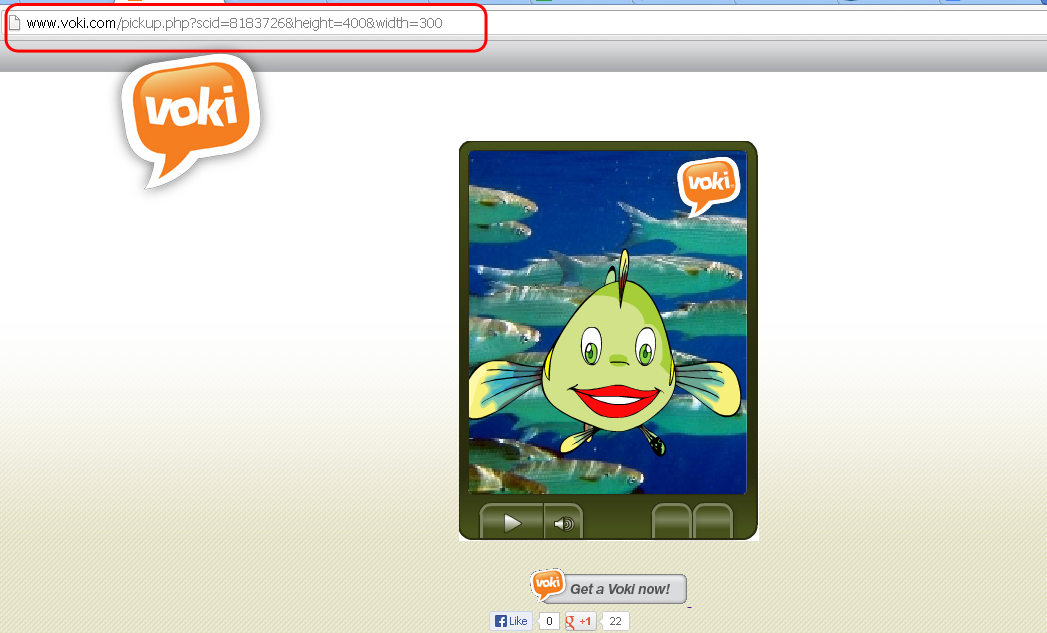
4. Copy and paste the URL into the address bar. Now you have a bigger Voki on your screen!Glog5
5. Click the Print Screen button on your keyboard.

6. Open Paint and paste the screenshot.

7. Crop the Voki image.Glog6
8. Go to www.glogster.com and sign into your Glogster account.

Glog0
9. Create a Glog.Glog1
10. Click upload and find your Voki picture. Find your uploaded Voki image under Image.Glog2
11. Return to your Voki page and copy the direct link.

Glog8
12. Return to your Glogster page and click on the Voki image. Then click Edit.Glog9
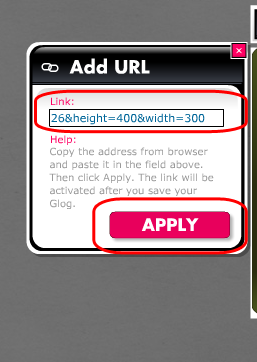
13. Click on Add link.Glog10
14. Paste the Voki link and click apply.Glog11
15. To preview your Glog, select preview. To save, click save or publish.Glog4

If you have any feedback, comments, or suggestion for Voki, send us an email at feedback@voki.com!
Until next time,
The Voki Team

Voki Classroom July Special 2013

Voki Classroom July Special 2013

Just one more month until Voki Classroom Summer Special is over! This month is the last chance to take advantage of Voki Classroom Summer Special. For the entire month of July, you will receive an extra month of Voki Classroom added to your 1 or 2 year subscription!

summer-special6 Just sign up for Voki Classroom and your extra month will be added onto your subscription automatically.

If you have any questions or feedbacks, send us an email at feedback@voki.com!

Enjoy the rest of your summer vacation!

Until Next Time,
The Voki Team