You know those days. You’ve spent the whole night grading and preparing for class, then wake up late only to find you’ve run out of coffee.Now a classroom full of bright eyed children are waiting for your performance…
This is the perfect morning to have a Voki introduce the day’s lesson and assignment.
Check out these examples and create your own savior Voki today!
Last week,when we came across a video of students using Vokito edit their writing, we had to find out who was behind the great production, interesting lesson, and big smiles found on every student’s face. The search led us to Chase Young, a second grade teacher, and Lynda Swanner, the language arts coordinator for McKinney ISD. Chase and Lynda are from McKinney, Texas and have worked together to create interactive and informative environments for students to develop as confident writers. We got in touch with Chase to find out more about how he uses Voki to motivate and improve literacy and he was more than happy to share his and Lynda’s tricks of the trade. Check out the great ideas below!
Conferring with an Avatar
Teachers can use this 21st century method for proofreading when students do not read over, or are unaware of revision or editing needed in their stories. Lynda Swanner and I devised this strategy to motivate students to actively revise and edit their own writing. This strategy helps students discover what they need to revise and edit and also empowers student as writers. They become aware of their own problems in writing, and they can self-regulate the writing process. Students use this self-discovery strategy of revising and editing to privately critique their work before conferring with the teacher. Here are a few brief steps to get you started using this strategy.
1. Students create an avatar using Voki.com. We suggest limiting the time because students and teachers could spend all day creating the perfect avatar.
2. Students type a sentence, paragraph, or section of their stories into the Voki text box.
3. Students listen to the speech and read along several times.
4. Students make corrections.
Consider the following example. The student noted a lack of punctuation after conferring with an avatar.
Mr. Young: What changes are you going to make?
Student: I need more periods.
Mr. Young: How do you know that?
Student: …It wasn’t very good, because it went in one fast glob.
This next example shows how a student caught a spelling error from listening to the avatar.
Mr. Young: What changes did you make?
Student: I needed to fix some spelling errors. I needed to spell “grabbed” correctly.
Mr. Young: How did you know it was spelled wrong?
Student: It sounded wrong.
Mr. Young: Do you remember how the avatar said it?
Student: “grabed” (Student uses a long a sound.)
Mr. Young: We know that you have to do WHAT to the consonant?
Student: Double it!
Based upon the avatar’s rendering, students were able to reflect and make changes to their work without teacher direction.
*The full chapter is currently being published by Corwin Press and will available soon in Writing Strategies for All Students in Grades 4-6: Scaffolding Independent Writing Through Differentiated Mini-Lessons.
Chase Young is a second grade teacher in McKinney, TX. He holds a MS Ed with a specialization in literacy. He is a Doctoral Candidate at the University of North Texas. He has written for the Reading Teacher and Education Review, published a book entitled Teaching Texas History through Readers Theatre, and contributed several chapters to educational books. When he is not teaching, studying, or writing, he is wondering where his free time goes. He enjoys playing the guitar, paintball, racquetball, grilling, concerts, billiards, pools, and golf carts (not to be confused with golfing).
Lynda Swanner has been a teacher, library media specialist, and literacy staff developer. She is currently the English Language Arts and Reading Coordinator in McKinney Independent School District in McKinney, Texas. She coordinates the curriculum, instruction, and assessments for all elementary teachers in the district. She is also a literacy consultant for many Texas school districts. Over the years, she has presented many workshops that integrate technology and literacy for the International Society for Technology in Education.
If you would like to share your tips and tricks on our blog, please email us at submit@voki.com. We always love to hear how Voki is being used to enhance students’ experiences in the classroom!
Embedding Voki with the publishing presets is easy! Showcase your Voki on Facebook, Friendster, Twitter and more with just a few clicks.
Step One: After you have created your Voki, added text or voice, and have it ready to go, click Publish Your Voki.
Step Two: Select the size in which you would like to display your Voki. We recommend choosing large for the full Voki effect!
Step Three: Choose the platform where you would like to post your Voki. If you do not see a quick option for a particular site or blog, grab the embed code below. Once you click the code, it is automatically copied and ready to paste on your website.
Some sites, such as WordPress, require a bit of massaging to embed your Voki on the page. For WordPress instructions, please check out our past Voki Tip of the Week, How to Embed Voki on WordPress.
We hope you have fun creating your Vokis and sharing them with your students, teachers, and friends! If you have any questions or issues with embedding, please let us know in the comments section or by sending us an e-mail to feedback@voki.com.
Voki is a useful tool that makes lessons interactive, educational, and fun.We love seeing how teachers around the world incorporate Voki into their classroom activities. Voki isn’t only a great supplement to lessons, it can also serve as a cute message bearer that recognizes student achievements, good work, or birthdays! Just imagine a student’s delight upon receiving a Voki in their e-mail on their birthday that delivers a special and personalized message.
Below are a few examples of how Voki can help you give your students a virtual pat on the back.
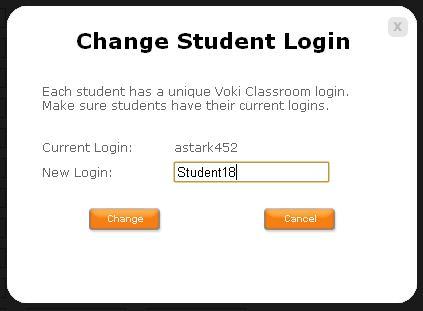
If you are a Voki Classroom user, you have probably already noticed the changes we implemented to make student logins much easier. Along with a simpler default username, Voki Classroom now allows you to edit your students’ login information as you or your school district deem most appropriate.
The new student logins are comprised of the student’s first name initial, last name, and 3 randomly generated numbers. If you do not want your students’ last names to appear or you would like to change any aspect of the username, go to your student roster and click the name in blue to edit.
Once you click the blue username, the ‘Change Student Login’ box will appear.
The rest is up to you! Once you enter the new login, click ‘Change’ and you are finished!
We hope you are pleased with this update. We are always eager to hear your your suggestions for Voki as we continue to improve your experience.
Should you have any questions, please leave a comment below and we will be happy to answer you, or email us at feedback@voki.com.
Are you looking to get the most human-like Voki voice possible? Why not try recording your own voice on your Voki? Recording your voice on Voki is fun and adds the dimension of hearing your (or a student’s) actual voice. Whether it will be used to practice public speaking, foreign language pronunciation, or to add a dramatic effect to an assignment, voice recording is an easy-to-use tool that can prove to be very useful for Voki lessons.
In our latest “Interview with Educators“, music teacher Lyndell Allen used a Voki voice recording to help create a fun, interactive environment in her music classes.
We have many lesson plans in the Voki Lesson Plan Database that make use of recorded voices, especially in public speaking, ESL, foreign language and arts classes. The ways of using Voki voice recordings are endless!
In order to get the most out of your voice recording experience, it is important to be prepared with the right tools. There are two ways you can record your voice. One option is to use a computer microphone (either internal or external), and the other is to use a phone. Below, we take you through the steps for using a microphone to record your voice on Voki. Get your microphones ready and your voices warmed up!
Voki Voice Recording with a Microphone
You will need:
1. A computer
2. A microphone that works with your computer
Steps:
1. If your computer does not have a built in microphone, plug in your external microphone to the computer.
2. Test to make sure the microphone is properly connected to your computer:
a. Go to My Computer
b. Click on Control Panel
c. Choose Sounds, Speech, and Audio Devices
d. Click Sounds and Audio Devices
e. Click the Voice tab
f. Under Voice Recording, click Test Hardware
If you have trouble setting up your microphone, ask your IT administrator.
3. Once your microphone is properly connected, you are set to use Voki voice recording.
6. Under the Give it a Voice section, click the microphone icon.
7. Choose “Allow” on the screen that pops up asking for Voki permission to access your microphone.
a. Starting with the first tab:
i. Make sure the box by “Enable Hardware Acceleration” is checked.
ii. “Allow” vhss-d.oddcast.com to access your camera and microphone.
iii. The local storage tab is set at default and should not be changed.
iv. Slide the record volume to max and check the box next to reduce echo.
8.Close the pop-up.
9. Prepare what you want to say and press Record.
10. When you have finished recording, press Stop.
11. Once you are happy with your recording, press Save and Name your audio file.
You will have 60 seconds to record your voice using Voki and 90 seconds with Voki Classroom. Don’t worry if you or your students don’t get it the first time. You can always try again until you are happy with you recording!
Tip: Your saved recordings are available by clicking the Folder icon under Give it a Voice.
Go ahead and try out Voki using a microphone to record your voice! If you have any great lesson ideas that use the voice recording function, please share it with us below in a comment or email to feedback@voki.com.
Have you ever made a Voki that you wanted to share with specific people (like a teacher, a student, parent, or a friend)? Do you have their e-mail address? If you answered “yes” to both questions, you are in luck!
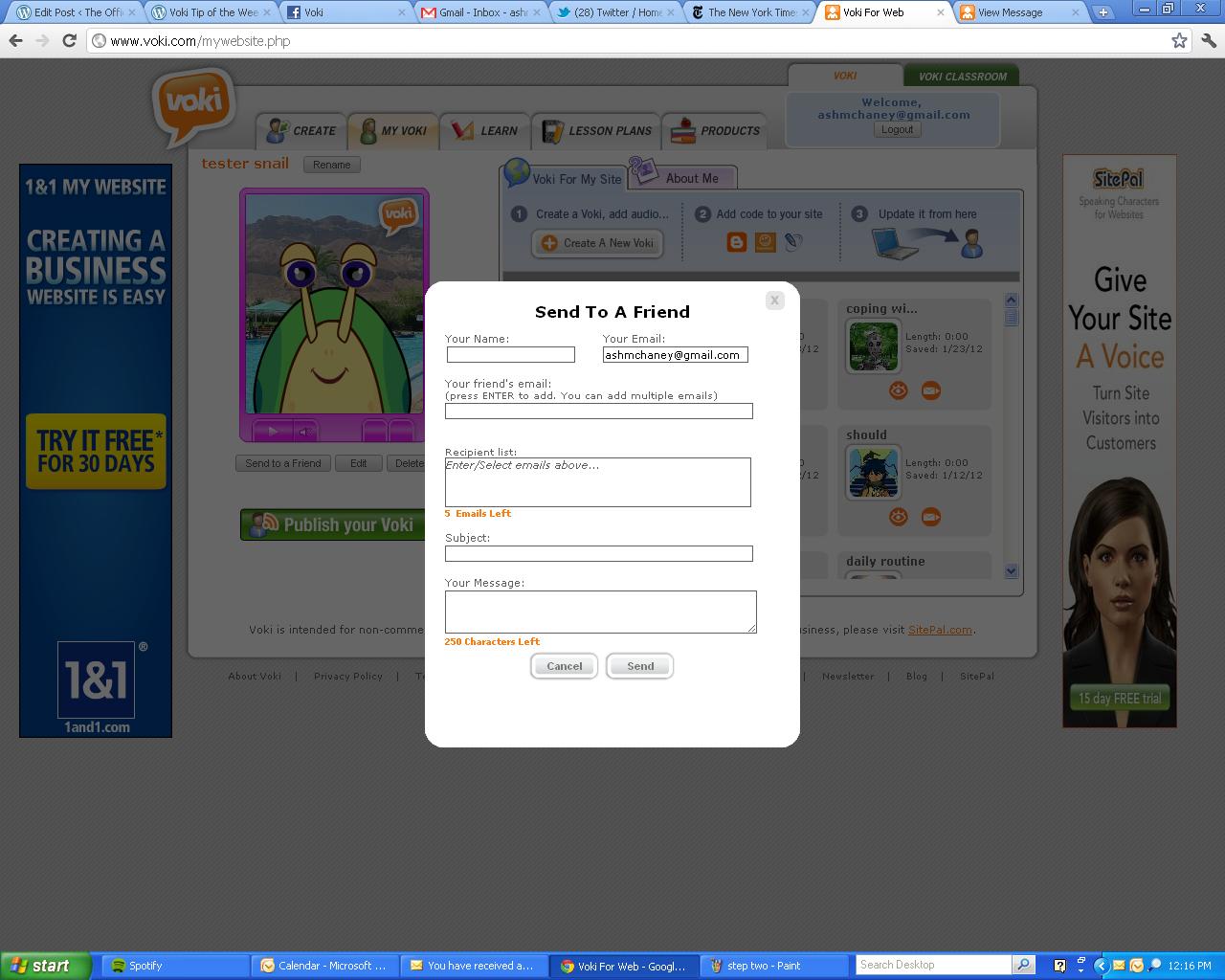
You can easily email a Voki to anyone using the Voki “Send to a Friend” option. Follow these simple steps and you will be able to correspond with people à la Voki.
1. Once you have saved your Voki, click the “Send to a Friend” button (under the Voki preview).
2. Enter the email to which you want to send the Voki and hit “Enter.” You can repeat this step to add up to 5 email addresses.
Tip: Make sure to enter an email Subject and a message.
3. Click “Send.”
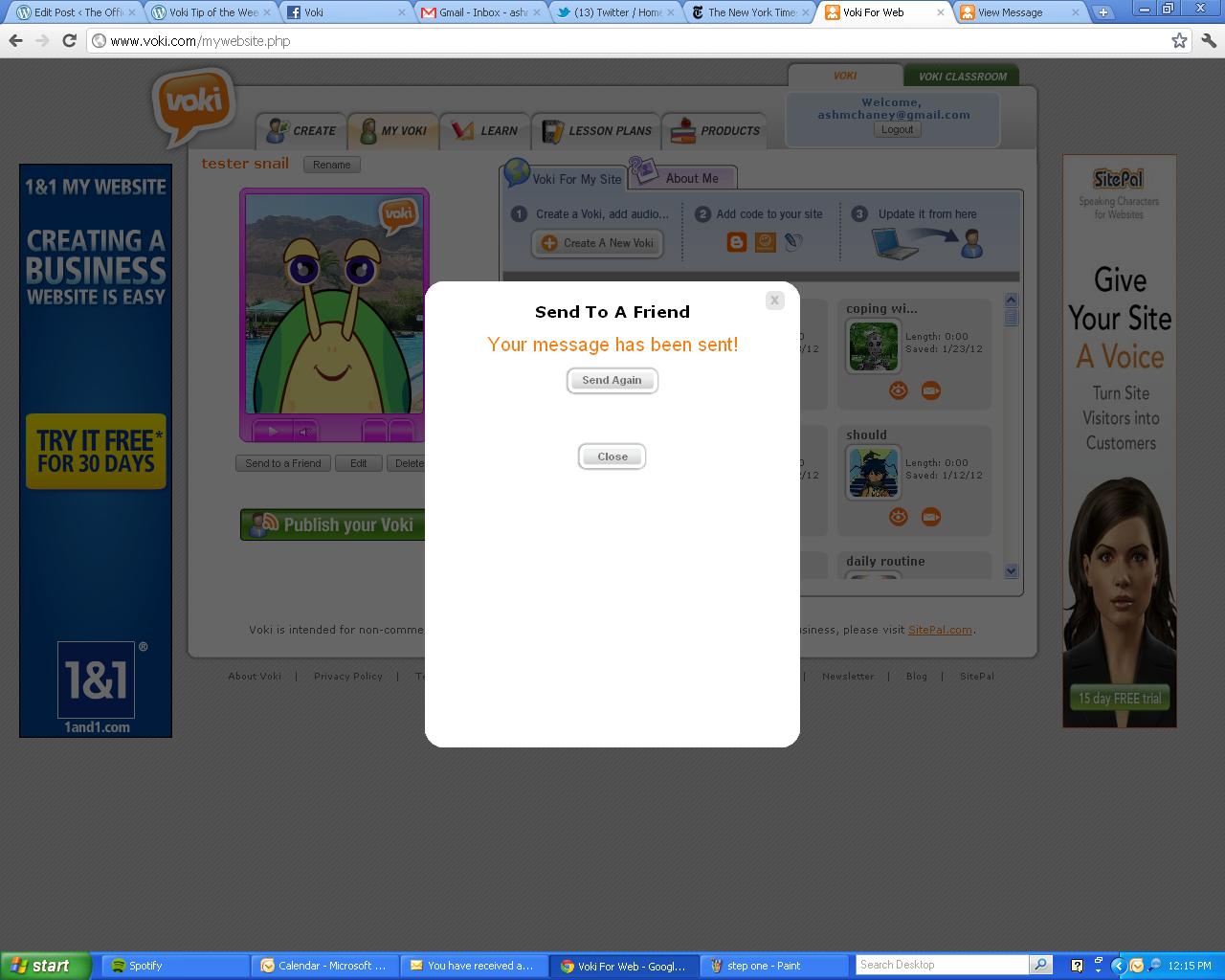
Step One: Enter Sender and Recipient InformationMessage Sent
Once your message has been sent, the recipient should receive your Voki immediately. The email that they receive will look like this:
Voki Email
Tip: To make sure you or your recipients receive Voki messages, ask them to add notifications@voki.com to their safe senders list.
When the email is opened, the recipient will be able to view your Voki and will also have the option to reply back with another Voki or forward it to someone else. They will also have the option of saving the Voki to their account.
Tip: Since you can save an emailed Voki to your account, this is also a way to Copy a Voki (just email it to yourself!)!
Recipient Voki View
Have fun using Voki and sharing with your friends! We hope this clears up any confusion you may have had about how to send Voki through e-mail. If you have any questions about this process, leave a comment below and we will be happy to answer you!
Question: I noticed the nifty avatar on your blog. How do I make Voki appear as a widget on the sidebar of my WordPress blog??
Answer:There are a few ways to do it. In this post, we’re going to walk you through one of the easier ways. Below, we show you the easiest way to make your Voki widget work without using a third-party. You’re only minutes away from having a Voki greeting on your WP homepage, ready to greet your readers!
Using Voki’s Embed Code
1. Open a Word document or other text editor.
2. Log in to Voki and WordPress.
3. In WordPress, go to the “Appearance” tab, and select the “Widgets” option.
4. Look at your widget options. Choose the “Text” widget and drag it to the sidebar display of your choice.
5. Now, in My Voki, select your Voki of choice, and click “Publish your Voki.”
6. Copy the entire embed code.
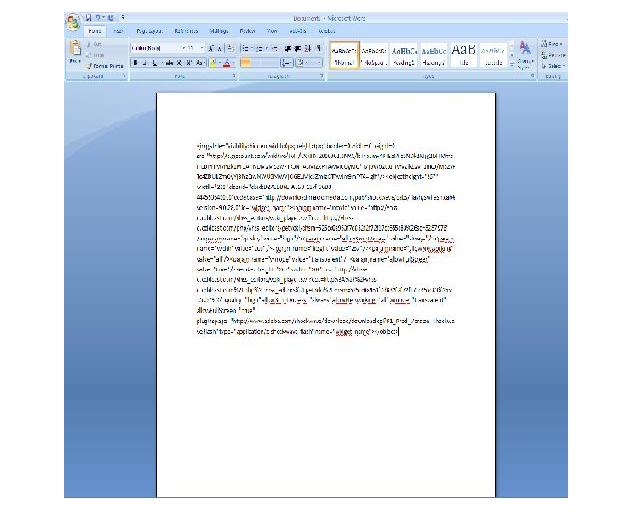
7. Paste the code in your open Word document.
Okay! Good job, we have made it this far. Let’s pat ourselves on the back and take a couple of breaths before we move forward. Inhale, exhale. Inhale, exhale…
Almost there! Now for the finishing touches…
8. In the Word doc, highlight the source code, or “src” code. This can be found by locating src= and highlighting the hyperlink that is in between the quotation marks (it’s a pretty long link, so make sure you copy everything in between the quotation marks). See the example below.
9. To make sure you copied the link correctly, paste the highlighted link into your internet browser (but not this window or tab!) and press Enter. Your Voki should appear on the page in full screen (pretty cool!).
10. Paste the long link you highlighted in the code below, where it says [YOUR-CODE] (make sure the brackets come out, and the quotes remain):
***Text version of the code can be found in the comments section towards the end.***
11. Copy and Paste your new embed code from the Word doc, into the WordPress Text box (and click Save).
12. Check out your blog! Your Voki should be happy to greet you!
TIP: If you don’t see the Voki, and you’re certain you followed the steps correctly, try clearing your browser’s cookies and cache, and reopening the page.
For those of you with WordPress blogs, we hope this helps you out! If you know of an (even) easier way to make Voki work with WordPress, please share it with us below in a comment!
And, if you have any ideas for future Voki Tip of the Week posts, feel free to share them below, and we’ll add them to the list!
We are always impressed to see what educators and students can come up with using Voki. The year 2011 was a good one for Voki as was apparent through the emergence of class videos demonstrating Voki in action, well developed instructional videos for newbies, great lesson plans coming from all over the world, and so much more!
We decided to collect our favorite ways of using Voki here for all to see. Please browse through the list to learn more about Voki and how teachers from around the world use it to make class a virtual blast! Hopefully you will be inspired to come up with other ways to make Voki a part of your class. Below is a short list of some of our favorites but believe us, there are so many more out there!
Thanks to all who made this list possible and to everyone that has made Voki a part of their classroom! We look forward to the new year and to hear back from you about the fun and innovative ways you use Voki in your lessons. Who knows? You and your students may find yourselves and your Vokis on our blog!
Happy New Year to all! May your 2012 be filled with happiness, gratitude, and new experiences!
If you’ve ever wanted to view a Voki in full-screen mode, there is a really neat trick we’d like to share with you. This can be useful for presentations, for those who are visually impaired, and just as a cool trick that you can teach others.
Follow the steps below to make your Voki full screen!
Note: The code may look overwhelming but if you follow these steps, playing your Voki in full screen will be a breeze.
In My Voki, click on the Voki you want to display.
Click the ‘Publish’ button.
Copy the embed code and Paste into any word processing document.
Now, here’s the fun challenge… You need to be a little bit of a sleuth and pick out the right part of the code: Tip: This is a great student exercise in attention to detail.
A few lines from the bottom of the code, you should see a URL (http://) in quotes






 The Voki Blog - Expanding Education