Tip of the Week: Vocabulary Rundown with Voki

Tip of the Week: Vocabulary Rundown with Voki

Summer is in full swing! But it doesn’t hurt to prepare to the new school year! This activity is great for language classes. Here’s what you can do:

Students can create two Vokis with the vocabulary word that they need to know for the week. Ask them create 2 Vokis: one Voki with just the words (it can be 5 or more!) and one Voki with the words AND their definitions. They can use the Vokis to test and practice for the next quiz!

Check out the examples below and see if you got all the definitions correct:

Have questions, comments, or feedback? Send an email to feedback@voki.com!

Until next time,

The Voki Team

Voki Presenter: Future Updates

Voki Presenter: Future Updates

We’ve been continuing adding new features to Voki Presenter. The good news is… we’ve got more updates rolling in and we think you are going to love it! We wanted to share with you a few features that will be added to Voki Presenter. These include:

New sharing options for Presentations

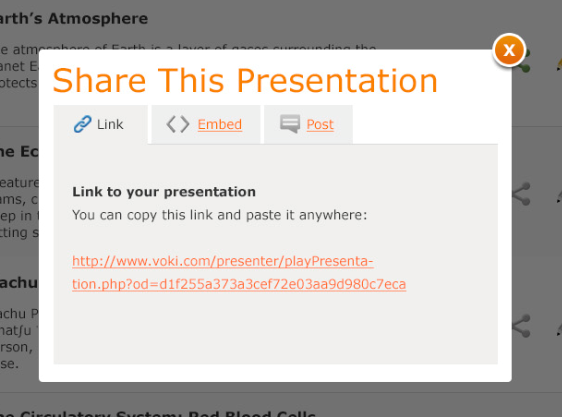
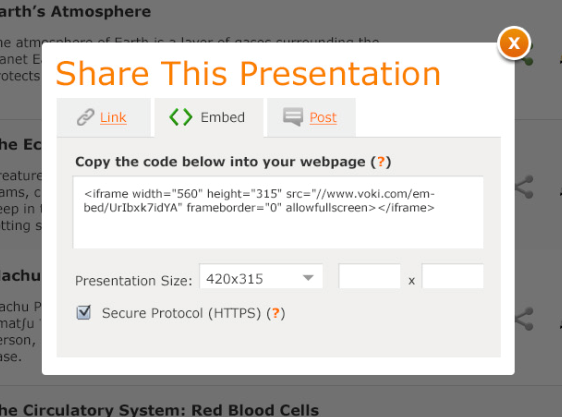
We will be implementing a new sharing option for Voki Presenter. With the new sharing option, teachers can do the following:

  • Share a link

Share1

  • Embed the Presentation on a school site or blog

Share2

  • Post/share on your favorite social networking site

Share3

Add videos and images to slides

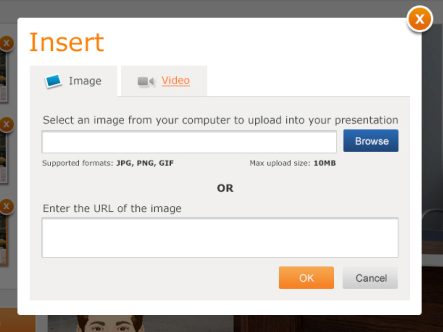
A lot of teacher requested this amazing feature. We will be adding a new feature to the Presentation Editor: adding pictures and videos to slides! Voki Presenter users can upload images and videos from their computer or copy and paste the URL or embed code!

  • Adding images to slides

Adding1

  • Adding videos to slides

Adding2

Students to create their own Voki Presentation

Currently, Voki Presenter currently allows teachers to create their own presentation. With the next update, teachers using Voki Classroom will have the option to assign Voki Presenter as a Student Assignment!

We hope you will enjoy these new features on Voki Presenter! We’d love to hear your thoughts on the current Voki Presenter!

Just send a note to feedback@voki.com!

Until next time,

The Voki Team

Interview with Educators | James Covais

Interview with Educators | James Covais

1. Tell us a little about yourself:JamesCovais

My name is James Covais. I’m an Instructional Technology Resource Teacher (ITRT) in Henrico County, VA, USA. I’ve been a Voki user since 2011.

I love using new technology along with 21st century skills to help students learn and grow. My time is spent conferencing with teachers and developing lessons that engage students.

Technology helps facilitate student engagement and brings authentic tasks to the classroom. Technology is not the answer to teaching; rather technology is an extremely useful tool when it is combined with outstanding teaching.

2.What are your goals using Voki?

My goal is to use Voki as a tool to help students with their literacy journey. I think many people see Voki as just a presentation tool. Voki is also a wonderful tool that should be incorporated into the writing process.

3. How do you use Voki?

I use Voki with my teachers and students as a tool to help with the writing process. Students write their sentences in a separate word processing app. When the students are finished writing they copy and paste their sentences into the Voki website. The students are able to hear their sentences and evaluate. One class we were working on adjectives. One student thought their sentence was wonderful and then copied the sentence into the Voki website. When this student heard their sentence I heard, “Wow I need more adjectives.” That was so awesome to hear. Without the Voki website I don’t think we would have had that breakthrough.

4. What are your 3 favorite things about Voki?

  •  I love how there are so many free characters to choose from.
  • I love all the different voices and accents.
  • I love that there is an option to type and not just speak (and the typed words are read back accurately!)

5. What would you add to the Voki product?

I think it would be awesome if we were able to download the finished Voki and save it locally to the hard drive. Sometimes the Internet moves slowly and the Voki may take a little bit to load. I don’t know if that is possible but that is just a wish.
6. Do you have any Voki tricks up your sleeve?

I don’t have any Voki tricks up my sleeve, but I would love to know some!

____________________________________________________________

Connect with James via Twitter: @CovaisTech

Follow his blog here: http://blogs.henrico.k12.va.us/jpcovais/

Want to be interviewed for the Voki blog? Send us an email at submit@voki.com!

Until next time,

The Voki Team


Voki July Summer Special 2014

Voki July Summer Special 2014

You’ve got one more month to take advantage of Voki’s Summer Special! July is your last chance to receive a FREE month with your 1 or 2 year Voki Classroom, Voki Presenter, or Bundle subscription.

With the extra month, you can get your beach towels and sunglasses ready for some summer fun!

Summer Special

To receive your free month with your Voki Classroom and/or Voki Presenter subscription, all you need to do is sign up! We will take care of the rest.

Enjoy your vacation and we hope to see you soon!

Until Next Time,

The Voki Team

All New Voki Presenter Tutorial

All New Voki Presenter Tutorial

Q: Do you have video tutorials on how to get started with Voki Presenter?

Yes! We have tutorials to help Voki Presenter users get started! These new tutorials (or lessons) will show Voki Presenter users how to create new Voki Presentations and add Vokis into their new Presentations.

Lesson 1 – Introducing Voki Presenter

In the first Voki Presenter lesson, will provide you with a general overview of Voki Presenter. There are three main sections in Voki Presenter: Presentations, Support section, and Account Management section.

Lesson 2 – Creating Presentations

In this Voki Presenter lesson, we will show you how to create and edit a presentation. With Voki Presenter, you can add a Voki, text, and background to your slides!

Stay tuned! There are more tutorials to come!

Until next time,

The Voki Team

Voki Summer Specials are BACK!

Voki Summer Specials are BACK!

Summer will be here soon and our Summer Specials are BACK! That’s right! Starting in June through the end of July, you will receive FREE extra months when you buy a 1 or 2 year Voki Classroom,  Voki Presenter, or the Bundle subscription. This special is also great for teachers who are new to Voki Classroom and Voki Presenter and need some time to “play around” before school starts!

Summer Special


  • June Special – 2 extra months
  • July Special – 1 extra month


To take advantage of this Summer Special, please visit the Pricing page and sign up.

Have a great summer vacation!

Until next time,

The Voki Team

Voki Tip of the Week: News Report with Voki

Voki Tip of the Week: News Report with Voki

Looking for a fun way to get your students more involved in class? You can ask them to create a weekly class news report as if they are the newsreader. Each child can take turns in being the newsreader. The news report can be about the upcoming class trip or important test, this week’s weather condition, and anything other important class or school news!

Check out an example here:

Have any feedback, comments, or questions for Voki? Send us an email at feedback@voki.com!

Until next time,

The Voki Team


All New Voki Classroom Tutorials

All New Voki Classroom Tutorials

Q: I am having trouble with Voki Classroom. Do you have any video tutorials for Voki Classroom users?

We do now! We recently created new tutorials to help Voki Classroom users get started! These new tutorials (or lessons) go over the different sections in Voki Classroom and show users how they can add students, create classes and assignments, configure assignments, and review Students’ works.

Lesson 1 – Introduction to Voki Classroom

This first Voki Classroom lesson will provide you with a general overview of Voki Classroom. There are three main sections in Voki Classroom: Students, Classes, and Review. And there are also a Support section, and an Account Management section.

Lesson 2 – Creating Classes and Adding Students

This is the second Voki Classroom lesson. In this lesson, we will introduce two different ways to add students to your account: add each student or upload a list of students. Then, we will show you how to create a class and assign your students to a class.


Lesson 3 – Creating and Configuring Assignments

In the third Voki Classroom lesson, we will show you how to create and configure assignments. Each of your Assignment automatically generates its Assignment Page, where you can showcase your students’ work.

Lesson 4 – Reviewing Student Vokis

The fourth Voki Classroom lesson will show you how to review and approve your Students’ work.  You can view all Students’ work on the Review page.

Hope you enjoy the tutorials! Stay tuned for more tutorials!

Until next time,
The Voki Team

Interview with Educators | Andrew Jenkins

Interview with Educators | Andrew Jenkins

We bring you a wonderful interview with Andrew Jenkins! He is a Technology Teacher in Ohio.

Continue reading for Andrew’s interview! Or if you prefer, listen to his Voki:


ajenkins_2013-141. Tell us a little about yourself:

Hello there I am Andrew Jenkins, a Technology Teacher at Willetts Middle School in Brunswick Ohio, USA and I have been using Voki since 2010 as far as I can tell from my oldest created voki.

2. What are your goals using Voki?

To enhance instruction as well as increase student differentiation.

 3. How do you use Voki?

Voki is a tool that enhances the instructions for my online assignments in Moodle allowing me to give verbal instructions for any students that needs it via a Voki Avatar.

 4. What are your 3 favorite things about Voki?

  • I can use it in my class
  • Students can use it
  • It is versatile for posting elsewhere

5. What would you add to the Voki product?

A few things:

  • the ability to “make a copy” of an avatar to use over an over…like the one I make of myself
  • an app or easy way to create using an iPad or other iDevices
  • a way to save/export as a movie type file to embed into various presentation options

6. Do you have any Voki tricks up your sleeve?

I would say when I create an avatar very similar to myself, the students are impressed.

Using Moodle as a central posting place allows me to have students post in an assignment and then other students can view each other’s work.  And often I have them then create a Voki to post as a response to their peer’s work.


____________________________________________________________

Follow Andrew on Twitter: @allthejenkins

Want to be interviewed for the Voki blog? Send us an email at submit@voki.com!

Until next time,

The Voki Team

The Voki Presenter User Guide

The Voki Presenter User Guide

Do you need some help getting started with your Voki Presenter account? We provide Voki Presenter users with two guides:

If you have questions about Voki Presenter, The Voki Presenter User Guide probably has the answer! The Voki Presenter User Guide provides Voki Presenter users with in-depth information. It is divided into three parts and it takes you on a tour from initial set-up to sharing your Voki presentation. (For a shorter guide, take a look at the Voki Presenter Getting Started Guide.)


Preface

Part I

What is Voki Presenter? Why should teachers use it? What can I do with Voki Presenter? How do I get started? All of the questions above are answered in Part I, accompanied by visuals and information to help distinguish the difference between our Voki, Voki Classroom and Voki Presenter.

Here is everything you need to know about how to get started with Voki Presenter.  You will learn about the interface, as well as how to use some of the available tools to make logging in quick and easy.

As a Voki Presenter user, you are able to get unlimited e-mail support from our dedicated Support team (only available to Voki Presenter users). By taking advantage of the support tab in Voki Presenter, you won’t have to wait to get the answers you need. One of our support representatives will get back to you promptly with an answer!

Part II

Next up is everything you need to know about using Voki Presenter. Here, you will learn how to create your very first presentation and how to edit the presentation. Part II takes provides you with step by step on how to get your first presentation set up and how to share and present it!

2

Part III

Last but not least, our guide takes you through the process of using the Voki Presenter editor. The Voki Presenter editor is where you create actual presentations by adding Vokis, text, and images.

One of the advantages of using Voki Presenter is that you no longer need to go through the tedious process of adding a Voki to your presentation. (If you want to know, take a look at this post here.) The guide will show you how to do all this, as well as other tricks, such as duplicating your slide and Vokis.

Voki Presenter is easy and fun but if you have any questions, keep in mind that you have the Voki Presenter User Guide and unlimited e-mail support to help you out.

To view the Voki Presenter User Guide, visit Voki.com and click on the Learn tab. There, you will find the User Guide among many other useful tools to help you get the most out of your Voki experience.

Until next time,

The Voki Team