Voki Tip of the Week: Voki Class Mascot

Voki Tip of the Week: Voki Class Mascot

Before a class start, why not have a Voki talk about the weather or the activities that they will do in class? Create a Voki mascot for your class that greets them as they enter class. What’s even more fun? Have your students create their own mascot and have the class pick the best one! The winner becomes the class mascot for the year!

Check out this mascot:


Do you have any questions, comments, or feedback for Voki? Feel free to send it to feedback@voki.com.

Until next time,

The Voki Team

Voki Tip of the Week: Voki Journal

Voki Tip of the Week: Voki Journal

Want your students to keep a journal for class? Make it fun by having them create their journals with Voki by recording their own voices. Then you can embed all the characters on your class blog or class site! Encourage them to write about their day, what they learned in class, and what they saw on the way home!

Check out an example here:

Have a question, feedback, or comment for Voki? Send an email to feedback@voki.com!

Until next time,

The Voki Team

Guest Blogger: Nancy Hniedziejko

Guest Blogger: Nancy Hniedziejko

Nancy Hniedziejko, M.Ed.

Library Media Specialist

Myers Elementary School

School District of Cheltenham Township, PA

nancy.hniedziejko@gmail.com

@nancyteaches


After a six week course of study on Digital Citizenship, I was looking for a culminating activity for my third graders.  Quite accidentally, I found Voki.  I’m a teacher/librarian who relies upon my PLN (Personal Learning Network) on Twitter, and I saw a few tweets about Voki and I began to explore. I was quickly intrigued.

While I had seen a number of ways to create avatars, I had never seen one that included not only a voice feature, but an abundance of creative choices.  I knew I had to find a way to include this in my library.  I began by setting up a free account.  Then, I tried to make a Voki that looked like me.  I was thrilled by the feature that used my cell phone so I could record my own voice.  Each step of the way was so user friendly.  My Voki told the students about the genre of the month after I easily copied the embedded code onto my library website.

When my third graders arrived for their weekly library lesson, I showed them the Voki on our library website.  They loved it.  When I told them they would be creating their own Vokis… well, let’s just say the enthusiasm included applause and high-fives.  In our district, the students all have a standard user name and password.  Prior to each class arriving, I had created Voki accounts for each student using the Voki Classroom feature.  This was a huge time saver.  It didn’t take too long and it insured that each student had an account with their correct user name and password.

Once I showed them how to navigate to Voki using our library Symbaloo (an exceptional time saver), I created another Voki. I showed them how to choose a character style, and the multitude of customization features as well as the background and player features.  (The bling was a huge hit!) One of the areas I didn’t stress strongly enough with the first group of third graders was the importance of saving their creations.  Luckily, as a librarian I get to try each lesson three times.  With each subsequent group, I modeled this vital step.

During this first introductory lesson, my goals for the students were to log on, create a Voki, enter text to make it talk, and save it.  When the students returned the next week and logged on, they found the assignment I created.  Not only does Voki have a place for teachers to share lessons, but you can create assignments for your students.  Each third grader was required to describe what being a good digital citizen meant.  Since we are always running short on time, creating the Voki the first week and focusing on the content the second week, made it much easier for the students.

Another great feature in the Voki Classroom is that the teacher can approve, disapprove and leave comments for the students.  Once I approved their Vokis, my next step was sharing. While each lesson automatically creates its own Web page, where you can showcase your students’ work, I wanted all of the students in the school to be able to view the Vokis through my library website.  When I clicked on the publish feature, I discovered that Voki had a feature for sharing the link on Symbaloo.  As mentioned earlier, Symbaloo is a great time saver if you are looking to save all of your links in one place.  I created a Symbaloo webmix that shared all of the third grade Vokis.  Now, everyone (including parents) could view the Vokis.  It didn’t take too long to copy/paste the Symbaloo Voki link for each link.  It was worth the time and effort.

As a library media specialist, I’m always looking for ways to excite my students about technology in a meaningful way.  Using the Voki as a culminating activity for our unit on Digital Citizenship was not only exciting and fun, it was meaningful.  It meshed different apps, typing skills, writing skills, summarizing skills and creativity.  An added bonus was when the teachers found out what the students were creating, they wanted to set up accounts and use Vokis in their classrooms.

News Flash: Use Voki on Apple and Android Devices!

News Flash: Use Voki on Apple and Android Devices!

Here at Voki, we are constantly looking for ways to improve the way students and teachers use Voki! Today, we have very great news for you! Voki users can now access the Voki site with Puffin Academy! Puffin Academy is designed for K12 kids and teens. It’s a free app and can access approved educational web sites.

What’s even better? It’s available on Apple AND Android devices! Download it here:

itunes button google button

Follow these instructions once you downloaded the app:

1. Open Puffin Academy app on your mobile device.

PuffinAcademy
2. Search for Voki.

photo2
3. Click Go.

photo

As an alternative to Puffin Academy, Voki users can also download the free Puffin Browser here:

itunes button google button

1. Open the free Puffin Browser on your mobile device.

PuffinBrowser
2. Go to www.voki.com.

photo3

Note: Although the free Puffin Browser allows users to access any website, this browser may contain contents that are unsuitable for younger students. We highly recommend teachers and parents use Puffin Academy instead.

What are you waiting for? Download the app today and start creating your Voki!

If you have questions, comments, or feedbacks for Voki, please send an email to email to feedback@voki.com!

Until next time,

The Voki Team

New Voki Presenter Feature: Duplicating Scenes and Presentations

New Voki Presenter Feature: Duplicating Scenes and Presentations

Voki Presenter is constantly improving thanks to your feedback! Since the launch of Voki Presenter, many teachers asked us to add the ability to duplicate scenes and presentations. So, we have worked hard to implement this new feature and we’re happy to announce this feature is now available!

To duplicate an existing presentation:

1. Click Create New.

Create

2. Select Duplicate Presentation and select the presentation you want to duplicate.

Duplicate

3. Give the presentation a new name and a new description.

name

4. Click OK.

To duplicate an existing scene:

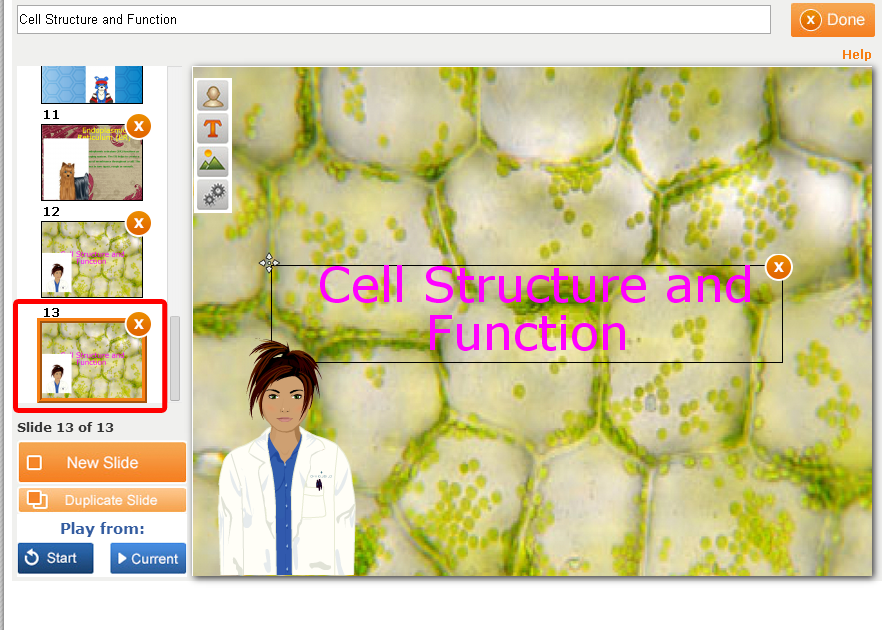
1. With the Presentation Editor open, select the slide you want to duplicate.

Editor

2. Click on Duplicate Slide.

Duplicate

3. The duplicated slide will be added to the end of your slide list.

Duplicate

We hope you are pleased with this update! We are always eager to hear your suggestions for Voki as we continue to improve your experience.

If you have any feedback, comments, or suggestion for Voki, send us an email at feedback@voki.com!

Until next time,

The Voki Team


Tip of the Week: Voki activation emails

Tip of the Week: Voki activation emails

Are you not receiving your activation emails after you signed up for your Voki account? Activation emails are sent immediately after you signed up for an account. Make sure that “notifications@voki.com” is in your safe senders list. This will ensure that you receive the email notification you need.

So if you’re still not receiving your activation emails, here’s what you can do:

  1. Activation emails may be stuck in your junk/spam box. Double check your junk/spam box to see if your activation email is there.
  2. If you are using your school email, your school filter may have blocked your activation email from arriving. So talk to your IT department about allowing Voki emails to go through.

Have any questions, comments, or feedback? Email them to feedback@voki.com!

Until next time,

The Voki Team

Introducing Voki Presenter

Introducing Voki Presenter

As all Voki fans know, the Voki worked hard on this secret project for the last few months, which we can finally introduce!

So without further ado…

Introducing: Voki Presenter

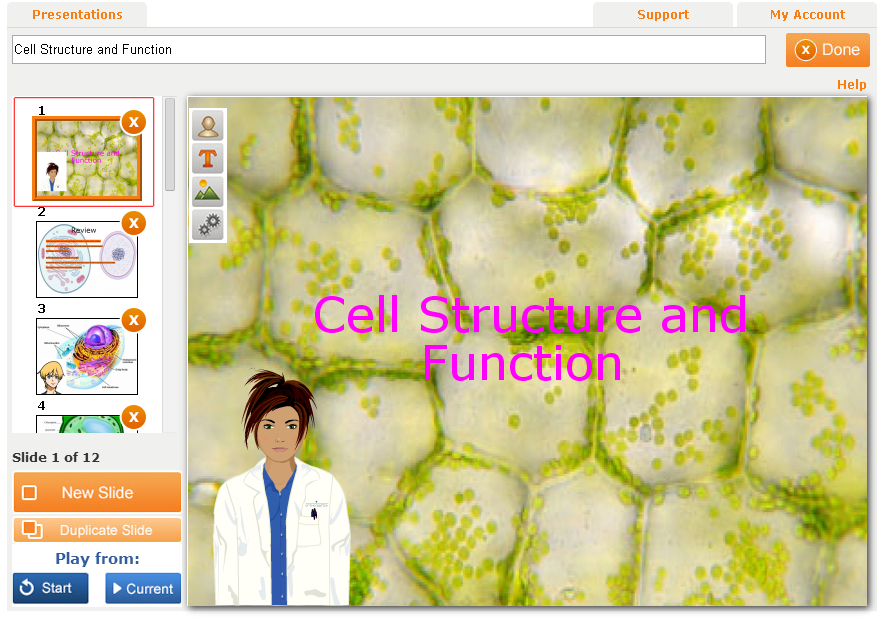
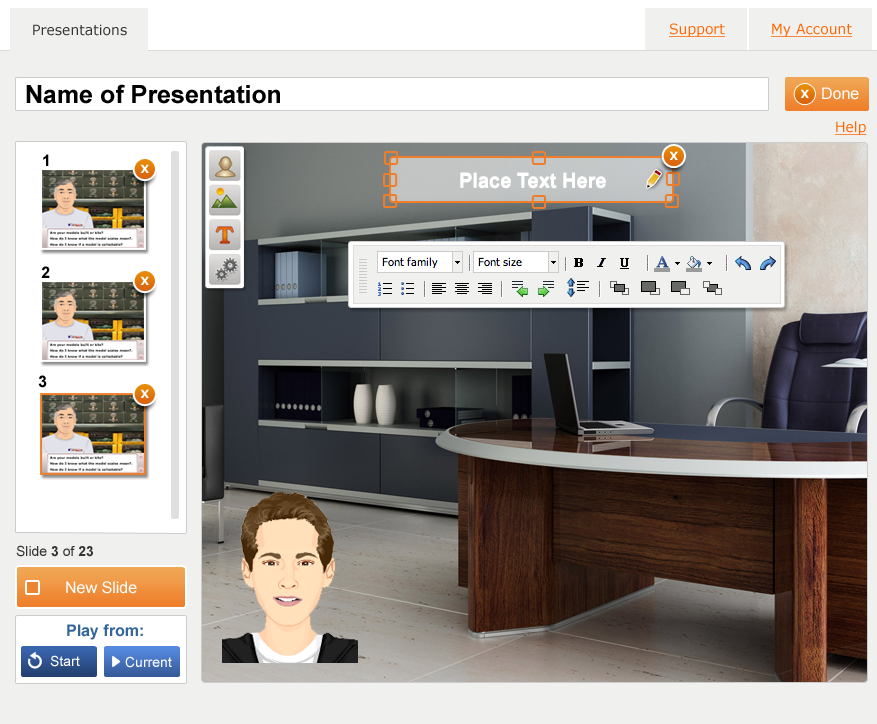
Voki Presenter is a presentation tool for Voki. Voki Presenter helps make your lessons and presentations educational, engaging and entertaining. Voki Presenter is designed to enhance the way you use Voki in your classroom, and the way you teach and engage your students in your lessons.

Let’s take a look at the main features of Voki Presenter.

Voki Presenter key features include:

  • Create Presentations. Start a new presentation or duplicate existing one. You can add as many slides as you like. There’s no limit!2
  • Add Vokis. Add your favorite Voki to your slides. Now your Voki can be your personal teaching assistant.1
  • Unlimited Audio. Your Voki can say as much as they want. Queue up their speech with different slides. Perfect for reciting a passage or engaging in conversations.
  • Share. Student missed a class? No problem. Share the presentation with them to get caught up. Why stop there? Share it with parents and other teachers!
  • Easy Access. All your presentations are stored on the cloud. Play it anywhere, at any time.

For more information on Voki Presenter, please visit the Products page.

Until next time,

The Voki Team

Voki Tip of the Week: Voki Quiz

Voki Tip of the Week: Voki Quiz

Spice up your quizzes with a Voki character!

Create a character and record some questions. Ask the children to write down their answers to those questions. When they finish writing, they can read aloud their answers. When they all finish speaking, let the Voki character speak and check who has the right answers!

Check out an example below:

If you have any feedback, comments, or suggestion for Voki, send us an email at feedback@voki.com!

Until next time,

The Voki Team

Interview with Educators | Joseph Romano

Interview with Educators | Joseph Romano

Joseph

We bring you a wonderful interview with Joseph Romano this month! So, without further ado, take it away, Joseph!

1.   Tell us a little about yourself: 

At the Toronto District School Board (TDSB), Joseph Romano (OCT, MEd, BEd, BFA) works as an ICT Lead Teacher & Position of Responsibility (POR) in the development and implementation of technology-driven teaching and learning. He support teachers and students in their building of capacity related to 21st Century skills, specifically focusing on nurturing the development of Communication, Collaboration, Creation and Critical Thinking (4 Cs).

As the Founder, Learning Strategist and Researcher at Classpace (www.classpace.ca), Joseph is currently continuing his research on Virtual World Pedagogy (#VWP). Working as a consultant and learning strategist, he is focusing on the transition from conventional spaces and practices of teaching and learning towards contemporary, digitally enriched collaborative experiences.

Joseph also works as an EdTech Advisor at MaRS, in Toronto’s Discovery District, in support of education-related startup companies and innovators. He supports these stakeholders by consulting on relevant educational practices and how their product/service may fit within that framework. Further, Joseph offers pedagogically-focused advice, driven by his #VWP Research, related to product/service impact on teaching and learning.

Joseph has been using Voki for 6 years, but more intensely this past school year.

2.   What are your goals using Voki?

In using Voki, my goals are to differentiate instruction by offering Students yet another mode in which they can express their learning and share their knowledge. We work in an environment that celebrates inquiry, Project Based Learning (PBL) and the 4Cs (Communication, Collaboration, Creation, & Critical Thinking) – through this, Students are invited to collaborate with one another in creation of a communication artifact (their Voki) that stands as an illustration of their learning.

3. How do you use Voki?

Voki is used in my Learning Space as a piece that integrates with our assignments, rather than just an extension. Voki has become a way we share what we know, rather than an aside or addition to what is already happening in our Teaching and Learning.

Our Students typically work in pairs and/or small groups to develop their Vokis. They collaborate first in person, then blend their learning in the digital environment by crafting and drafting writing in a Google Doc that is shared with me. We work together through the writing process, their apply our text to the Voki. Students focus on the meaning their Voki is meant to evoke and the audience whom will view the piece after. They craft their Voki’s appearance on this, as well as their text.

In sharing our pieces through our classes (within our internal class ICT Websites), in our Media Lab, as well as on Twitter and other online spaces, we interact with stakeholders who otherwise would not be a part of our Learning Space – a great benefit Voki offers in our exploration of Communication.

4. What are your 3 favorite things about Voki?

In thinking about my 3 favorite things about Voki, I immediately think of:

  • Ease of Use: Within minutes, Student can understand the use and basic features of Voki – they are able to navigate the online environment with ease, making creating their Voki not only simple, but also Fun!
  • Visual Impact & Engagement: the avatars are visually appealing and interactive, they immediately draw a viewer in – Students are able to customize the “look” and “sound” of their Voki, truly crafting it for the purpose in which it will used within
  • Variety of Sharing Options: as with many classes who employ a 21C framework, we are constantly sharing and engaging with Stakeholders outside of our classroom walls – with this, we appreciate the ability to not only Tweet out and email links, but to also be able to embed our work in any of the Web Spaces we manage!


5. What would you add to the Voki product?

In thinking about what I would add Voki, I immediately think of:

  • Search Feature“My Voki”: developing a “Search Feature” that allows one to easily find a Voki saved in their “My Voki” list, by name, date, length and so on
  • iOS App it would be interesting to see how integrating Voki within a mobile platform would allow this learning to happen outside of the conventional “Computer Lab”, within real-world context(s)


6. Do you have any Voki tricks up your sleeve?

We have used Vine to record our Vokis in the context of discussion, to showcase a variety of Voki works (from a variety of Students). This has worked to show quick features and elements from a variety of Learners!

____________________________________________________________

Connect with Joseph via Twitter: @RomanoJ & @Classpace, via LinkedInhttp://goo.gl/ntjqS and via email: Joseph.Romano@classpace.ca

Want to be interviewed for the Voki blog? Send us an email at submit@voki.com!

Until next time,

The Voki Team

Voki Tip of the Week: Voki on Wikispace

Voki Tip of the Week: Voki on Wikispace

Do you have a Wikispace? We know that a lot of teachers use Wikispace for their class website and some are having problems embedding a Voki on their page. So let’s take a look at how you can do it:

1. Go on www.voki.com.

2. Create your Voki and Publish.

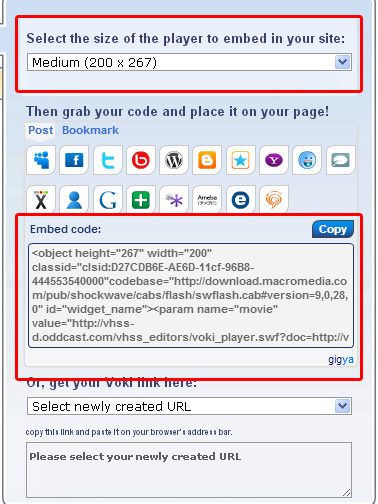
3. Select the size for your Voki and copy the embed code.

Wiki1

4. Log in to your WikiSpace account and click on Edit.

wiki2

5. Click on Widget.

wiki3

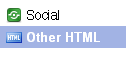
6. Click on Other HTML.

wiki4

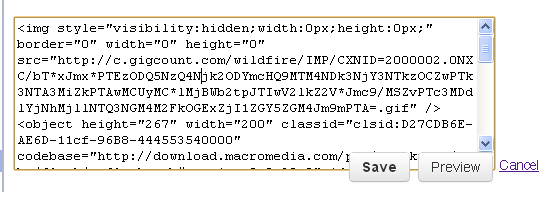
7. Paste your Voki’s embed code into the box.

wiki5

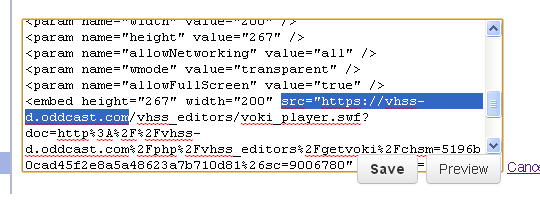
8. Find src=”http://vhss-d.oddcast.com within the code.

9. Add “s” after http.

wiki6

10. Click on Save and your Voki will appear!

wiki7

If you have any feedback, comments, or suggestion for Voki, send us an email at feedback@voki.com!

Until next time,

The Voki Team