Voki Tip of the Week: Printing out Voki

Voki Tip of the Week: Printing out Voki

We hope that everyone is having a great summer vacation so far! Whether you are swimming in the pool or resting in an air-conditioned room, it’s never too late to think about how to decorate your classroom this year! So why not show off your Voki creations by printing them out? Check out the directions below for printing your Vokis out on a PC or Mac.

  1. Go to www.Voki.com and create your Voki.
  2. Click the Publish button.
  3. Click the drop down menu and select Large. Then select, Standard Voki link to get the URL.
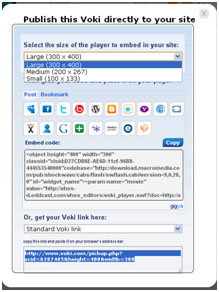
 

  1. Copy and paste the URL into the address bar. Now you have a bigger Voki on your screen!
  2. Click the Print Screen button on your keyboard.
  1. Open Paint and paste the screen shot.

Now you can crop or resize the picture.

For Mac users: You can capture the screenshot by holding down Apple key + Shift + 4A cropping tool will appear and you can select the area you would like to capture. The picture will be saved on your desktop!

Just hit Print and you can hang up your Voki! Isn’t that easy?

Can you spot my Vokis on the wall?


 Until next time,

The Voki Team

Voki Tip of the Week: Summertime Fun with Voki Classroom

Voki Tip of the Week: Summertime Fun with Voki Classroom

Summer is full of savings for Voki Classroom!

We hope that you’ll take advantage of our Voki Classroom July Special.

What’s so special about this July Special? Those who purchase a Voki Classroom subscription will get 1 extra month FREE! With this summer special, you can be prepared when the upcoming school year start.

To sign up for the Voki Classroom Summer Special, you just need purchase a 1 or 2 year Voki Classroom subscription. It’s that easy!

So what are you waiting for? Let’s sign up and get a jump start on the school year!

Until Next Time,

The Voki Team


Voki Tip of the Week: A Friendly Summer Hello

Voki Tip of the Week: A Friendly Summer Hello

Share a bit of love and care during the summer months by sending your students a Voki summer greeting! With a simple Voki, you can let your students know that you care for them outside of the classroom! You don’t have to make this educational or formal-Summer Vokis are for spreading smiles and creating bonds! Check out our examples below and start sending your summer Vokis today!

Until Next Time,

The Voki Team

Voki Tip of the Week: Find the Embed Code on Voki Classroom

Voki Tip of the Week: Find the Embed Code on Voki Classroom

Q. How do I get embed code for student Voki’s on Voki Classroom?

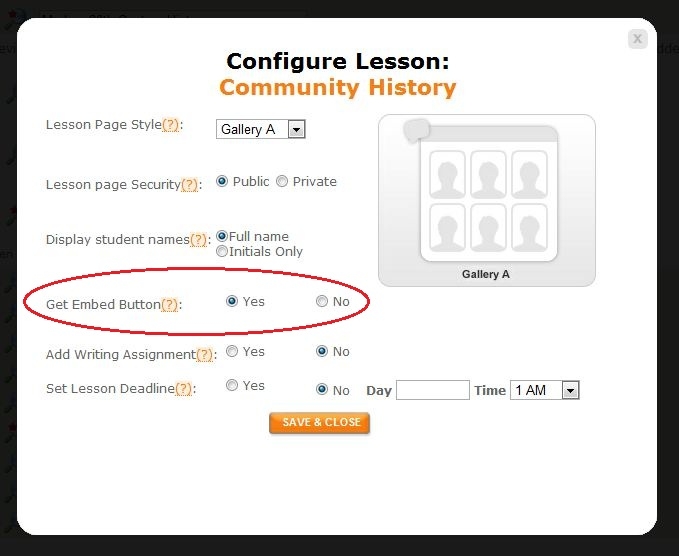
A. Voki Classroom gives teachers the ability to control student privacy. “Get Embed” is a privacy setting in the configuration for each assignment. In order to see the embed button for students’ Vokis in a lesson, you must allow this in the configuration window. To do this, follow these steps.

  1. Go to Classes tab.
  2. Click the Configure button next to the assignment of your choice.
  3. Select “Yes” next to Get Embed Button. You can find this option midway through the module.

As always, we are here to help! If you have a question, shoot us an email to feedback@voki.com and we will respond as soon as we can!

Until Next Time,

The Voki Team

Voki Tip of the Week: Creating a Purchase Order

Voki Tip of the Week: Creating a Purchase Order

Q.  My school is interested in purchasing a Voki Classroom subscription.  Do you except PO’s or is it credit card/PayPal only?

A. You may pay for Voki Classroom subscriptions by check or money order online. Please visit http://www.voki.com/products.php and click Get Voki Classroom. Follow the prompts to select the package that is appropriate for your needs.

Note: You can purchase accounts on behalf of others. If you are in this administrator role you will need to create a Voki account if you don’t already have one. If you are purchasing for more than one person, select the Multiple Purchase option and enter the requested information.

In the checkout section, go to the Check or Money Order option and follow the directions to generate a Purchase Order for yourself and to be mailed in with your payment. We understand schools sometimes need to issue their own PO. You may send this along with the Voki PO and payment, but it is not required.

Voki Tip of the Week: Have a question? Contact us!

Voki Tip of the Week: Have a question? Contact us!

When you have a comment, recommendation or question to share with The Voki Team, we are here to listen! Getting in touch with us is easy. All you need to do is send us an email that clearly states your purpose for writing to feedback[at]voki.com. If you need help with a specific tool on Voki, it always helpful if you can send a screenshot of what you are experiencing.

We receive feedback daily and want to respond to everyone, therefore it may take us a couple days to get back to you. Our goal is to make you happy so please be patient and we will work with you!

So next time you need help or simply feel like sharing a good Voki idea, send us an email!

Until Next Time,

The Voki Team

Voki Tip of the Week: Say Something Nice

Voki Tip of the Week: Say Something Nice

If your students are needing a boost, cheer up the atmosphere by exchanging compliment Vokis! Have your students draw names from a bag. Next, ask them to create a Voki that says something nice about the person they drew. This can be a fun way to lift spirits and start the class on the right foot!

Voki Tip of the Week: Weekly Lesson Recaps

Voki Tip of the Week: Weekly Lesson Recaps

Does it ever seem like your students let lessons go in one ear and out the other? Do you find yourself answering the same questions over and over again? Don’t fret! Try a Lesson Recap Voki instead!

At the end of every week, have each of your students make a Voki that describes one thing they learned. Some questions they could answer include:

1.      Who or what was the main topic of the lesson?

2.     Why is the lesson important?

3.     What was the most interesting thing you learned from this lesson?

4.     How is it related to your other lessons or studies?

Check out the Voki below to see this idea put into action!