Voki Tip of the Week: Auto-play Voki

Voki Tip of the Week: Auto-play Voki

Recently we’ve had some Voki users asked us if their Voki can automatically play when you view them. The answer is yes! Here’s how:

Look in the top right-hand corner of the Voki editor and click on the small icon that looks like 3 gears. It is located on top of the Customize Your Character box.

It will bring up Scene Setting. To have your Voki play automatically, click the check box for Play audio automatically when Voki loads.

Now, when you open your Voki, it will play automatically!

If you have any feedback, comments, or questions, send an email to feedback@voki.com!

Until next time,

The Voki Team

Voki Lesson Plans: ESL/ELL Lesson Plans

Voki Lesson Plans: ESL/ELL Lesson Plans

Happy New Year everyone!

Let’s ring in the New Year with new Voki lesson plans! We have prepared 3 new ESL/ELL lesson plans for non-English speakers!  Your students will enjoy learning about idioms, heteronyms, and writing about current events.

Idioms (Intermediate) – In this lesson, students will learn what idioms are and some of the most common idioms used in the United States.  Idiom is an expression that means something other than the literal meanings of its individual words. The class will discuss the different idioms they have heard in the past. This lesson allows students to understand the proper usage of idioms and their meanings.  Students will create their own Voki using the idioms taught.


Heteronyms (Beginner) – This lesson plan will teach students what heteronyms are and the different heteronym used. Heteronyms are words that are spelled the same but have different pronunciation and meaning.  Students will discuss about the different heteronym used and the definition of each words.  They will be required to create a Voki using at least 5 different pairs of heteronyms in sentences.


Current Events (Intermediate) – Students will pick out an interesting news article to read. They will learn how to summarize the article, describe the article, and write about how they feel about the article. Students will be required to create a Voki presenting their article.


Remember: The grade level assigned to each lesson plan is not set in stone. You can use Voki lesson plans for a higher, or lower, grade than the one you teach. Feel free to customize the lesson plans to fit your needs. These Voki lesson plans can be adapted to fit your style or your students’ abilities!

Do you have lesson plan ideas that you want to share with us? Send it to us at lessonplans@voki.com!

Until Next Time,

The Voki Team

Voki Tip of the Week: Review Classroom Rules and School Rules

Voki Tip of the Week: Review Classroom Rules and School Rules

It’s a new year and after a long break, your students may have forgotten about the rules in the classroom and at school! Create a Voki to remind them of all the do’s and don’ts.

Check out the example here:

If you have any feedback, comments, or questions, send an email to  feedback@voki.com!

Until next time,

The Voki Team

Guest Blogger: Karen Nemeth – Digital Storytelling

Guest Blogger: Karen Nemeth – Digital Storytelling

By Karen Nemeth

www.ecetech.net

Have you ever read a word and assumed it was pronounced one way, and then you finally heard someone say the word and pronounce it differently? Then you realize you’ve been hearing it incorrectly in your head?  When you read, it would be easy to think that though and through rhyme, but if that’s what you thought, then when your teacher asks you to write down another word for ‘toss’, you might write “through” instead of “throw”.   Oral language is a very important component of early literacy.  Young children need to say words and hear word sounds to build their vocabulary and to create a foundation for reading and writing.  Technology can play a key role in supporting the connection between oral language and written language.  That’s why voice recording and digital story-telling programs can be valuable tools for early literacy education.  With fun and engaging activities, some serious learning can actually be taking place.

With digital storytelling, children can create their own stories and images and they can record their own voice saying the words.  Think of this as an enhancement of the traditional preschool or kindergarten learning activity when a teacher reads a story to the children then asks them to retell the story in their own words.  With a program such as Voki, children have to think ahead about what they will say and how they want to illustrate it.  They have to practice pronouncing the words and then hearing them back as they play their recorded messages. That’s great oral language practice!.

Now consider how this activity could be a great support for young children who are just beginning to learn English as a new language.  Children who are learning a second language can often be shy or embarrassed about pronouncing the new words.  Rather than asking them to speak aloud in front of the whole class, it’s a good idea to use an app or website that allows them to record their own voice and listen back to the recording to hear how they sound to others.  The teacher can even save the child’s recordings to document their progress.  Another great use of Voki would be to have a parent, volunteer or other staff member record or trade messages with the new dual language learner (DLL) in their home language.  What a welcoming and comforting experience that can be for a new DLL.

Language in the context of brief stories or meaningful interactions makes the strongest connections in a child’s brain.  Rather than have the child practice with random vocabulary words, consider having them record Voki messages that will serve a purpose.  Can they record a message to be shared with their parents?  Can they record a message describing a pattern of beads for stringing and then share with a friend to see if they can duplicate the pattern?   Can they record clues for a treasure hunt? Or can they let the pre- recorded message on Voki become part of a   pretend play scheme?  The possibilities are endless and the value of supporting oral language practices to support literacy and reading success is limitless!

These ideas and more can be found in my book, Digital Decisions: Choosing the Right Technology Tools for Early Childhood Education.  You can share your teaching ideas on the Voki.com website.

Karen Nemeth is the author, with Fran Simon, of Digital Decisions: Choosing the Right Technology Tools for Early Childhood Education.  Karen and Fran share lots of related resources on their website www.ecetech.net.  Karen is also a nationally known speaker and author on teaching young children who are dual language learners. 

Guest Blogger: Mandy Nelson

Guest Blogger: Mandy Nelson

Dear Educators,

I want to share a lesson that a 1st grade teacher and I did a little before Halloween last year. It worked quite well. As part of her curriculum, Mrs. Stasys gave students a binder that included poems that they would read throughout the year. They gathered together on the rug once a day and read the chosen poem aloud.  For this poem they read it to the tune of The Itsy Bitsy Spider. They read the poem together every day for one week to hone their fluency and expression skills.  Once their week of practice was up we took them to the computer lab to design their Voki character.  They could choose to represent themselves any way they wanted.  Some chose to make an exact cartoon replica of themselves, while others designed dogs, pumpkins, monsters and one student even chose a Santa Claus avatar!  Since the image has no effect on their fluency we decided to let them have free reign.  I would advise you to do the same since it helps them feel more ownership over the final product. The following day Mrs. Stasys stayed in the classroom and sent down students to the computer lab in groups of three.  Using Firefox and Voki we recorded each student saying their poem.  (If you do not have an extra adult who can assist you could always do this during reading centers.  It may take several days to get them all recorded but it can be done!)

The kids loved this lesson and we got a kick out of listening to them practice their poems over and over so they could record it just right.  By the end of the project our students were reading in a much more natural, fluent way with great expression.  Even those who usually really struggle with reading and get frustrated were motivated and showed improvement over the duration of the assignment.  Once they were recorded, we embedded their Vokis into my website and parents were given the link to listen to at home.  They were also able forward the link to grandparents and other family members.  The students loved their final products and were proud to show them off.

For our step-by-step lesson plan visit my site and click on the Voki link.  Click here for the finished student products.  To save yourself some time feel free to use these videos I made to teach students how to make their Vokis:  Video 1,  Video 2.  On an aside, another 1st grade class used Vokis for the students to report three important facts about a research topic of their choosing.  Click here for the final products.

Enjoy and let me know how it goes!

-Mandy

Mandy Nelson is a K-4 Technology Integration Specialist in River Forest, IL, near Chicago.  She is always looking for ways to partner with other teachers across the world so email her at nelsonm@district90.org if you would like to collaborate.   

Voki Tip of the Week: Voki New Year’s Resolution

Voki Tip of the Week: Voki New Year’s Resolution

It’s hard to believe that 2012 is coming to a close. In preparation for the New Year, have your students come up with some New Year’s resolutions and present them with Voki.

As a fun reminder, ask your students to listen to it again at the end of the school year!

See below for an example:

Happy New Year!

The Voki Team

Voki Tip of the Week: Happy Holidays in Different Languages

Voki Tip of the Week: Happy Holidays in Different Languages

Merry Christmas in Chinese? Happy Holiday in Spanish? Happy New Year in French? You will be surprised at how many different ways you can say it! Here’s a fun holiday activity that you can do in your classroom. Assign your students different languages and ask them to research how to say holiday greetings in their assigned language! It would be a great cultural lesson!

Check out some examples below! Can you guess what language they’re in?

Happy Holidays!

The Voki Team

Voki Lesson Plans: December Holiday Lesson Plans

Voki Lesson Plans: December Holiday Lesson Plans

It’s finally the last month of the year! December is a month filled with holiday cheers and joy! This month, different cultures around the world get together and celebrate the meaning of family, togetherness, and culture. We have three holiday lesson plans this month on three special holidays: Hanukkah, Kwanzaa, and Boxing Day!


Note: If you are looking for a Christmas lesson plan, check out our Holiday lesson plans post!


Hanukkah – This lesson plan will teach students about the origin of Hanukkah. They will learn the story behind Hanukkah. Students will discuss the traditional food and symbols of Hanukkah. They will be required to create a Voki to present a scene that represents Hanukkah from the Hanukah story.

Kwanzaa – Students will learn about the 7 principles of Kwanzaa. They will discuss about the different symbols that represent Kwanzaa and how Kwanzaa is celebrated. Students will learn how Kwanzaa began and the meaning of Kwanzaa. Students will write a story on one of the symbols or principles of Kwanzaa to share with the class.

Boxing DayIn this lesson plan, students will learn about the origination of Boxing Day, which countries celebrate it, and how it is celebrated. They will be required to research how people celebrate Boxing Day and Boxing Day traditions. Students will create a Voki to present their research on Boxing Day traditions.

Remember: The grade level assigned to each lesson plan is not set in stone. You can use Voki lesson plans for a higher, or lower, grade than the one you teach. These Voki lesson plans can be adapted to fit your style or your students’ abilities!

We would love to hear some of your lesson plan ideas for Voki! Just send us an email at lessonplans@voki.com!

Until Next Time,

The Voki Team

Voki Tip of the Week: Voki Christmas Card

Voki Tip of the Week: Voki Christmas Card

Season’s greetings everyone!

It’s that special time of the year again! It’s time to send out some nice cards to your family and friends! Why not send them a Voki Christmas Card this year?

Here’s what you can do:

  1. Go to www.Voki.com and create your Voki.
  2. Click the Publish button.
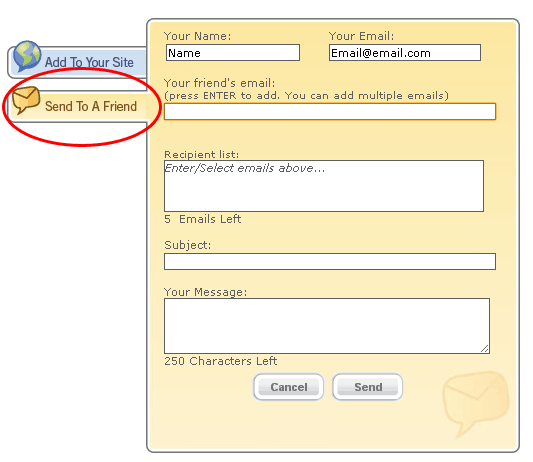
  3. Click Send to a Friend tab and enter your name and email address. Then enter the email addresses that you want to send this card to.
  4. Type in a Subject for this. (You cannot send without a subject!)
  5. Click Send.

Here’s a Christmas card from the Voki Team!

Until next time,

The Voki Team

Voki Tip of the Week: Voki on PowerPoint

Voki Tip of the Week: Voki on PowerPoint

Many teachers use PowerPoint in their lessons and want to put Voki into their presentations. There are several ways of putting Voki onto your PowerPoint presentations.

So we compiled a list (from the simplest way to the hardest way!) on how to put your Voki onto your PowerPoint presentation! Let’s all take a look!

Direct Link to Voki Character

  1. After you published your Voki, select your Voki size.
  2. Select your Voki link.
  3. Highlight and copy your Voki link.
  4. Paste the link into your PowerPoint slide.

Note: You need internet connection during your PowerPoint presentation to view your Voki. You can also view your Voki in full screen by checking out this Tip of the Week.

Voki as a Video

  1. After you published your Voki, create a Voki video. Check out this Tip of the Week on how to turn your Voki into a video file.
  2. In your PowerPoint, click on the Insert tab.
  3. Click on Movie and select Movie from File.
  4. Find and insert your Voki video file.

Note: If you are saving your PowerPoint presentation onto a flash drive, remember to also save your Voki video file in the same location! This will make sure that your Voki video will play when you open your PowerPoint on a different computer!

Using Embed Code

For PowerPoint 2010 users

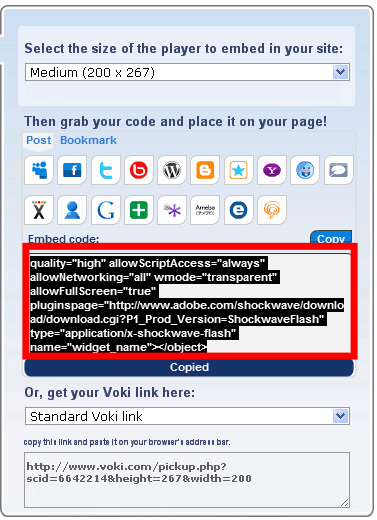
  1. Click and copy your Voki embed code.
  2. Click on the Insert tab.
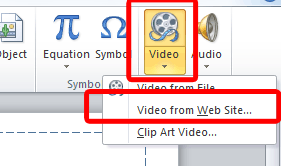
  3. Click on Video and select Movie from Website.
  4. Paste your embed code into the box.
  5. Click Insert.
  6. Now you have your Voki on your PowerPoint! To preview, just hit F5 on your keyboard!

For PowerPoint 2007

  1. Click and copy your Voki embed code.
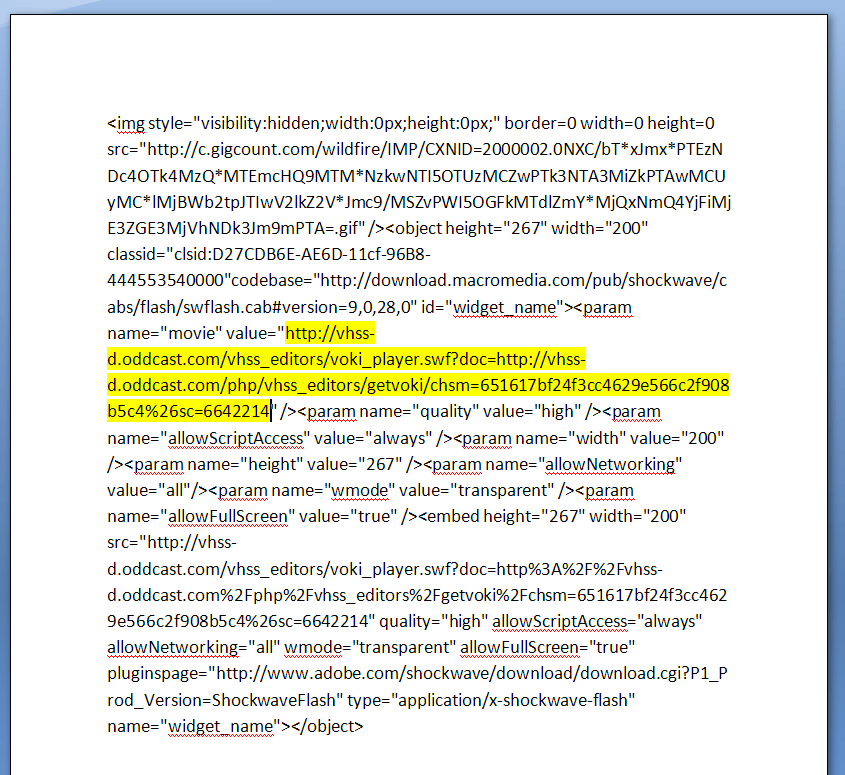
  2. Open word document and paste the embed code.
  3. Find the value code with a hyperlink.
  4. Select and copy that hyperlink.
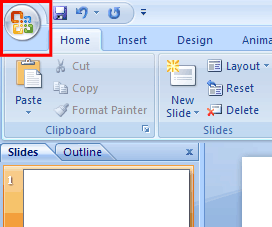
  5. Now, go into your PowerPoint and click on the Ribbon. The Ribbon opens the dropdown menu for PowerPoint.
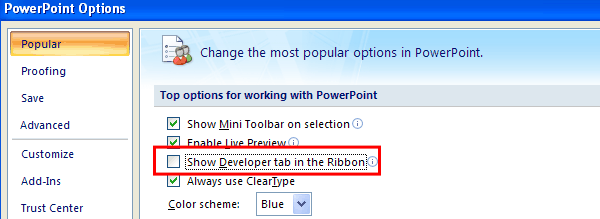
  6. Click on PowerPoint Options and a new menu will open up.
  7. Make sure that the option for Show Developer tab in the Ribbon is checked. If not, click on it and click OK. The Developer tab will be added to your Ribbon.
  8. Click on the Developer tab.
  9. Click on the More Controls icon (the one with a hammer and a wrench) and a new menu will pop up.
  10. Scroll down to find Shockwave Flash Objects and click OK.
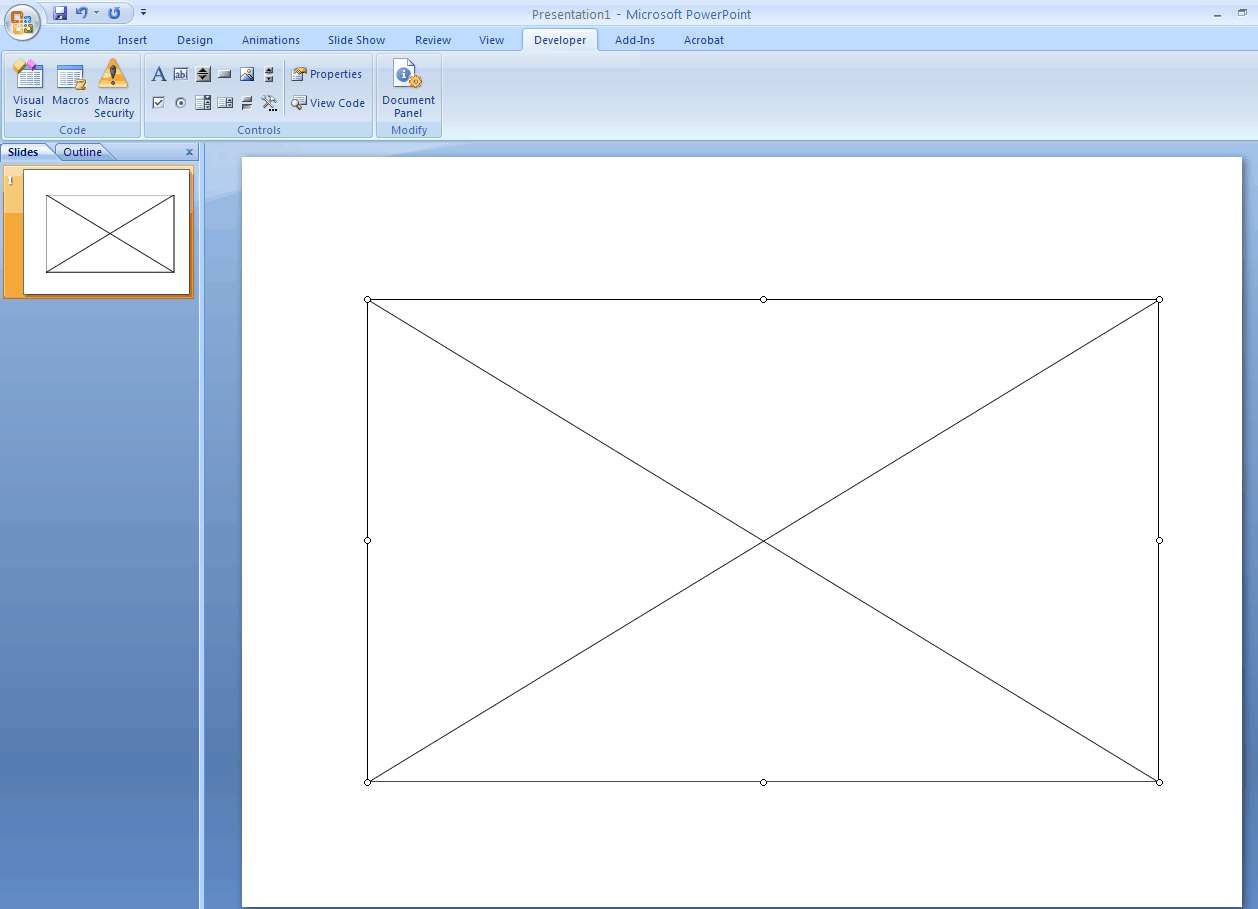
  11. You will see a + sign as your mouse cursor. Click and drag on a blank PowerPoint slide. This will create a big box with an X in the middle.
  12. Right-click on the box and click on Properties and a new menu will open.
  13. Find the Movie line and paste the Voki hyperlink into the blank area. Then close the Properties window.
  14. To preview, just hit F5 on your keyboard!

PowerPoint 2013

1. Click and copy your Voki embed code.

2. Open word document and paste the embed code.

3.Find the value code with a hyperlink.

4. Select and copy that hyperlink.

5. Now, go into your PowerPoint and click on File to open up the menu for PowerPoint and click on Option.

1

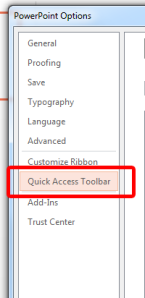
6. Click on Quick Access Toolbar.

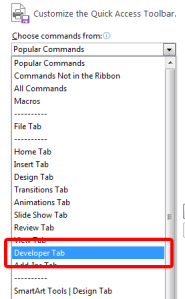
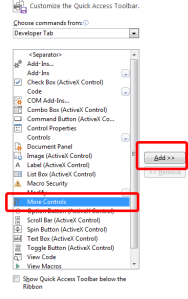
27. From the Choose commands from: drop-down menu, locate and click the Developer Tab.
3

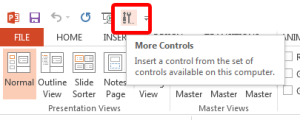
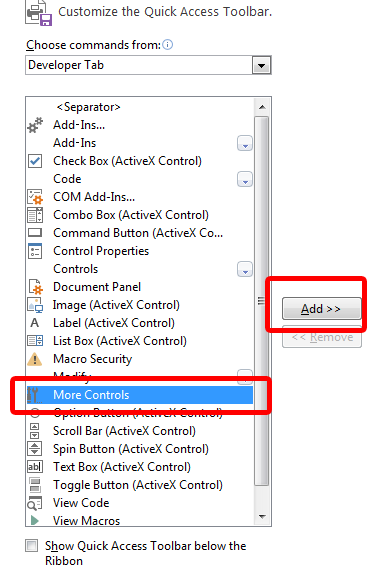
8. Locate and click on More Controls and click Add. It will appear on the top menu.
4

9. Click on More Controls.

5

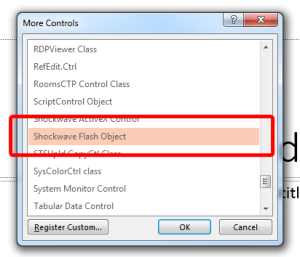
10. Select Shockwave Flash Object.

6

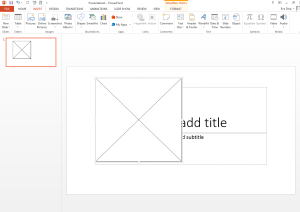
11. You will see a + sign as your mouse cursor. Click and drag on the PowerPoint slide. This will create a big box with an X in the middle.
7

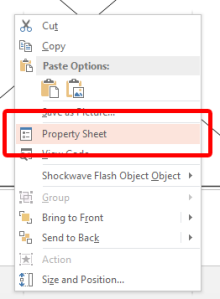
12. Right-click and select Property Sheet.
8

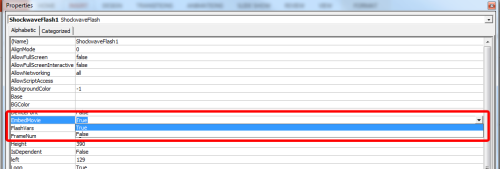
13. Find the Movie line and paste the Voki hyperlink into the blank area.

9

14. Find EmbedMovie and set it to True. Then close the Property window.
10

15. To preview, just hit F5 on your keyboard!

Note: To play your Voki using the embed code you must be connected to the internet.

Mac Users: Inserting Voki using the embed code may not work for Mac users, if you have any suggestions, please send it to feedback@voki.com. To insert Voki into your PowerPoint, use the direct link to your Voki or insert your Voki as a video.

Which method did you use to put your Voki on your PowerPoint presentation?

Have a comment or question for Voki? We are always here to help! Just send us an email at feedback@voki.com!

Until next time,

The Voki Team