Using Voki on the First Day of School, as a Reflection Tool, and to Introduce Personas

Using Voki on the First Day of School, as a Reflection Tool, and to Introduce Personas

friendship-day_10038964-031914

Although few people would have ever considered my 5th grade classroom “traditional,” I did avoid technology for the bulk of my first decade of teaching!  Nowadays, there are so many amazing tools out there that I wonder how anyone could avoid using technology with their students today.

Voki is one of those tools that I use in my classroom to increase motivation and encourage reflection with my students.  One such way I use Voki to increase motivation is on the first day of school.  Since it’s the first day, some of us don’t know everyone.  A mixer is a nice, old-fashioned way of getting to know each other and building community in the classroom.  Instead of the traditional walking around mixer, I decided to do a techie version that requires students to embed a URL on their blog & comment on each others’ posts.  (I bet these 5th graders never expected this on the first day!)

The mixer is called “Two Truths and a Lie.”  Students brainstormed two things that are true about themselves, but that might not be very believable to their peers, and one thing that is actually untrue that might be believable by their peers.  They mix them up & record them on a Voki.  After they are finished, they embed their Voki on their blog for others to listen to.  When people listen, they post a comment with their best guess as to which one might be the lie.  At the end of the period, the students post a comment on their blogs explaining which one was the lie for all to read.

I wanted to get technology into my students’ hands right away because we needed to establish some daily rituals, access some information online, and I needed my kiddos to pass on some details to their parents after school.  I also wanted my students to access their Google Mail accounts to accept invitations to our Weebly site, and learn how to create blog entries.

Here is a link to one of my students’ blog entries where some peers listened to their Voki and posted their guess as to which one of the three facts was actually a lie: http://psolarz.weebly.com/58/post/2012/08/two-truths-and-a-lie.html

Not only is Voki motivational to students, but it also makes an excellent reflection tool.  Rather than have my students complete written reflections after finishing an activity, I occasionally have them create a Voki explaining what they learned from the lesson.

For example, in our unit on the Oregon Trail, my students participate in a simulation where they each become individuals traveling westward in a wagon train.  At the end of each period, I have my students summarize their learning experiences in several different ways, and one of those ways is through a Voki.  The novelty and creative process engage them in the task and often improve their work far beyond traditional written answers.  In addition, students who struggle with writing are able to explain their learning without being encumbered by the written word.  Because they are able to record their voices, they often get into it much more so than when they are writing their reflections or typing them.  Here is our “Voki Journal” of our journey west: http://paulsolarz.weebly.com/voki-blog

Finally, we like to use Voki to introduce ourselves to the other members of the crew headed to colonize Mars.  This is another simulation that we do in our classroom where children learn about the U.S. Constitution and Government through the experience of settling the red planet.  Due to overcrowding in the year 2150, we are forced to try to create a colony on Mars so that the human race can continue!

We are each from a different country and all have different backgrounds and occupations.  I have my students create a Voki introducing themselves, telling us a little bit about where they are from and what their job will be on Mars.  We then embed those Vokis at the top of our ePortfolios so whenever anyone visits our page, they can learn a little bit about our persona in the simulation.  Here is an example (in the top, right-hand corner of the page): http://paulsolarz.weebly.com/6—kendall

Voki has provided my students with a tool that motivates them to try their hardest and have fun doing so!  But be warned, once you teach them how to use this tool, they’re going to ask for it ALL THE TIME!  🙂

 

paul_solarz

Paul Solarz is a 5th grade teacher in Arlington Heights, Illinois. He is a 2015 Global Teacher Prize Top 50 and author of Learn Like a Pirate.

Voki Presenter Update: Use Images in Your Presentation

Voki Presenter Update: Use Images in Your Presentation

We’ve been continuously improving Voki Presenter based on your feedback.

We’re happy to announce the latest update for Voki Presenter. You can now add multiple images to your presentation and position them on your slides!

See an example here:

VP image

We love getting your feedback and suggestions. Keep it coming! Send to feedback@voki.com.

Until next time,

The Voki Team

New Folk Characters and Voki Sweepstakes!

New Folk Characters and Voki Sweepstakes!

We’ve added 9 new pair of Voki Folk Character to our collection and we know you will love them! The new Folk characters include men and women from Japan, Germany, Spain, and much more – dressed in their traditional attire, and with many alternative costumes to choose from! Click here then go to the Folk category to see them in action!

categories

Enter our Voki Sweepstakes to win a $50 Amazon Gift card and a chance to have your Voki featured on our Facebook, Twitter, and Google+ page! To enter, create and send your Folk Character to info@voki.com by January 31, 2015. Click here for the rules and regulations.

Let’s take a look at them below:

Are there any that you’d like to see? Let us know at feedback@voki.com!

Until next time,

Eva D.

The Voki Team

Voki Tip of the Week: Adding Voki on Canvas

Voki Tip of the Week: Adding Voki on Canvas

Many educators asked us if there is a way to add Voki to their Canvas account/assignments to help enhance their students learning experience. Well, we did find a way to do so and it is very easy! Just follow these steps and you will have a Voki added in no time:

1. Go on voki.com

2. Publish your Voki.

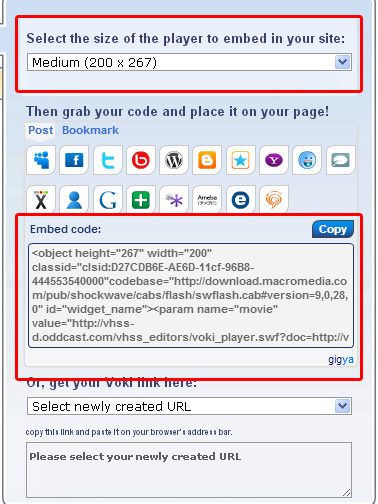
3. Select your Voki size.

4. Click to copy your Voki embed code.

Wiki1


5. Go into your Canvas account and find your course.

1

6. Find your assignment.

2

7. Click HTML Editor.

3

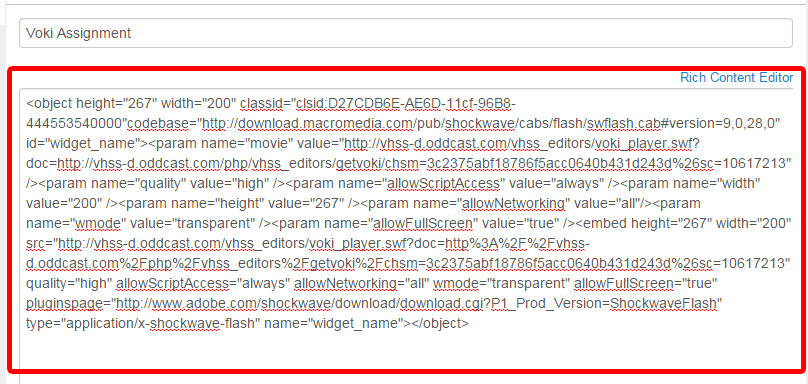
8. Paste Voki Embed code into the editor.

4

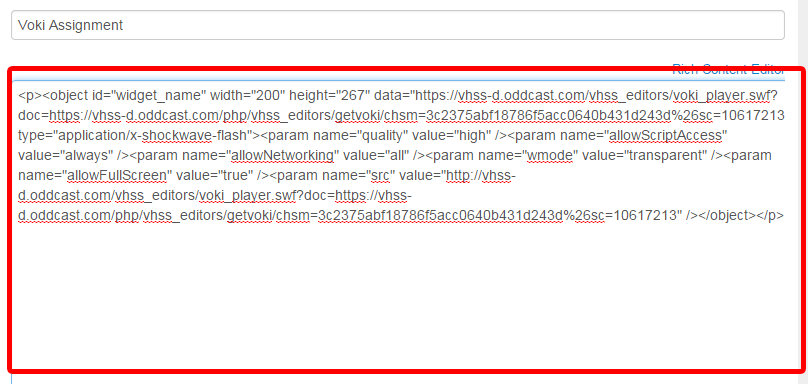
9. Add “s” after all http.

5

10. Save or publish your assignment.

11. Your Voki will be added to your Canvas Assignment!

6

Easy right? Have fun and enjoy!

Until next time,

Eva D.

The Voki Team

Voki Presenter: Future Updates

Voki Presenter: Future Updates

We’ve been continuing adding new features to Voki Presenter. The good news is… we’ve got more updates rolling in and we think you are going to love it! We wanted to share with you a few features that will be added to Voki Presenter. These include:

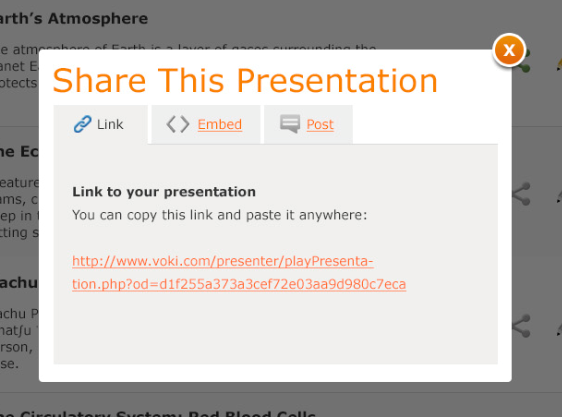
New sharing options for Presentations

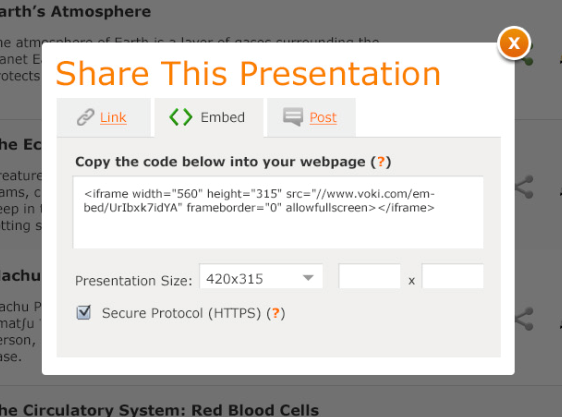
We will be implementing a new sharing option for Voki Presenter. With the new sharing option, teachers can do the following:

  • Share a link

Share1

  • Embed the Presentation on a school site or blog

Share2

  • Post/share on your favorite social networking site

Share3

Add videos and images to slides

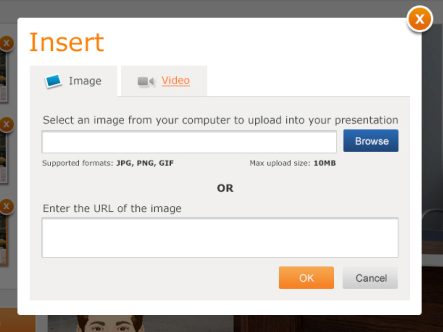
A lot of teacher requested this amazing feature. We will be adding a new feature to the Presentation Editor: adding pictures and videos to slides! Voki Presenter users can upload images and videos from their computer or copy and paste the URL or embed code!

  • Adding images to slides

Adding1

  • Adding videos to slides

Adding2

Students to create their own Voki Presentation

Currently, Voki Presenter currently allows teachers to create their own presentation. With the next update, teachers using Voki Classroom will have the option to assign Voki Presenter as a Student Assignment!

We hope you will enjoy these new features on Voki Presenter! We’d love to hear your thoughts on the current Voki Presenter!

Just send a note to feedback@voki.com!

Until next time,

The Voki Team

News Flash: Use Voki on Apple and Android Devices!

News Flash: Use Voki on Apple and Android Devices!

Here at Voki, we are constantly looking for ways to improve the way students and teachers use Voki! Today, we have very great news for you! Voki users can now access the Voki site with Puffin Academy! Puffin Academy is designed for K12 kids and teens. It’s a free app and can access approved educational web sites.

What’s even better? It’s available on Apple AND Android devices! Download it here:

itunes button google button

Follow these instructions once you downloaded the app:

1. Open Puffin Academy app on your mobile device.

PuffinAcademy
2. Search for Voki.

photo2
3. Click Go.

photo

As an alternative to Puffin Academy, Voki users can also download the free Puffin Browser here:

itunes button google button

1. Open the free Puffin Browser on your mobile device.

PuffinBrowser
2. Go to www.voki.com.

photo3

Note: Although the free Puffin Browser allows users to access any website, this browser may contain contents that are unsuitable for younger students. We highly recommend teachers and parents use Puffin Academy instead.

What are you waiting for? Download the app today and start creating your Voki!

If you have questions, comments, or feedbacks for Voki, please send an email to email to feedback@voki.com!

Until next time,

The Voki Team

New Voki Presenter Feature: Duplicating Scenes and Presentations

New Voki Presenter Feature: Duplicating Scenes and Presentations

Voki Presenter is constantly improving thanks to your feedback! Since the launch of Voki Presenter, many teachers asked us to add the ability to duplicate scenes and presentations. So, we have worked hard to implement this new feature and we’re happy to announce this feature is now available!

To duplicate an existing presentation:

1. Click Create New.

Create

2. Select Duplicate Presentation and select the presentation you want to duplicate.

Duplicate

3. Give the presentation a new name and a new description.

name

4. Click OK.

To duplicate an existing scene:

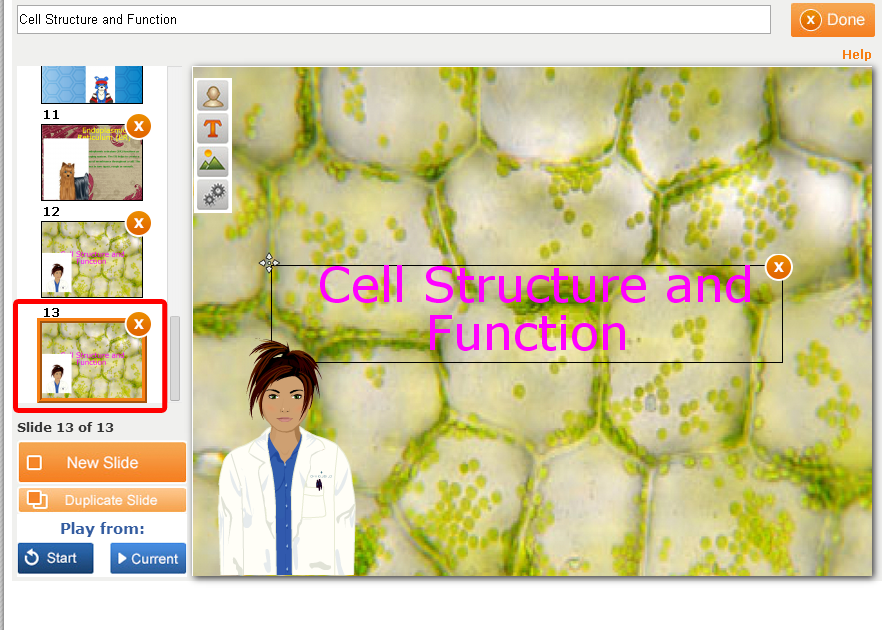
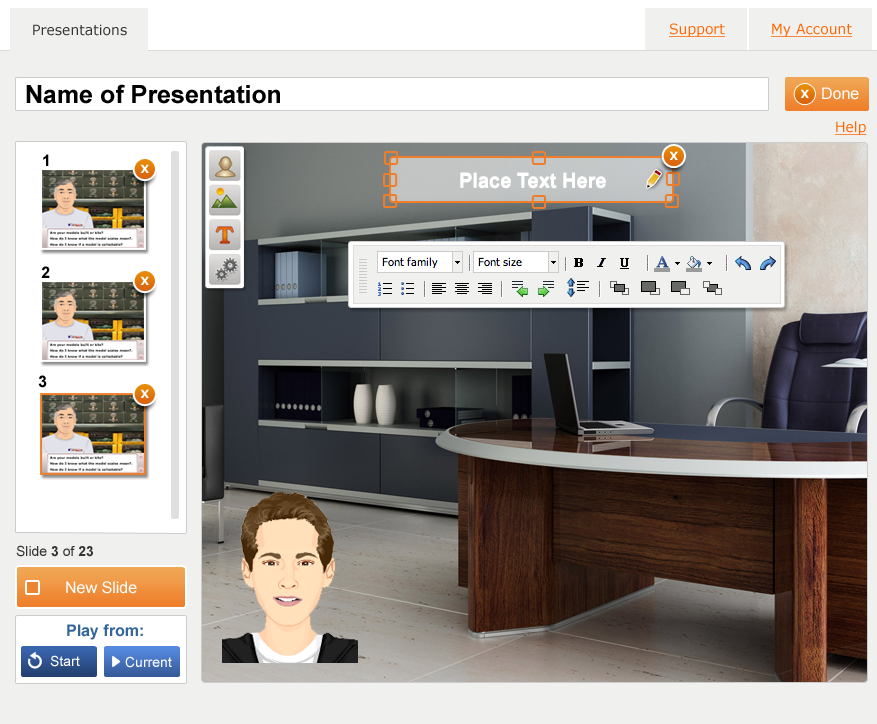
1. With the Presentation Editor open, select the slide you want to duplicate.

Editor

2. Click on Duplicate Slide.

Duplicate

3. The duplicated slide will be added to the end of your slide list.
Duplicate

We hope you are pleased with this update! We are always eager to hear your suggestions for Voki as we continue to improve your experience.

If you have any feedback, comments, or suggestion for Voki, send us an email at feedback@voki.com!

Until next time,

The Voki Team


Tip of the Week: Voki activation emails

Tip of the Week: Voki activation emails

Are you not receiving your activation emails after you signed up for your Voki account? Activation emails are sent immediately after you signed up for an account. Make sure that “notifications@voki.com” is in your safe senders list. This will ensure that you receive the email notification you need.

So if you’re still not receiving your activation emails, here’s what you can do:

  1. Activation emails may be stuck in your junk/spam box. Double check your junk/spam box to see if your activation email is there.
  2. If you are using your school email, your school filter may have blocked your activation email from arriving. So talk to your IT department about allowing Voki emails to go through.

Have any questions, comments, or feedback? Email them to feedback@voki.com!

Until next time,

The Voki Team

Introducing Voki Presenter

Introducing Voki Presenter

As all Voki fans know, the Voki worked hard on this secret project for the last few months, which we can finally introduce!

So without further ado…

Introducing: Voki Presenter

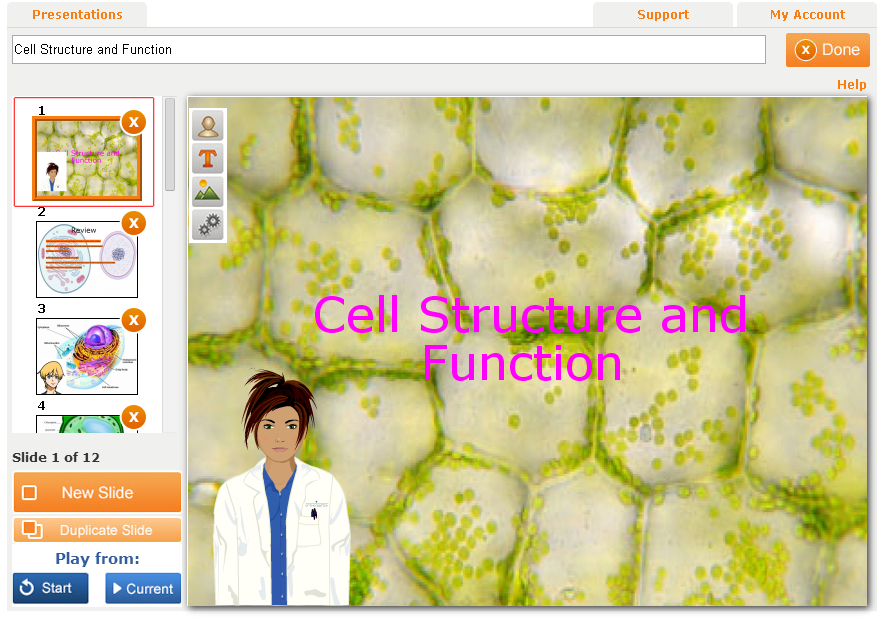
Voki Presenter is a presentation tool for Voki. Voki Presenter helps make your lessons and presentations educational, engaging and entertaining. Voki Presenter is designed to enhance the way you use Voki in your classroom, and the way you teach and engage your students in your lessons.

Let’s take a look at the main features of Voki Presenter.

Voki Presenter key features include:

  • Create Presentations. Start a new presentation or duplicate existing one. You can add as many slides as you like. There’s no limit!2
  • Add Vokis. Add your favorite Voki to your slides. Now your Voki can be your personal teaching assistant.1
  • Unlimited Audio. Your Voki can say as much as they want. Queue up their speech with different slides. Perfect for reciting a passage or engaging in conversations.
  • Share. Student missed a class? No problem. Share the presentation with them to get caught up. Why stop there? Share it with parents and other teachers!
  • Easy Access. All your presentations are stored on the cloud. Play it anywhere, at any time.

For more information on Voki Presenter, please visit the Products page.

Until next time,

The Voki Team

Voki Tip of the Week: Voki on Glogster

Voki Tip of the Week: Voki on Glogster

Is there a way to embed a Voki on Glogster? 
This is a very common question that we get from teachers! Unfortunately, the answer is no, you can’t embed a Voki on Glogster. But, we found a different way that you can put a Voki on your Glog! Just continue reading to learn how!

Insert as video file

1. Go to www.voki.com.

2. Create and publish your Voki.

3. Save your Voki as a video file. Check out this Tip of the Week on how to turn your Voki into a video file. If you want your Voki video to be bigger, you can view the Voki in full screen.

4. Go to www.glogster.com and sign into your Glogster account.Glog0

5. Create a Glog.Glog1
6. Click upload and find your Voki video file. Find your uploaded Voki video under Video.

Glog2
7. Click on the Voki video and click Use It. Your Voki will be inserted into your Glog.

Glog3
8. To preview your Glog, select preview. To save, click save or publish.Glog4

Insert as picture

1. Go to www.voki.com.

2. Create and publish your Voki.

3. Click the drop down menu and select Large. Then select, Standard Voki link to get the URL.

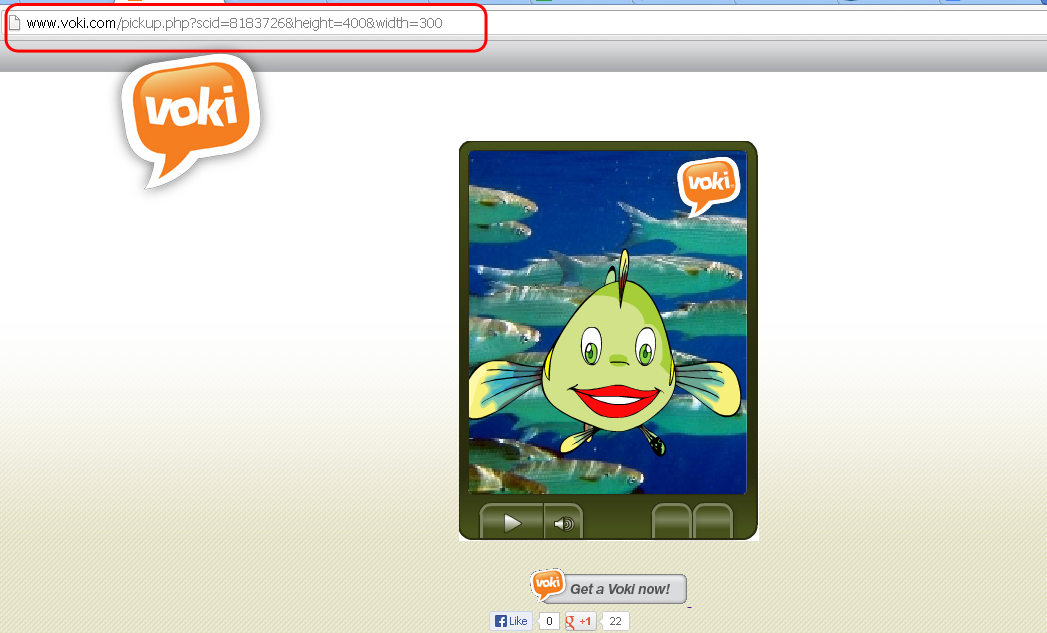
4. Copy and paste the URL into the address bar. Now you have a bigger Voki on your screen!Glog5
5. Click the Print Screen button on your keyboard.

6. Open Paint and paste the screenshot.

7. Crop the Voki image.Glog6
8. Go to www.glogster.com and sign into your Glogster account.

Glog0
9. Create a Glog.Glog1
10. Click upload and find your Voki picture. Find your uploaded Voki image under Image.Glog2
11. Return to your Voki page and copy the direct link.

Glog8
12. Return to your Glogster page and click on the Voki image. Then click Edit.Glog9
13. Click on Add link.Glog10
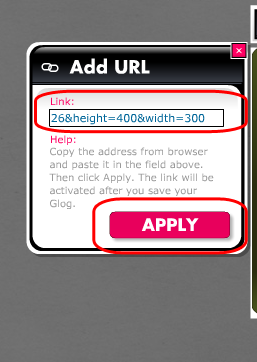
14. Paste the Voki link and click apply.Glog11
15. To preview your Glog, select preview. To save, click save or publish.Glog4

If you have any feedback, comments, or suggestion for Voki, send us an email at feedback@voki.com!
Until next time,
The Voki Team