Voki Tip of the Week: Voki on Pinterest

Voki Tip of the Week: Voki on Pinterest

Many teachers use Facebook, Twitter, blogs, QR codes, and other technologies in class. We also know that many teachers use Pinterest to share teaching materials, classroom ideas and activities. Continue reading to find out how you can pin your Voki!

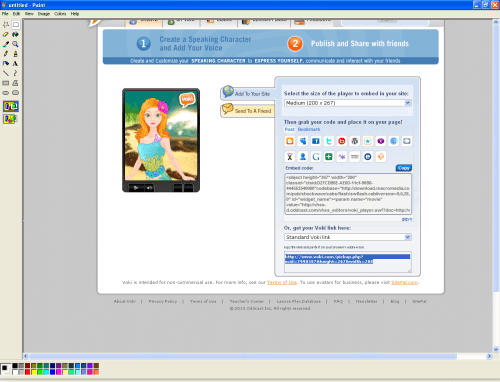
  1. Go to www.voki.com.
  2. Create and publish your Voki.
  3. Click the Print Screen button on your keyboard.
  4. Open Paint and paste the screen shot.
  5. Crop your Voki. Then save.Pinterest4
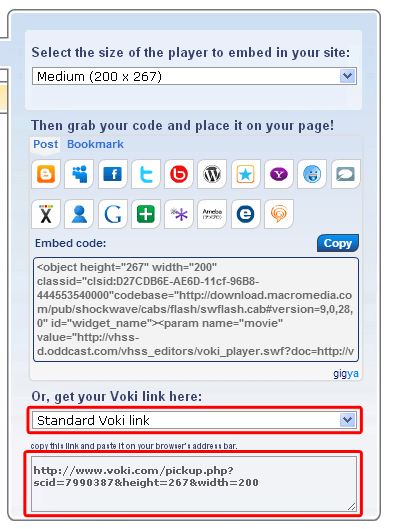
  6. Return to your published Voki and select Standard Voki link to get the URL.
  7. Highlight and copy the URL.Pinterest
  8. Go to www.pinterest.com.
  9. Log into your Pinterest account.Pinterest2
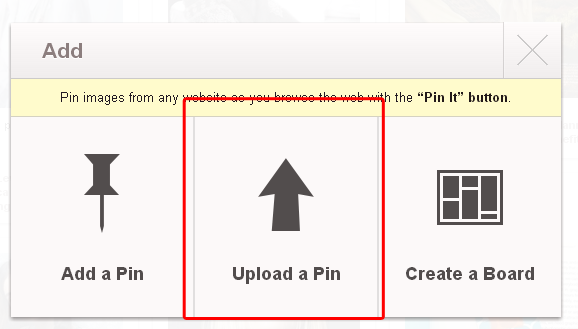
  10. Click Add+.Pinterest3
  11. Select Upload a Pin.Pinterest6
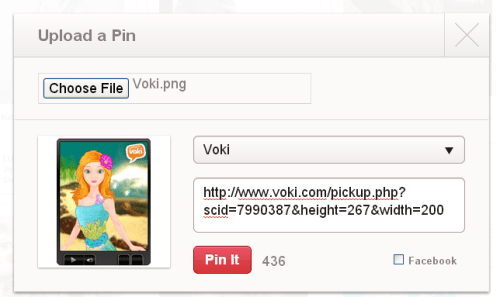
  12. Find your Voki picture and upload.
  13. Paste your Voki link into the description box.Pinterest5
  14. Pin it!

If you have any feedback, comments, or questions, send an email to feedback@voki.com!

Until next time,

The Voki Team

Voki Tip of the Week: Voki on Popplet

Voki Tip of the Week: Voki on Popplet

We know that some of our Voki teachers use Popplet in their class! What if you want to have your Voki character there? We have the solution here!

Direct Link

  1. Go to www.voki.com.
  2. Create and publish your Voki.
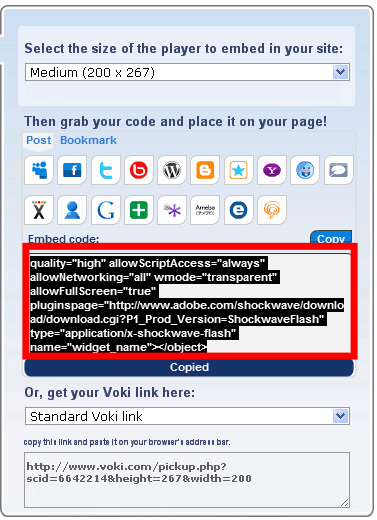
  3. Select your Voki size and copy your Voki link.1
  4. Go to www.popplet.com and sign in.2
  5. Click to Make new popplet and double click to create a popple.3
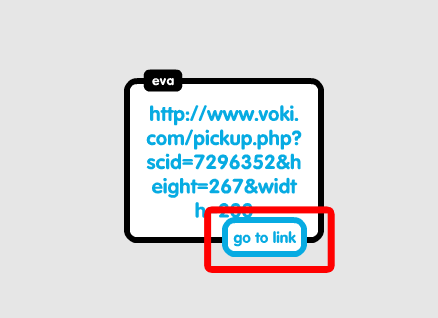
  6. Paste your Voki link into the popple.4
  7. Hover your mouse over the Voki link and click on Go to link.5

Now you go to your Voki from Popplet!

Note: If you want your Voki to appear in full screen, read this Tip of the week to learn how!

Voki Video

  1. To save your Voki as a video file, check out this Tip of the week.
  2. Upload it on YouTube.
  3. 6Go to www.popplet.com and sign in.2
  4. Click to Make new popplet and double click to create a popple.3
  5. Click on the upload icon.
  6. Click on the YouTube icon.7
  7. Search for your video.8
  8. Select your video and click Add to popple.9

Now you can view your Voki directly on Popplet!

If you have any feedback, comments, or suggestion for Voki, send us an email at feedback@voki.com!

Until next time,

The Voki Team

Voki Tip of the Week: Review Classroom Rules and School Rules

Voki Tip of the Week: Review Classroom Rules and School Rules

It’s a new year and after a long break, your students may have forgotten about the rules in the classroom and at school! Create a Voki to remind them of all the do’s and don’ts.

Check out the example here:

If you have any feedback, comments, or questions, send an email to  feedback@voki.com!

Until next time,

The Voki Team

Voki Tip of the Week: Voki on PowerPoint

Voki Tip of the Week: Voki on PowerPoint

Many teachers use PowerPoint in their lessons and want to put Voki into their presentations. There are several ways of putting Voki onto your PowerPoint presentations.

So we compiled a list (from the simplest way to the hardest way!) on how to put your Voki onto your PowerPoint presentation! Let’s all take a look!

Direct Link to Voki Character

  1. After you published your Voki, select your Voki size.
  2. Select your Voki link.
  3. Highlight and copy your Voki link.
  4. Paste the link into your PowerPoint slide.

Note: You need internet connection during your PowerPoint presentation to view your Voki. You can also view your Voki in full screen by checking out this Tip of the Week.

Voki as a Video

  1. After you published your Voki, create a Voki video. Check out this Tip of the Week on how to turn your Voki into a video file.
  2. In your PowerPoint, click on the Insert tab.
  3. Click on Movie and select Movie from File.
  4. Find and insert your Voki video file.

Note: If you are saving your PowerPoint presentation onto a flash drive, remember to also save your Voki video file in the same location! This will make sure that your Voki video will play when you open your PowerPoint on a different computer!

Using Embed Code

For PowerPoint 2010 users

  1. Click and copy your Voki embed code.
  2. Click on the Insert tab.
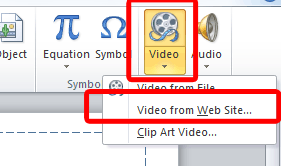
  3. Click on Video and select Movie from Website.
  4. Paste your embed code into the box.
  5. Click Insert.
  6. Now you have your Voki on your PowerPoint! To preview, just hit F5 on your keyboard!

For PowerPoint 2007

  1. Click and copy your Voki embed code.
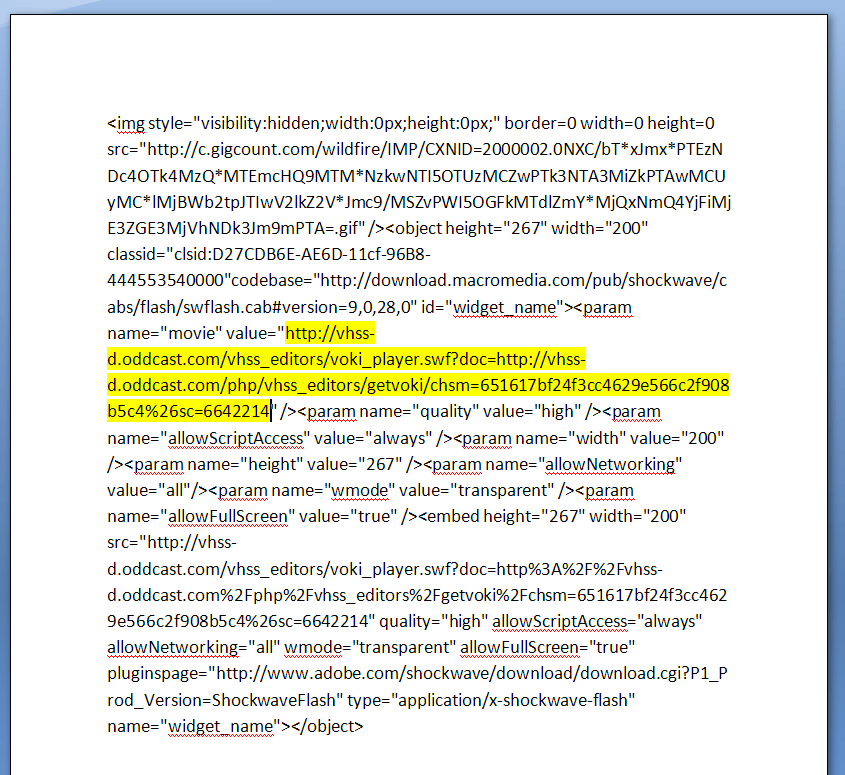
  2. Open word document and paste the embed code.
  3. Find the value code with a hyperlink.
  4. Select and copy that hyperlink.
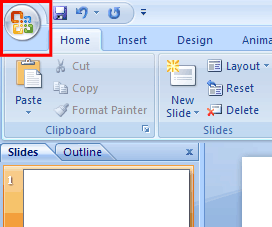
  5. Now, go into your PowerPoint and click on the Ribbon. The Ribbon opens the dropdown menu for PowerPoint.
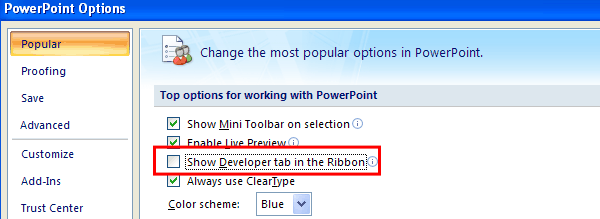
  6. Click on PowerPoint Options and a new menu will open up.
  7. Make sure that the option for Show Developer tab in the Ribbon is checked. If not, click on it and click OK. The Developer tab will be added to your Ribbon.
  8. Click on the Developer tab.
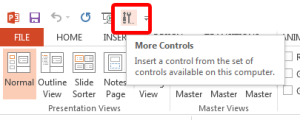
  9. Click on the More Controls icon (the one with a hammer and a wrench) and a new menu will pop up.
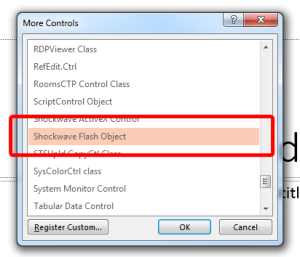
  10. Scroll down to find Shockwave Flash Objects and click OK.
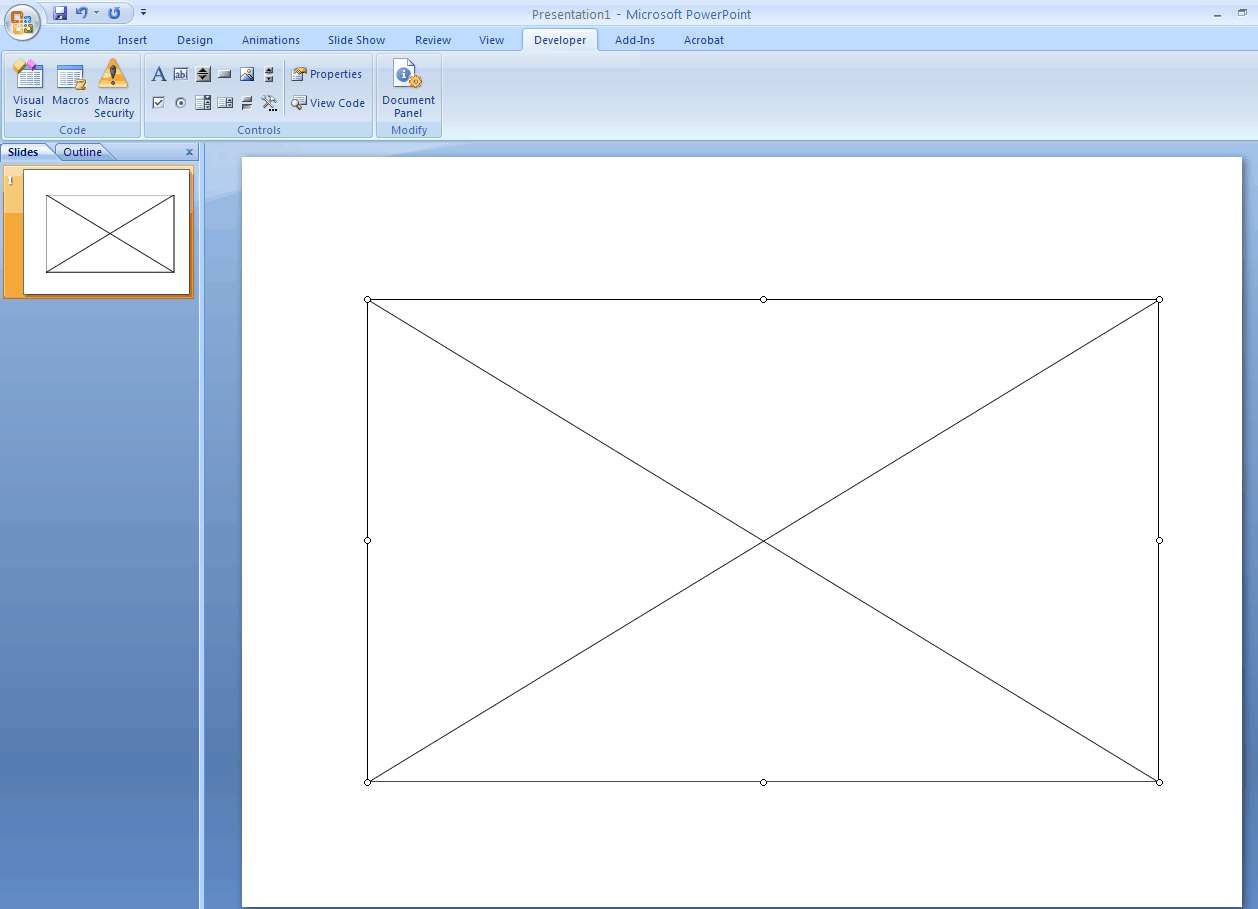
  11. You will see a + sign as your mouse cursor. Click and drag on a blank PowerPoint slide. This will create a big box with an X in the middle.
  12. Right-click on the box and click on Properties and a new menu will open.
  13. Find the Movie line and paste the Voki hyperlink into the blank area. Then close the Properties window.
  14. To preview, just hit F5 on your keyboard!

PowerPoint 2013

1. Click and copy your Voki embed code.

2. Open word document and paste the embed code.

3.Find the value code with a hyperlink.

4. Select and copy that hyperlink.

5. Now, go into your PowerPoint and click on File to open up the menu for PowerPoint and click on Option.

1

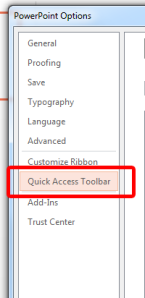
6. Click on Quick Access Toolbar.

27. From the Choose commands from: drop-down menu, locate and click the Developer Tab.
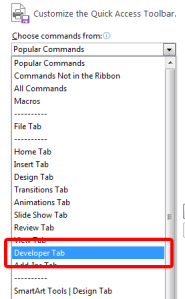
3

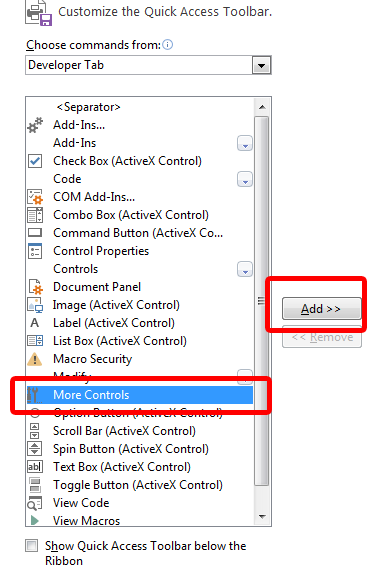
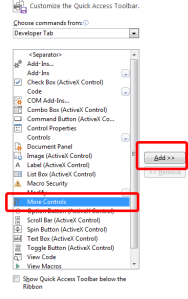
8. Locate and click on More Controls and click Add. It will appear on the top menu.
4

9. Click on More Controls.

5

10. Select Shockwave Flash Object.

6

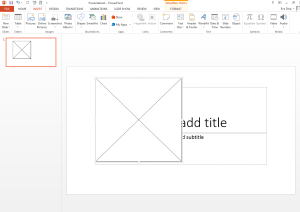
11. You will see a + sign as your mouse cursor. Click and drag on the PowerPoint slide. This will create a big box with an X in the middle.
7

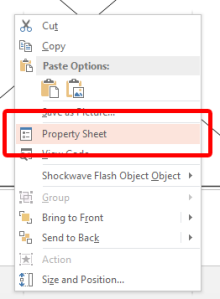
12. Right-click and select Property Sheet.
8

13. Find the Movie line and paste the Voki hyperlink into the blank area.

9

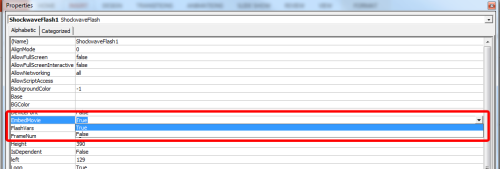
14. Find EmbedMovie and set it to True. Then close the Property window.
10

15. To preview, just hit F5 on your keyboard!

Note: To play your Voki using the embed code you must be connected to the internet.

Mac Users: Inserting Voki using the embed code may not work for Mac users, if you have any suggestions, please send it to feedback@voki.com. To insert Voki into your PowerPoint, use the direct link to your Voki or insert your Voki as a video.

Which method did you use to put your Voki on your PowerPoint presentation?

Have a comment or question for Voki? We are always here to help! Just send us an email at feedback@voki.com!

Until next time,

The Voki Team
Tip of the Week: Embed Voki on Google Site

Tip of the Week: Embed Voki on Google Site

Are you looking for different ways to share your Voki? You can always embed your Voki collection to your Google Site! If you attempted to embed your Voki on your Google Site (and failed), continue reading to learn how!

Just follow these simple steps and you can show off your Voki collection to everyone!

  1. Go on www.voki.com
  2. Publish your Voki.
  3. Select your Voki size.
  4. Click to copy your Voki embed code.
  5. Paste your embed code onto Word.
  6. Find the hyperlink starting with src=”http://vhss-d.oddcast.com.
  7. Copy the hyperlink.Note: To make the Voki link work on Google Site, add “s” to http.
  8. Go to sites.google.com. If you do not have a Google site created, click the Create button.
  9. Name your site.
  10. Click Create again.
  11. Click on the Edit button. It looks like a pencil.
  12. Click Insert at the top of the page.
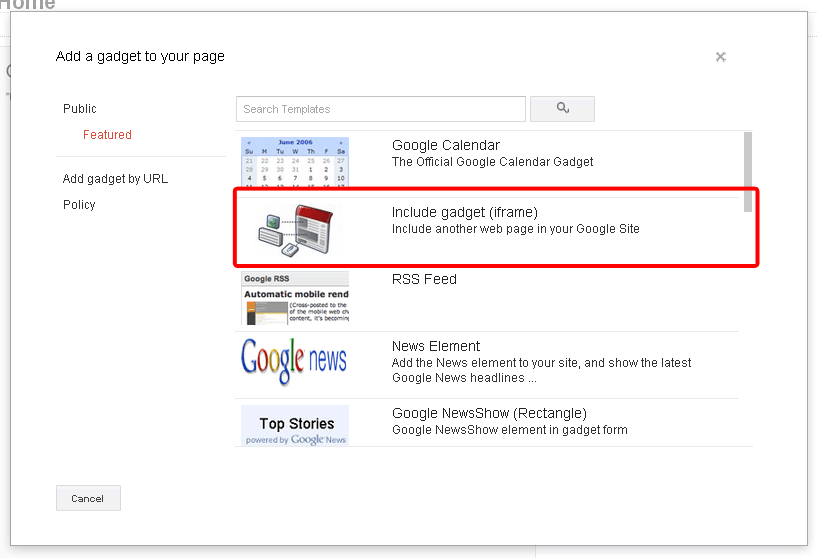
  13. Click on More Gadget.
  14. Click on Include Gadget. If you cannot find it, search Include Gadget.
  15. Click on Select.
  16.  Paste the Voki hyperlink into the box and click OK
  17.  Click Save.

Now your Voki is embedded on your Google Site!

If you have any questions, comments, or suggestions for Voki, shoot us an email at feedback@voki.com!

Happy embedding!

The Voki Team

Voki Tip of the Week: Save your Voki as a video file!

Voki Tip of the Week: Save your Voki as a video file!

Some of our users have been wondering about turning their Voki scenes into .avi files (which stands for Audio Video Interleave). We’re here to help! It’s quite easy to create your Voki scene and add it wherever you like. It may take some time (and a little patience), but if we can do it, you can do it! 🙂

One of our tech savvy educators left a great tip via the Teacher’s Corner. Here’s how it works.:

  • Create a Voki.
  • Go to CamStudio (for example) and download the latest program;  it’s free.
  • Open the program and return to your Voki.
  • Drag the box over your Voki and press Record.
  • Play your Voki.
  • Stop recording when finished.

You can save your recording on your PC as a video file. You can then add it to a PowerPoint presentation, a website, or anywhere else for that matter. Give it a try!

voki

Got a Voki tip?

Share it in the “Voki in the Classroom” section and we might feature you right here, in the blog!

The “Missing” Voki Embed Code

The “Missing” Voki Embed Code

Quite a few Voki users have reported that they cannot see the Voki embed code, after clicking Publish. We have identified the issue and we would like to tell you about it here, as well as the solution we’ve implemented.

The New Voki for Ed uses a new type of publishing called Gigya. The Gigya publishing tool (or, panel) lets Voki users easily and automatically post their Voki to many, many types of blogs and websites. The Gigya panel also includes an embed code that you can copy and paste into your site, blog, or profile.

The Issue: As many of you have noticed, some schools have blocked Gigya. What this means, is that the school’s network settings prevents accessing (seeing and using) the Gigya panel, which includes the publishing options (icons) and the embed code. Keep in mind that you should still be able to access the Voki link. This was obviously a significant issue for many teachers! This is also why you can probably access everything just fine from home, but not from school (where you need it!).

The Solution: One solution would be for the school’s network administrator to allow use of Gigya in your school. If this is not possible, we’ve implemented another solution. When Voki senses that Gigya is blocked (i.e. when your system will not allow you to see the Gigya publishing options), you now automatically see the Voki embed code, which you can paste into your site, blog, or profile. This code also provides you with your Voki scene ID.

That’s it! Our embed code solution is now live and working. We hope it serves you well!

Sincerely,

The Voki Team

Voki Tip of the Week: Posting your Voki on PBworks.com

Voki Tip of the Week: Posting your Voki on PBworks.com

Since the launch of Voki for Education, there have been several questions (and, yes, concerns) about publishing Voki scenes on various platforms, such as PBworks.com.  Some Web-savvy Voki educators decided to share a “fix” in the Teacher’s Corner community. So, this Voki Tip is dedicated to posting Voki on your PBworks.com page!

Step 1

After creating and saving your Voki, click on Publish and Copy the embed code.

Step 2

On the edit page of PBworks, go to Insert, but instead of [More Plugins > Interactive Media > Voki Speaking Avatar], just click HTML/JavaScript.

Step 3

Paste the code into the box provided and select “Allow JavaScript.”

Step 4

Save your work. The Voki should appear/speak. That’s it!

Did this fix work for you?

Want to share a tip? Let us know at submit@voki.com.