Voki Tip of the Week: Voki New Year’s Resolution

Voki Tip of the Week: Voki New Year’s Resolution

It’s hard to believe that 2012 is coming to a close. In preparation for the New Year, have your students come up with some New Year’s resolutions and present them with Voki.

As a fun reminder, ask your students to listen to it again at the end of the school year!

See below for an example:

Happy New Year!

The Voki Team

Voki Tip of the Week: Happy Holidays in Different Languages

Voki Tip of the Week: Happy Holidays in Different Languages

Merry Christmas in Chinese? Happy Holiday in Spanish? Happy New Year in French? You will be surprised at how many different ways you can say it! Here’s a fun holiday activity that you can do in your classroom. Assign your students different languages and ask them to research how to say holiday greetings in their assigned language! It would be a great cultural lesson!

Check out some examples below! Can you guess what language they’re in?

Happy Holidays!

The Voki Team

Voki Lesson Plans: December Holiday Lesson Plans

Voki Lesson Plans: December Holiday Lesson Plans

It’s finally the last month of the year! December is a month filled with holiday cheers and joy! This month, different cultures around the world get together and celebrate the meaning of family, togetherness, and culture. We have three holiday lesson plans this month on three special holidays: Hanukkah, Kwanzaa, and Boxing Day!


Note: If you are looking for a Christmas lesson plan, check out our Holiday lesson plans post!


Hanukkah – This lesson plan will teach students about the origin of Hanukkah. They will learn the story behind Hanukkah. Students will discuss the traditional food and symbols of Hanukkah. They will be required to create a Voki to present a scene that represents Hanukkah from the Hanukah story.

Kwanzaa – Students will learn about the 7 principles of Kwanzaa. They will discuss about the different symbols that represent Kwanzaa and how Kwanzaa is celebrated. Students will learn how Kwanzaa began and the meaning of Kwanzaa. Students will write a story on one of the symbols or principles of Kwanzaa to share with the class.

Boxing DayIn this lesson plan, students will learn about the origination of Boxing Day, which countries celebrate it, and how it is celebrated. They will be required to research how people celebrate Boxing Day and Boxing Day traditions. Students will create a Voki to present their research on Boxing Day traditions.

Remember: The grade level assigned to each lesson plan is not set in stone. You can use Voki lesson plans for a higher, or lower, grade than the one you teach. These Voki lesson plans can be adapted to fit your style or your students’ abilities!

We would love to hear some of your lesson plan ideas for Voki! Just send us an email at lessonplans@voki.com!

Until Next Time,

The Voki Team

Voki Tip of the Week: Voki Christmas Card

Voki Tip of the Week: Voki Christmas Card

Season’s greetings everyone!

It’s that special time of the year again! It’s time to send out some nice cards to your family and friends! Why not send them a Voki Christmas Card this year?

Here’s what you can do:

  1. Go to www.Voki.com and create your Voki.
  2. Click the Publish button.
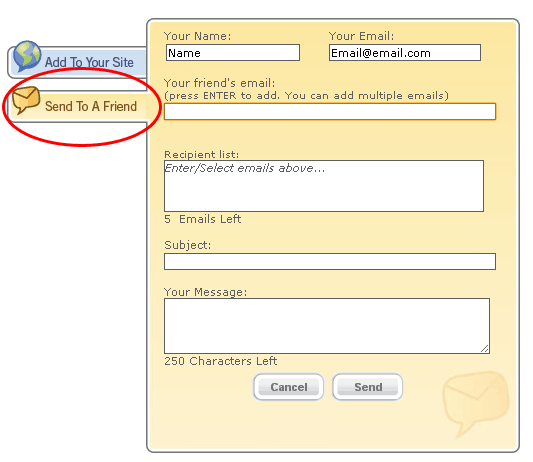
  3. Click Send to a Friend tab and enter your name and email address. Then enter the email addresses that you want to send this card to.
  4. Type in a Subject for this. (You cannot send without a subject!)
  5. Click Send.

Here’s a Christmas card from the Voki Team!

Until next time,

The Voki Team

Voki Tip of the Week: Voki on PowerPoint

Voki Tip of the Week: Voki on PowerPoint

Many teachers use PowerPoint in their lessons and want to put Voki into their presentations. There are several ways of putting Voki onto your PowerPoint presentations.

So we compiled a list (from the simplest way to the hardest way!) on how to put your Voki onto your PowerPoint presentation! Let’s all take a look!

Direct Link to Voki Character

  1. After you published your Voki, select your Voki size.
  2. Select your Voki link.
  3. Highlight and copy your Voki link.
  4. Paste the link into your PowerPoint slide.

Note: You need internet connection during your PowerPoint presentation to view your Voki. You can also view your Voki in full screen by checking out this Tip of the Week.

Voki as a Video

  1. After you published your Voki, create a Voki video. Check out this Tip of the Week on how to turn your Voki into a video file.
  2. In your PowerPoint, click on the Insert tab.
  3. Click on Movie and select Movie from File.
  4. Find and insert your Voki video file.

Note: If you are saving your PowerPoint presentation onto a flash drive, remember to also save your Voki video file in the same location! This will make sure that your Voki video will play when you open your PowerPoint on a different computer!

Using Embed Code

For PowerPoint 2010 users

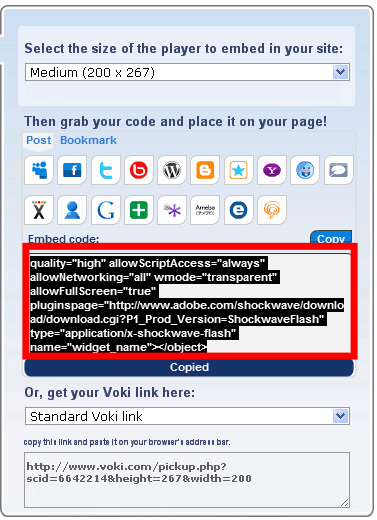
  1. Click and copy your Voki embed code.
  2. Click on the Insert tab.
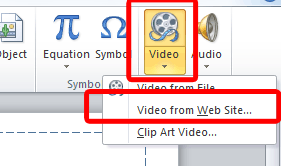
  3. Click on Video and select Movie from Website.
  4. Paste your embed code into the box.
  5. Click Insert.
  6. Now you have your Voki on your PowerPoint! To preview, just hit F5 on your keyboard!

For PowerPoint 2007

  1. Click and copy your Voki embed code.
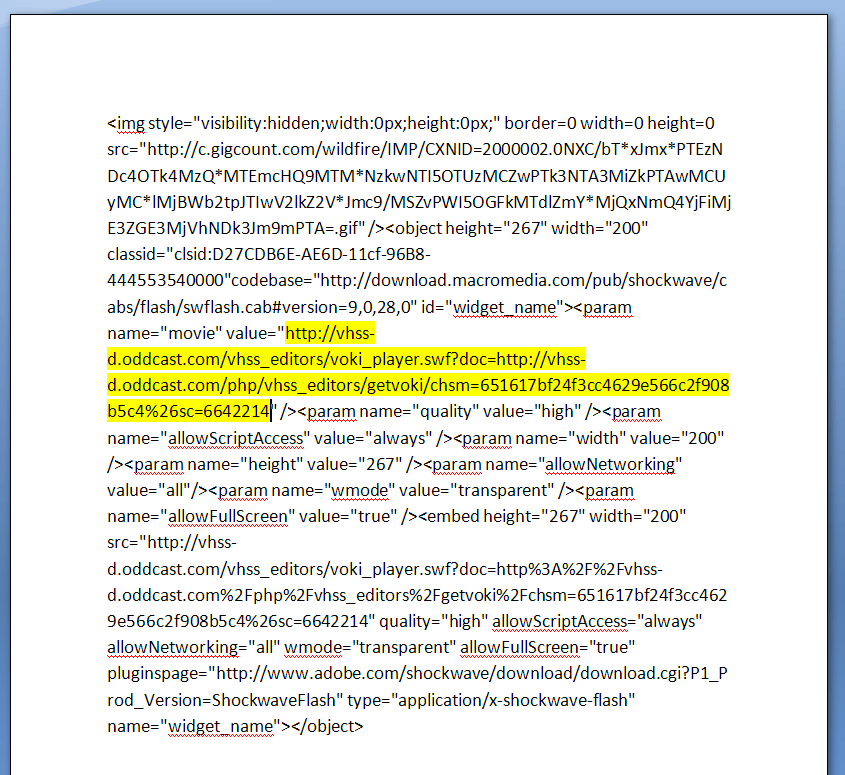
  2. Open word document and paste the embed code.
  3. Find the value code with a hyperlink.
  4. Select and copy that hyperlink.
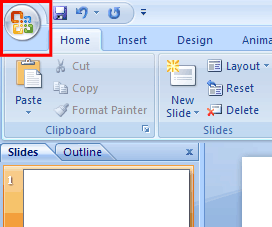
  5. Now, go into your PowerPoint and click on the Ribbon. The Ribbon opens the dropdown menu for PowerPoint.
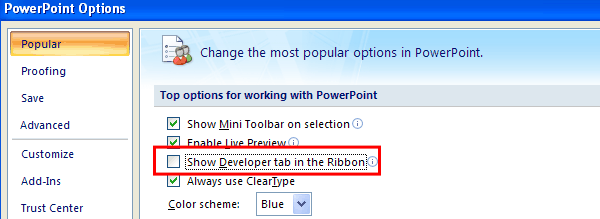
  6. Click on PowerPoint Options and a new menu will open up.
  7. Make sure that the option for Show Developer tab in the Ribbon is checked. If not, click on it and click OK. The Developer tab will be added to your Ribbon.
  8. Click on the Developer tab.
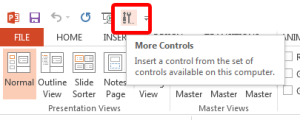
  9. Click on the More Controls icon (the one with a hammer and a wrench) and a new menu will pop up.
  10. Scroll down to find Shockwave Flash Objects and click OK.
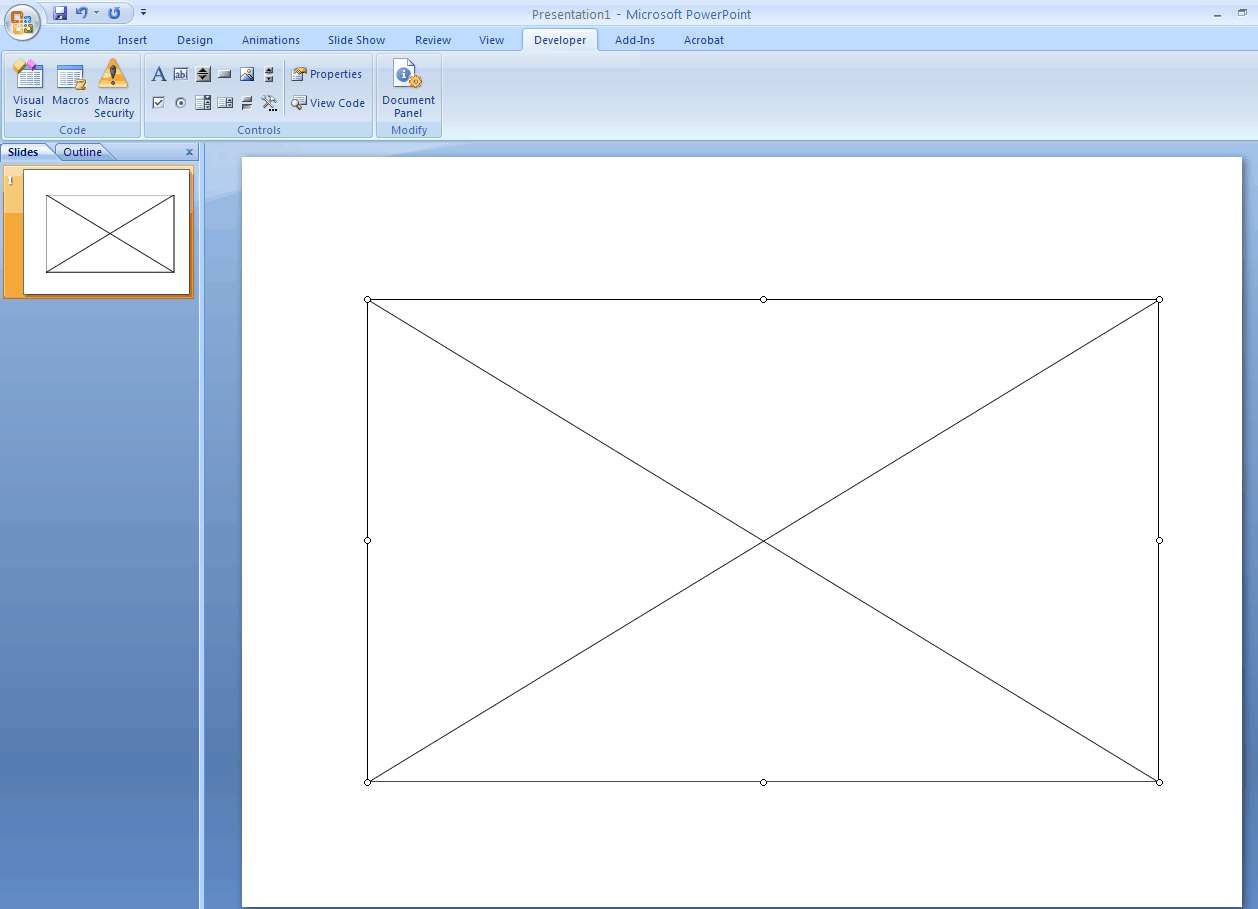
  11. You will see a + sign as your mouse cursor. Click and drag on a blank PowerPoint slide. This will create a big box with an X in the middle.
  12. Right-click on the box and click on Properties and a new menu will open.
  13. Find the Movie line and paste the Voki hyperlink into the blank area. Then close the Properties window.
  14. To preview, just hit F5 on your keyboard!

PowerPoint 2013

1. Click and copy your Voki embed code.

2. Open word document and paste the embed code.

3.Find the value code with a hyperlink.

4. Select and copy that hyperlink.

5. Now, go into your PowerPoint and click on File to open up the menu for PowerPoint and click on Option.

1

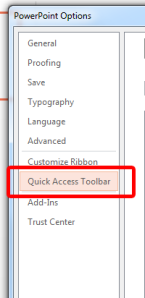
6. Click on Quick Access Toolbar.

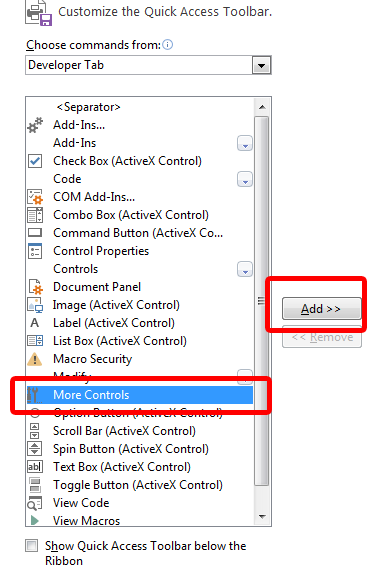
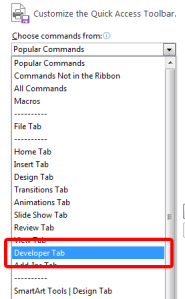
27. From the Choose commands from: drop-down menu, locate and click the Developer Tab.
3

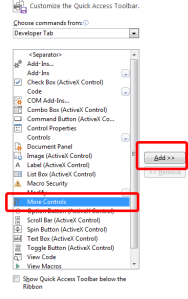
8. Locate and click on More Controls and click Add. It will appear on the top menu.
4

9. Click on More Controls.

5

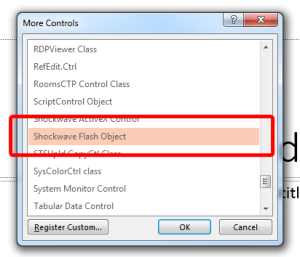
10. Select Shockwave Flash Object.

6

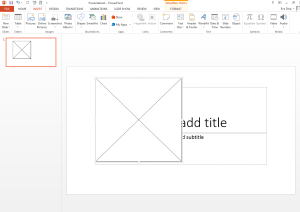
11. You will see a + sign as your mouse cursor. Click and drag on the PowerPoint slide. This will create a big box with an X in the middle.
7

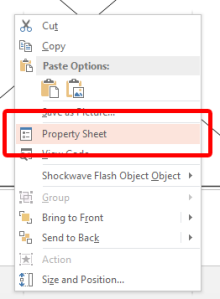
12. Right-click and select Property Sheet.
8

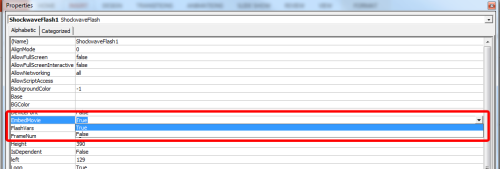
13. Find the Movie line and paste the Voki hyperlink into the blank area.

9

14. Find EmbedMovie and set it to True. Then close the Property window.
10

15. To preview, just hit F5 on your keyboard!

Note: To play your Voki using the embed code you must be connected to the internet.

Mac Users: Inserting Voki using the embed code may not work for Mac users, if you have any suggestions, please send it to feedback@voki.com. To insert Voki into your PowerPoint, use the direct link to your Voki or insert your Voki as a video.

Which method did you use to put your Voki on your PowerPoint presentation?

Have a comment or question for Voki? We are always here to help! Just send us an email at feedback@voki.com!

Until next time,

The Voki Team
Voki Podcast on TeacherCast

Voki Podcast on TeacherCast

Hey Voki users! Recently, Voki did a podcast with Jeff Bradbury at TeacherCast.

TeacherCast was created by Jeff to help teachers use technology in their classrooms. Follow @JeffBradbury and @TeacherCast on Twitter to get great updates on cool technologies to use in class! If you have any cool apps or would love to share your ideas with Jeff, feel free to reach out to him!

If you missed it on TeacherCast, listen to it here!

If you want Voki to be a guest blogger on your site or record a podcast with you, just send us an email at feedback@voki.com!


Until next time,

The Voki Team

Voki Lesson Plans: Lesson Plans on English-Speaking Countries

Voki Lesson Plans: Lesson Plans on English-Speaking Countries

Last month, we introduced three lesson plans on Latin America. This month we are introducing 3 new lesson plans for our English speaking countries that your students will enjoy learning about: United Kingdom, Australia, and New Zealand! So let’s dive into the past with some famous historical figures from the United Kingdom, travel and explore the great continent of Australia, and test your hidden knowledge on New Zealand!

Remember:  You can use Voki lesson plans for a higher, or lower, grade than the one you teach. Also, you can adapt Voki lesson plans to fit your style, or your students’ abilities!

Autobiography(United Kingdom) – In this lesson plan, students will learn about famous historical figures within the United Kingdom. In a 2 page autobiography, students will research about their lives and their influence on society. As an additional classroom activity, students will create Voki clues on the historical figure that they researched.


Australia Travel Brochure – Students will learn about the geography and the different territories of Australia. Students are assigned to one of the Australian territories and will be required to create a travel brochure for the territory. A Voki will be created to introduce the assigned territory with 3 interesting facts.


New Zealand Scavenger Hunt– Students will go on an internet scavenger hunt on New Zealand. They will learn to locate the islands, cities, and bodies of water located in New Zealand. You will play a Voki with scavenger hunt clues and students will research. Students will be required to create a scavenger hunt Voki to present to the class.


We would love to hear how you are using Voki in your class! If you have send it to us at lessonplans@voki.com!

Until Next Time,

The Voki Team

Talking Technology Presentation at GaETC: Voki

Talking Technology Presentation at GaETC: Voki

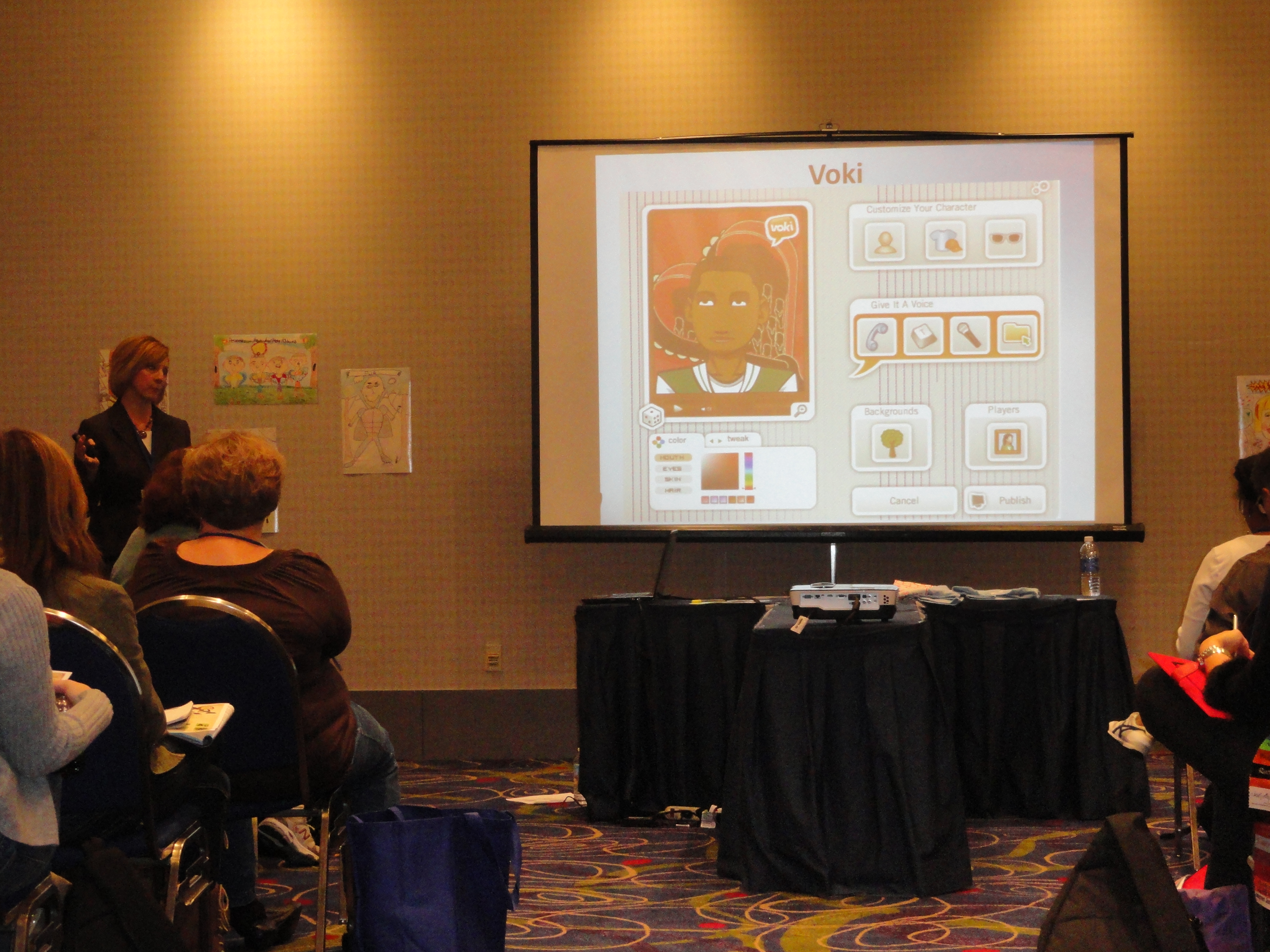
It was a huge success for the Talking Technology session lead by Lisa Collins at the Georgia Educational Technology Conference last week. The session took place on November 8, 2012 in Atlanta, Georgia. The GaETC is an annual event dedicated to helping educators understand the role of technology in classrooms.

Lisa Collins and her partner, Heidi Johnson, presented Voki to a crowd of teachers that day. They have some great giveaways that day.  Some cool Voki t-shirts were given away and two participants received Voki Classroom subscriptions!

Just take a look at how much fun they had:

If you are presenting Voki at a conference, make sure to use our Voki PowerPoint and Brochure! Remember us any pictures of the conference to feedback@voki.com!

Until next time,

The Voki Team

Tip of the Week: Embed Voki on Google Site

Tip of the Week: Embed Voki on Google Site

Are you looking for different ways to share your Voki? You can always embed your Voki collection to your Google Site! If you attempted to embed your Voki on your Google Site (and failed), continue reading to learn how!

Just follow these simple steps and you can show off your Voki collection to everyone!

  1. Go on www.voki.com
  2. Publish your Voki.
  3. Select your Voki size.
  4. Click to copy your Voki embed code.
  5. Paste your embed code onto Word.
  6. Find the hyperlink starting with src=”http://vhss-d.oddcast.com.
  7. Copy the hyperlink.Note: To make the Voki link work on Google Site, add “s” to http.
  8. Go to sites.google.com. If you do not have a Google site created, click the Create button.
  9. Name your site.
  10. Click Create again.
  11. Click on the Edit button. It looks like a pencil.
  12. Click Insert at the top of the page.
  13. Click on More Gadget.
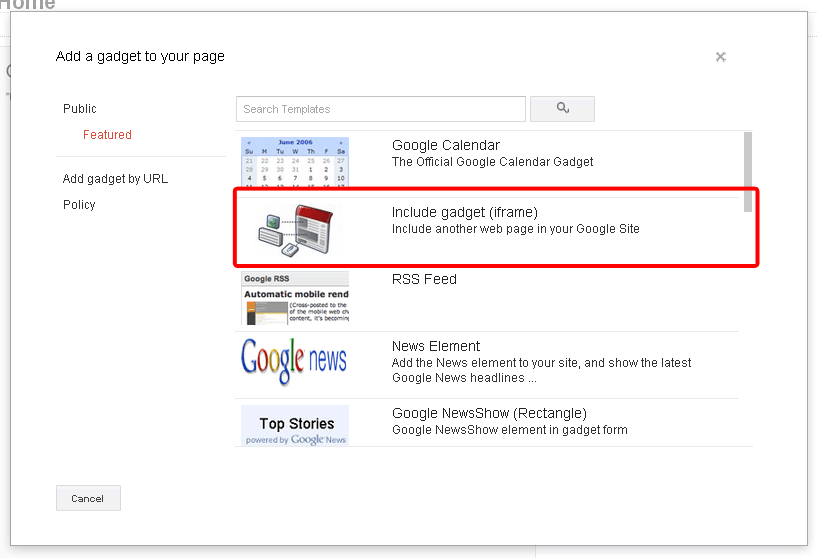
  14. Click on Include Gadget. If you cannot find it, search Include Gadget.
  15. Click on Select.
  16.  Paste the Voki hyperlink into the box and click OK
  17.  Click Save.

Now your Voki is embedded on your Google Site!

If you have any questions, comments, or suggestions for Voki, shoot us an email at feedback@voki.com!

Happy embedding!

The Voki Team

Voki Activity Ideas

Voki Activity Ideas

Looking for some great Voki activities for your students?

Well look no further! Tricia and Donna from 1001 Super Tools for Teachers made a great handout with Voki! As their Super Tool 991, they listed out some fun lesson Voki activities for different school subjects!

Reading/Language Arts

Did you just assign a great book to your students? Are you planning a poetry lesson? These fun lesson ideas would get your students to practice their reading and writing:

  • Have your students write a poem and get a Voki to recite it!
  • Create a Voki to describe the character or explain their motivation of their actions.
  • Teach your students how to identify the sequence of events in a story by creating a Voki.

Science

Teaching a science lesson does not have to be boring! Your students will have a BLAST with these Voki science activities:

  • Create a Voki that represents your lesson to explain and define important vocabulary words.
  • Are you doing an experiment in class? You can create a Voki to give directions on how to do the experiment!
  • Have your students create Voki to respond to class questions.

Social Studies

Learning about the Renaissance Era, the American Revolution, or the Meji Restoration? Having a great historical debate in class? Bring history back to life with these Voki history activities:

  • Get your students to create some famous historical figures to explain who they are and what they did.
  • Create Voki characters to have a historical debate on important subjects in history.
  • Have your students create a Voki to explain the cause and effect of some historical events.

Math

Vokis can be used in all types of subjects. Even math! These great Voki math activities will be fun part of your math lesson:

  • You can create an instructional Voki to remind your students on the correct ways to solve a problem.
  • Your students can create and share Vokis to help other solve a problem.
  • Have your students create Voki word problems and solve them in class.

Speech Therapy

Some of your students may have speech problem. These Voki activities will help them reach their language goal:

  • Create a Voki to articulate sounds.
  • If your students have dysfluency, like stuttering, have them create a Voki by recording their voice. Make sure to tell them to keep track of their progress!
  • Have your students record their voice on a Voki. Ask them to get peer feedback on how they are doing.

Foreign language

Voki offers 30 different languages! It’s a good way to start practicing your Japanese sentence structure, Spanish vocabulary, or Portuguese pronunciation!

  • Your students can create a Voki to practice their vocabulary and pronunciation.
  • Create a Voki using text-to-speech; this is a great way for students to practice their writing skills.

Thank you Tricia and Donna for creating this amazing Voki handout!

If you have some great ideas or feedback that you want us to know, send us an email at feedback@voki.com!

Until next time,

The Voki Team