Voki Tip of the Week: A Friendly Summer Hello

Voki Tip of the Week: A Friendly Summer Hello

Share a bit of love and care during the summer months by sending your students a Voki summer greeting! With a simple Voki, you can let your students know that you care for them outside of the classroom! You don’t have to make this educational or formal-Summer Vokis are for spreading smiles and creating bonds! Check out our examples below and start sending your summer Vokis today!

Until Next Time,

The Voki Team

Voki Tip of the Week: Creating a Purchase Order

Voki Tip of the Week: Creating a Purchase Order

Q.  My school is interested in purchasing a Voki Classroom subscription.  Do you except PO’s or is it credit card/PayPal only?

A. You may pay for Voki Classroom subscriptions by check or money order online. Please visit http://www.voki.com/products.php and click Get Voki Classroom. Follow the prompts to select the package that is appropriate for your needs.

Note: You can purchase accounts on behalf of others. If you are in this administrator role you will need to create a Voki account if you don’t already have one. If you are purchasing for more than one person, select the Multiple Purchase option and enter the requested information.

In the checkout section, go to the Check or Money Order option and follow the directions to generate a Purchase Order for yourself and to be mailed in with your payment. We understand schools sometimes need to issue their own PO. You may send this along with the Voki PO and payment, but it is not required.

Voki Tip of the Week: Have a question? Contact us!

Voki Tip of the Week: Have a question? Contact us!

When you have a comment, recommendation or question to share with The Voki Team, we are here to listen! Getting in touch with us is easy. All you need to do is send us an email that clearly states your purpose for writing to feedback[at]voki.com. If you need help with a specific tool on Voki, it always helpful if you can send a screenshot of what you are experiencing.

We receive feedback daily and want to respond to everyone, therefore it may take us a couple days to get back to you. Our goal is to make you happy so please be patient and we will work with you!

So next time you need help or simply feel like sharing a good Voki idea, send us an email!

Until Next Time,

The Voki Team

Voki Tip of the Week: Use Voki to Start a Conversation

Voki Tip of the Week: Use Voki to Start a Conversation

Teacher: Good morning class! How are you? What did  you do this weekend?

Student: Nothing…

Teacher: Really? You didn’t go outside, or go to a movie, hang out with your friends?

Student: I watched tv, slept…

Sometimes starting a conversation with your first class on Monday can feel like pulling teeth. Instead of playing this game of tug-of-war to get a conversation started, use Voki to help your students tell their weekend stories!

Try this: Each Monday, have your students create a Voki that describes their favorite part of the weekend. Have them elaborate on what happened, who was with them, and why it was their favorite activity of the weekend.

By encouraging your students to open up in the beginning of class, you are paving the way for a more communicative environment where students will be able to express their feelings, doubts, and ideas. Check out the Vokis below to see examples of how this exercise can work!

-The Voki Team

The Rename Function is Fixed!

The Rename Function is Fixed!

Hey everyone! As you may have noticed, Voki was experiencing some difficulties when it came to renaming your already saved Vokis. We have now resolved the issue and you can go back to changing the names of your Vokis as you would like!

Follow the simple steps below if you would like to rename your Voki.

1. Log in to your Voki account.

2. From the My Voki screen, click the Eye Icon to view the Voki you want to rename. (insert pic of the icon)

3. Click the Rename button above your Voki and type in the title of your choice.

4. Click Submit.

Voila! Your Voki should reflect the new name after you click submit! We apologize for the inconvenience and if you ever spot an issue with Voki, please let us know by sending us an email to feedback@voki.com.

Voki Tip of the Week: Use Voki to Make an Announcement

Voki Tip of the Week: Use Voki to Make an Announcement

You know those days. You’ve spent the whole night grading and preparing for class, then wake up late only to find you’ve run out of coffee.Now a classroom full of  bright eyed children are waiting for your performance…

This is the perfect morning to have a Voki introduce the day’s lesson and assignment.

Check out these examples and create your own savior Voki today!

Until Next Time,

The Voki Team

Voki Tip of the Week: How to Embed Voki Using Presets

Voki Tip of the Week: How to Embed Voki Using Presets

Embedding Voki with the publishing presets is easy! Showcase your Voki on Facebook, Friendster, Twitter and more with just a few clicks.

Step One: After you have created your Voki, added text or voice, and have it ready to go, click Publish Your Voki.

Step Two: Select the size in which you would like to display your Voki. We recommend choosing large for the full Voki effect!

Step Three: Choose the platform where you would like to post your Voki. If you do not see a quick option for a particular site or blog, grab the embed code below. Once you click the code, it is automatically copied and ready to paste on your website.

Some sites, such as WordPress, require a bit of massaging to embed your Voki on the page. For WordPress instructions, please check out our past Voki Tip of the Week, How to Embed Voki on WordPress.

We hope you have fun creating your Vokis and sharing them with your students, teachers, and friends! If you have any questions or issues with embedding, please let us know in the comments section or by sending us an e-mail to feedback@voki.com.

Sincerely,

The Voki Team

Voki Tip of the Week: Recognize Student Achievement with Voki

Voki Tip of the Week: Recognize Student Achievement with Voki

Voki is a useful tool that makes lessons interactive, educational, and fun.We love seeing how teachers around the world incorporate Voki into their classroom activities.  Voki isn’t only a great supplement to lessons, it can also serve as a cute message bearer that recognizes student achievements, good work, or birthdays! Just imagine a student’s delight upon receiving a Voki in their e-mail on their birthday that delivers a special and personalized message.

Below are a few examples of how Voki can help you give your students a virtual pat on the back.

Have a great week!

The Voki Team

Healthy Living Lesson Plans with Voki

Healthy Living Lesson Plans with Voki

Being healthy is a lifestyle habit that requires guidance beginning at a young age. With some schools serving lunch options  that are highly processed and lacking in nutritional value, students may be confused as to what “good food” actually is. In addition to the difficulties of making healthy eating decisions, students have to balance their personal life with school work, which is often the source of major stress.

In an effort to help students learn how to maintain a happy and healthy life, we have created 3 lesson plans that touch on important health topics. Middle School and High School students will learn techniques on how to cope with stress,  create realistic body image expectations, and understand the potentially harmful effects of some common consumer products.

Stress, unhealthy eating habits, and a lack of regular exercise are a combination that threaten the well-being of many students. These topics deserve much more attention in school than they currently receive, so open up the discussion in your class and let your students share their ideas with Voki!

Remember: The grade level we assign to each lesson plan is not a requisite – you can use most Voki lesson plans that were written for a higher, or lower, grade than the one you teach – if you think they fit! Also, remember that you can adapt Voki lesson plans to fit your style, or your students’ abilities.

Coping with Stress (Health, High School) – Students explore the issue of stress in school and daily life, and understand that it is an issue many people have to cope with. Students make lists of things they have to do in the week and organize them in a way to try and reduce stress. The class discusses different ways to cope with stress and decrease it in daily life. The teacher will lead the students in a meditative yoga practice at the end of the lesson. Students will create a Voki that talks about how they plan to deal with stress in the future.

Body Image and its Influencers (Middle School, Health) – Students think about and discuss body image and where body image ideals come from. Students explore different body image influencers, such as the media, family, and culture, and compare and contrast these ideals with reality. Students will analyze their own perceptions and use Voki to talk about positive perceptions of their, and others’, appearance.

Voki Health PSA (Middle and High School, Health) – Students are assigned various popular consumer products and supplements to research and evaluate. After viewing examples of different health PSAs online, students will have the chance to create their own using Voki. Students will learn about how to maintain good health and the insider information on products that should be avoided or reduced. Students will think about healthier alternatives to the products they research.

As always, we would love to hear how you are using Voki in class. If you have a lesson plan that uses Voki (or that can be adapted to incorporate Voki) and you would like to share, please email us at lessonplans@voki.com.

Sincerely,

The Voki Team

Voki Tip of the Week: Sharing Voki via E-Mail

Voki Tip of the Week: Sharing Voki via E-Mail

Have you ever made a Voki that you wanted to share with specific people (like a teacher, a student, parent, or a friend)? Do you have their e-mail address? If you answered “yes” to both questions, you are in luck!

You can easily email a Voki to anyone using the Voki “Send to a Friend” option. Follow these simple steps and you will be able to correspond with people à la Voki.

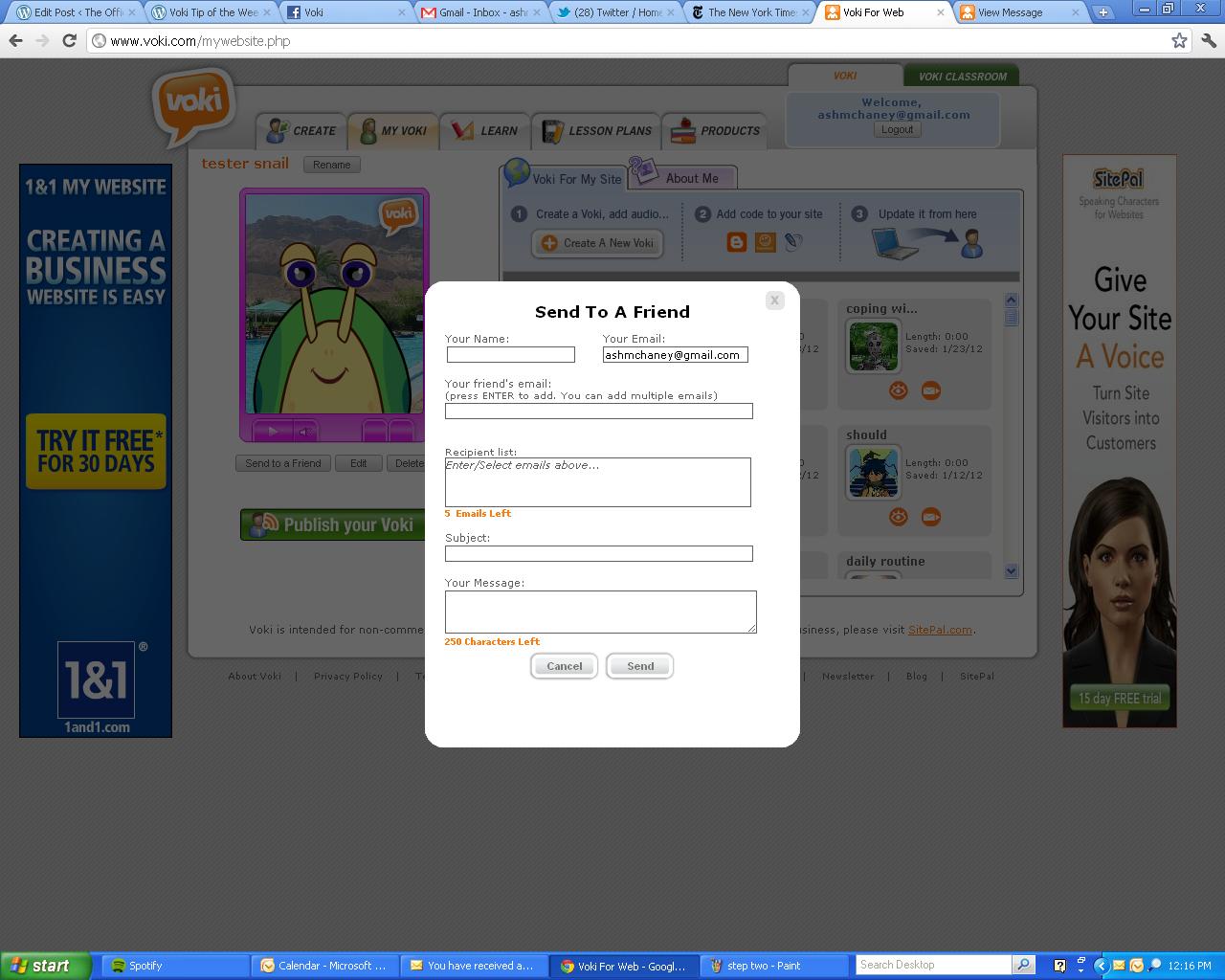
1.  Once you have saved your Voki, click the “Send to a Friend” button (under the Voki preview).

2.  Enter the email to which you want to send the Voki and hit “Enter.” You can repeat this step to add up to 5 email addresses.

Tip: Make sure to enter an email Subject and a message.

3.  Click “Send.”

Step One: Enter Sender and Recipient Information
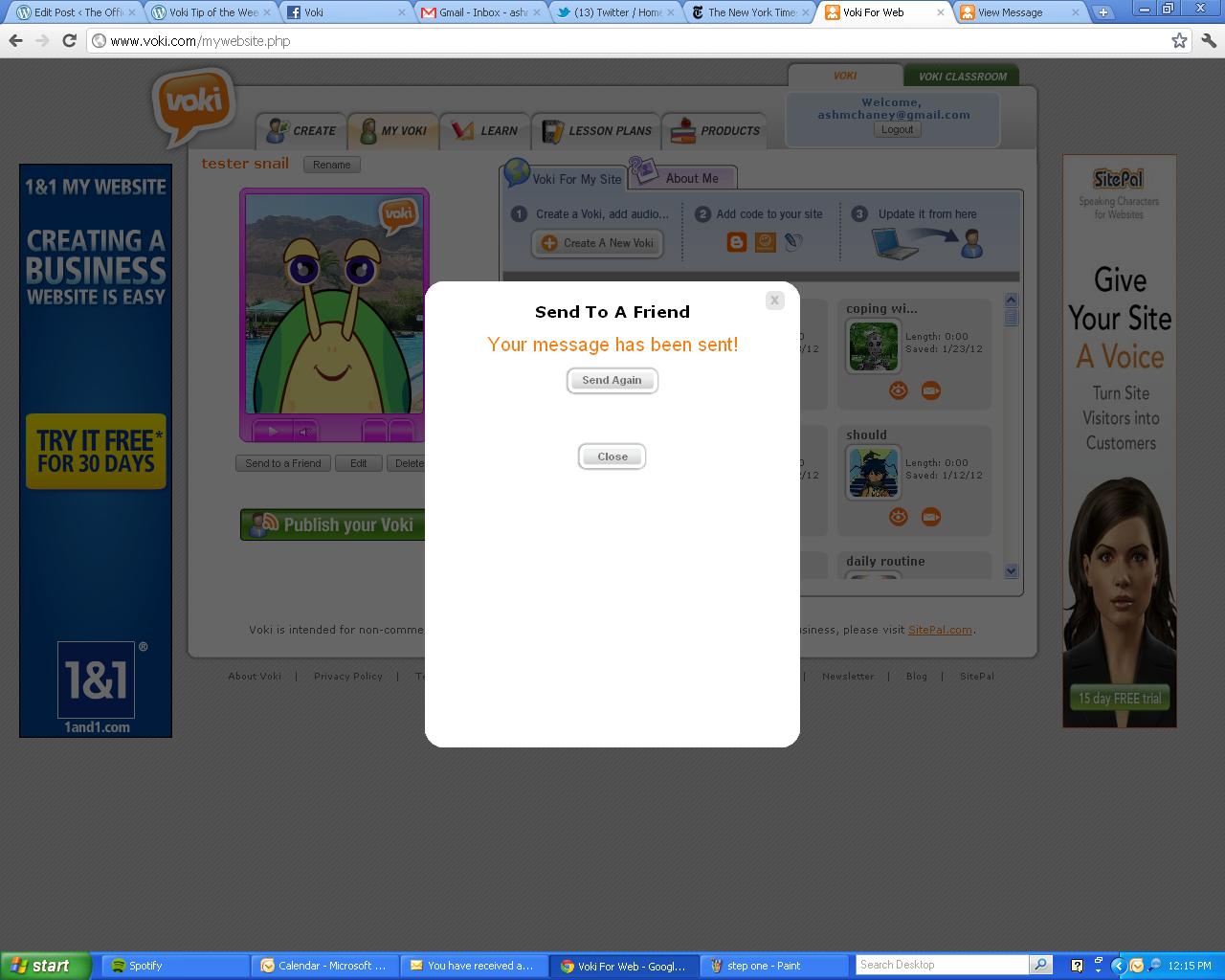
Message Sent

Once your message has been sent, the recipient should receive your Voki immediately. The email that they receive will look like this:

Voki Email

Tip: To make sure you or your recipients receive Voki messages, ask them to add notifications@voki.com to their safe senders list.

When the email is opened, the recipient will be able to view your Voki and will also have the option to reply back with another Voki or forward it to someone else. They will also have the option of saving the Voki to their account.

Tip: Since you can save an emailed Voki to your account, this is also a way to Copy a Voki (just email it to yourself!)!

Recipient Voki View

Have fun using Voki and sharing with your friends! We hope this clears up any confusion you may have had about how to send Voki through e-mail. If you have any questions about this process, leave a comment below and we will be happy to answer you!

Until Next Time,

The Voki Team