How to Copy a Voki

How to Copy a Voki

So, let’s say you have a class website or an online project, in which you’d like the same Voki avatar to appear several times (with a different message each time).

You’ve worked hard to create the perfect Voki character, with just the right shade of hair color and size of head. Recreating this character (with your customizations) is just not possible. It’s too perfect.

The “Copy” feature is something that we’ve heard from several teachers and students. We’re definitely looking into, though we have something even better on the way (we just can’t mention it yet)…

So, for now, how are you supposed to recreate your masterful Voki character?

It’s easier than you might think!

Here’s all you need:

  • Obvious: your computer, Internet access, and a Voki account
  • Very important: make sure that “notifications@voki.com” is in your safe senders list. This will ensure that you receive the email notification you need…

Here’s how to copy that Voki:

  1. Make sure to log in at http://www.voki.com.
  2. After you’ve created and Saved the Voki, go to My Voki and select the Voki you’d like to copy.
  3. Click on Send to a Friend under the Voki preview.
  4. Here’s the sneaky part: In “your friend’s email” enter your email (the email you’re already logged in with) and add it to the recipient list. Enter a subject & message (if you want) and click Send.
  5. Check your email and click on the link. If you don’t see the email, it might be in your junk mail folder. This is why you need to make sure that “notifications@voki.com” is in your trusted/ safe senders list.
  6. When you see the Voki you created, click SAVE to save it (a copy) to your account!

That’s it! You just created a copy of your perfect Voki. You can make additional copies in the same way. You can also make changes to it, like:

  • Renaming it (e.g. History: Welcome, History: Lincoln)
  • Changing the audio message
  • Changing the background
Sincerely,
The Voki Team
Voki Tip of the Week: Save your Voki as a video file!

Voki Tip of the Week: Save your Voki as a video file!

Some of our users have been wondering about turning their Voki scenes into .avi files (which stands for Audio Video Interleave). We’re here to help! It’s quite easy to create your Voki scene and add it wherever you like. It may take some time (and a little patience), but if we can do it, you can do it! 🙂

One of our tech savvy educators left a great tip via the Teacher’s Corner. Here’s how it works.:

  • Create a Voki.
  • Go to CamStudio (for example) and download the latest program;  it’s free.
  • Open the program and return to your Voki.
  • Drag the box over your Voki and press Record.
  • Play your Voki.
  • Stop recording when finished.

You can save your recording on your PC as a video file. You can then add it to a PowerPoint presentation, a website, or anywhere else for that matter. Give it a try!

voki

Got a Voki tip?

Share it in the “Voki in the Classroom” section and we might feature you right here, in the blog!

Voki Tip of the Week: Voki in Quia

Voki Tip of the Week: Voki in Quia

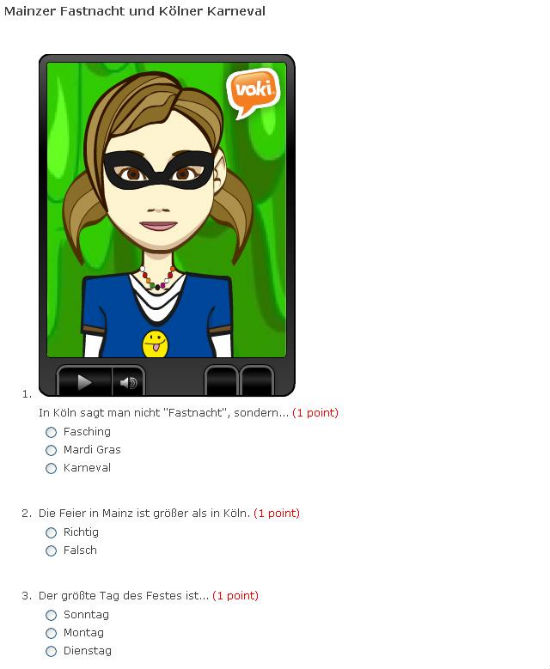
One of our favorite things about our users is that they are always coming up with great and inventive ways to use Voki. In this latest instance, an anonymous tipster posted to Teacher’s Corner how they use Voki with their Quia.com account. Anonymous adds a Voki scene to his quizzes. Here’s what Anonymous has to say:

“I’ve used Quia.com for years. You can include your Voki in a Quia quiz or activity. Next to many of the boxes that you fill out, you’ll notice a blue + sign. You can paste your Voki HTML code in this box, and your Voki will appear in the instructions, questions or answers, wherever you want them. As you make the Quia activity, be sure to check the box that says “Activate HTML and LaTeX.””

Here’s what that would look like:

quia

Got a Voki tip?

Share it in the “Voki in the Classroom” section and we might feature you right here, in the blog!

Voki Tip of the Week: Adding Accent Marks to Text-to-Speech

Voki Tip of the Week: Adding Accent Marks to Text-to-Speech

There are many ways to add an accent mark to your text-to-speech audio for your Voki, but this a the coolest tip we found on our Teacher’s Corner Forum.

It looks like a great way to avoid copying and pasting from Word, you can just enter these ALT codes.  Here’s how it works:

“When Num Lock is turned on, students can hold down the ALT key while typing a 4-digit number on the right-hand number pad (NOT the regular numbers which run straight across the top of the keyboard) and it will make the desired character. Examples:

ALT 0231 = ç (c cedilla)

ALT 0232 = è (e grave)”

So, let’s say you want your Voki to recite an excerpt from Federico Garcia Lorca’s “Arbolé, Arbolé . . .”

Here’s what you’d like your Voki to read:

Arbolé, arbolé,
seco y verdí.

La niña del bello rostro
está cogiendo aceituna.
El viento, galán de torres,
la prende por la cintura.
Pasaron cuatro jinetes
sobre jacas andaluzas,
con trajes de azul y verde,
con largas capas oscuras.

Here’s how it would look if you were to type it out using ALT codes:

ArbolALT+130, arbolALT+130,
seco y verdALT+161.

La niALT+164a del bello rostro
estALT+160 cogiendo aceituna.
El viento, galALT+160n de torres,
la prende por la cintura.
Pasaron cuatro jinetes
sobre jacas andaluzas,
con trajes de azul y verde,
con largas capas oscuras.

And here’s an example, using on of the Voki Spanish voices.

You can find the full list of French accent ALT codes here and Spanish accent ALT codes here.

Got a Voki tip?

Share it in the “Voki in the Classroom” section and we might feature you right here, in the blog!

Voki Tip of the Week: Creating Class Accounts

Voki Tip of the Week: Creating Class Accounts

Setting up a class account is not is not difficult at all. In fact, it’s as easy as setting up your own account.

1. Create a generic email address and register it with Voki.com. Make sure the email address is class-appropriate. You may want to create an email address for each of your classes. If you’d prefer to use a school email address, ask your network admin (the IT person(s)) for help.

2. Once you’re done, pick an easy to remember password.

3. Logging in: Here, you have a couple of options. You can choose to give your students the login info, so they can login in and create/ save Vokis from home. This obviously requires an honor system. Alternately, you can log them in yourself, on multiple machines, during every class. This would give you control over the account password.

Students can access the account at the same time, edit and save their work all in one place. And you have access to every Voki all in one dashboard.

Enjoy!

Tip of the Week: Voki as a Newsletter

Tip of the Week: Voki as a Newsletter

One of our users gave us a great example of how she uses Voki: she records a welcome message on her newsletter! You can see an example of the newsletter here.

Sra. Silvey creates a newsletter for her Spanish Language students’ parents. As part of a voluntary contest, she asks her students to create a welcome message. The winner gets to create their own Voki and gets featured in that news letter. Pretty cool, huh? See the discussion here.

You can also check out Sra. Silvey’s teacher blog!

Got a Voki tip?

Share it in the “Voki in the Classroom” section and we might feature you right here, in the blog!

Voki Tip of the Week: Posting your Voki on PBworks.com

Voki Tip of the Week: Posting your Voki on PBworks.com

Since the launch of Voki for Education, there have been several questions (and, yes, concerns) about publishing Voki scenes on various platforms, such as PBworks.com.  Some Web-savvy Voki educators decided to share a “fix” in the Teacher’s Corner community. So, this Voki Tip is dedicated to posting Voki on your PBworks.com page!

Step 1

After creating and saving your Voki, click on Publish and Copy the embed code.

Step 2

On the edit page of PBworks, go to Insert, but instead of [More Plugins > Interactive Media > Voki Speaking Avatar], just click HTML/JavaScript.

Step 3

Paste the code into the box provided and select “Allow JavaScript.”

Step 4

Save your work. The Voki should appear/speak. That’s it!

Did this fix work for you?

Want to share a tip? Let us know at submit@voki.com.