Introducing Voki Classroom – Part 3

Introducing Voki Classroom – Part 3

We hope that you’re having a great summer, and you’re probably starting to think about the start of the upcoming school year ? Below is the final, and most informative post of our 3-part announcement about Voki Classroom.

In Part 1 of the Voki Classroom announcement, we introduced you to Voki’s new classroom management system. In Part 2, we told you more about some of the features you’ll have access to with Voki Classroom. In this final post, Part 3, we’re going to discuss some additional features included in Voki Classroom, as well as the pricing and schedule.

Last time, we discussed:

This time, we’ll talk about:
  • Student View
  • Assignment Showcase
  • Voki Classroom Support
  • Voki Classroom Pricing
Student view. After logging in to Voki Classroom, students can easily view all of their Vokis by Assignments, and by complete or incomplete Assignments. Under each Assignments, they will see the instructions that the teacher has provided. Clicking the Edit button will open the Voki editor (the same editor you’ve always used in Voki.com/Create) and let them create (or edit) their Vokis. With Voki Classroom, students will create their Vokis in a secure and ad-free environment.

Bonus: As an added feature, when students create their Vokis in Voki Classroom, they will be able to create audio messages that are 50% longer than the current limit! The longer 90-second audio limit will enable students to prepare more detailed Voki messages.

Assignment Showcase. Each of your Assignment automatically generates its own Web page (an Assignment Page), where you can showcase your students’ work. You can easily configure each Assignment Page – select a layout and font. You can also set the Assignment to Private and add password protection to the Assignment Page. TIP: you can also set the Assignment Page as “hidden” so it not viewable while students are working on their Vokis.

Unlimited Support. Voki Classroom also includes unlimited email support from our dedicated support team. While logged in, simply click on Contact Support, choose your topic, and send us a note! Our support team is here to help you with any questions you might have.

Voki Classroom Pricing. We know all too well that teachers don’t usually have much of a budget to work with for technology. With that in mind, we’ve made every effort to reduce the price of Voki Classroom down to a very manageable amount. Below is the pricing of Voki Classroom. Here are a couple of things to keep in mind:

  • Currently, the pricing is based on an annual or bi-annual plan. The 1-year and 2-year plans help reduce the monthly cost.
  • We’re very confident that educators who use Voki will Love Voki Classroom, and we’re backing it up with a full 30-day money-back guarantee. Here’s what that means: If you’re not satisfied for any reason within, 30 days of purchasing Voki Classroom, simply contact support and ask for a refund. You’ll receive a Full (100%) refund of your purchase price.

Without further ado, here is the pricing for Voki Classroom:

  • 1 Year Subscription: $29.95/year ($2.50/month)
  • 2 Year Subscription: $44.95/2 years ($22.48/year, or $1.87/month) – a 25% discount
Additional Discounts. In addition to the 2-Year discount of 25%, schools can get an further discounts when they purchase multiple accounts (Multiple-Account Discounts):
  • 10% Discount when purchasing 5 to 9 accounts
  • 15% Discount when purchasing 10 or more accounts
Note: The 2-Year account discount and multiple-account discounts are separate from each other. You don’t need one to get the other, but you can get both!
.
So, when is this happening?
All this talk about Voki Classroom – but we haven’t told you when Voki Classroom will be Live! Well, we can now tell you that Voki Classroom will be ready and live around Mid August, just in time for the upcoming school year.
.
That’s it, you’re officially schooled on Voki Classroom. Don’t worry, since school is out, there won’t be a quiz.
.
Let us know what you think in the comments area below. We’d love to hear your thoughts/ questions/ concerns about Voki Classroom.
.
Until next time,
The Voki Team
Introducing Voki Classroom – Part 2

Introducing Voki Classroom – Part 2

In Part 1 of the Voki Classroom announcement, we introduced you to Voki’s classroom management system. We received some great feedback and we’d like to share more about Voki Classroom. In Part 2, we’re going to tell you more about some of the additional features you’ll have access to with Voki Classroom.

Last time, we discussed:

This time, we’ll discuss:
  • Managing Classes and Assignments
  • Reviewing Student Work
Just a quick note – we wanted to let you know that we’re very close to the launch of Voki Classroom – it’s only a matter of weeks now. We want to make sure that we polish every edge, and end up with a product that is completely intuitive, easy to use, and foolproof for even the least tech-savvy user! In short, using Voki Classroom will be even easier than using Voki itself. And now, more about Voki Classroom:

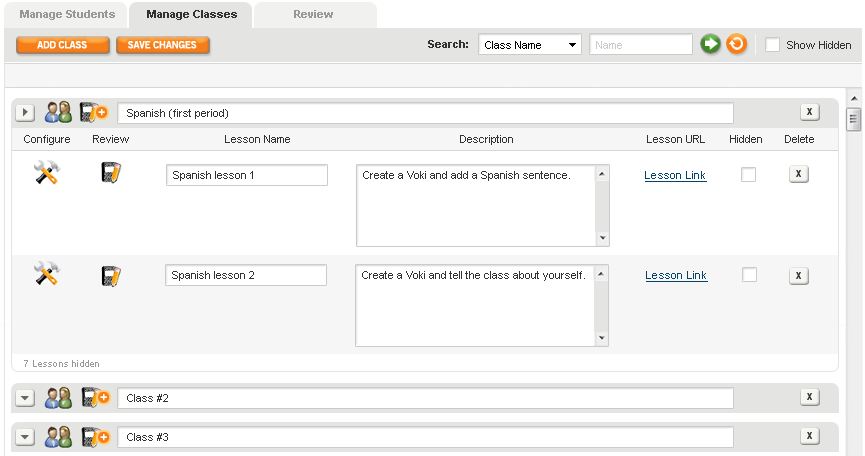
Manage Classes & Assignments. Voki Classroom lets you add and manage your Classes, as well as Aassignments within each class. When you add a new class, a new row will appear (see below). You can then name your Class – i.e. “Spanish (first period)” and add Assignments to it.
.
To add an Assignment, simply click on the Notepad+ icon next tot he class name. Then, give your Assignment a name, and add a description. You can also customize the layout and coloring of each Assignment by clicking on the Configure icon. Each Assignment comes with an Assignment Page – a Web page where you can feature all of the approved Vokis created for that Assignment. Or, if you prefer, you can set the Assignment Page to Private and require a password to view it. If you have your own class site, you can still easily embed each Voki using the embed code.
Voki Classroom - Manage Classes and Lessons
Review Student Work. Review and approve your students’ Vokis within your Voki Classroom account, all in one page. You can view all students Vokis for a given Assignment (view “By Assignment”), or look up and review all Vokis created by an individual student (view “By Student”). You can also choose to view only incomplete, completed or un-reviewed Vokis.
Clicking the Preview icon (the little person button) will open a new window with the Voki scene. If approved, just click the Approve icon (green check mark), and the Voki will appear on the Assignment Page. To get the code, click on the Code icom (<>).
Voki Classroom - Review by Lesson
That’s all for Part 2 of our introduction to Voki Classroom.
Next time, we’ll discuss
  • Student View
  • Assignment Showcase
  • Voki Classroom Support
  • Voki Classroom Pricing
As always, we’re eager to get your thoughts – comments or questions – about Voki Classroom. Feel free to leave a comment below!
Introducing Voki Classroom – Part 1

Introducing Voki Classroom – Part 1

For the last several months, we at Voki have been working on an exciting and **top-secret** project, which we can officially introduce today. Very soon, we will be launching a major addition to Voki, something that will vastly improve the way teachers utilize Voki in the classroom.

Introducing: Voki Classroom! 

Voki Classroom logo

Voki Classroom is a classroom management system for Voki. We created Voki Classroom in response to numerous requests from teachers. Voki Classroom is designed to enhance the way you manage your students’ Voki assignments. In short, Voki Classroom helps students and teachers get more from Voki.

Without further ado, here are the main features of the new Voki Classroom. We’ve also included screen shots to help you visualize the new site:

Class Accounts. They are finally here! No longer will your students need to register with Voki to create their own accounts, using their own email addresses. Now you, the teacher, will be the one to assign each student’s Voki login information (created automatically). Since there is no need for students to register, you can spend more time on the lesson, and less time on creating accounts and helping students log in.

Added benefit: This feature will enable students of any age to use Voki without sharing contact information. If they can use a computer, they can use Voki.

Manage students. You can add and manage all of your students (up to 100) in Voki Classroom. Easily assign students to one or more classes, or review all of the Vokis created by a student. You can either add each student or upload a list of students.

Voki CLassroom - Manage Students

Tip: In this view, you can also print login instructions for the entire class, or separately for each student.

Voki Classroom - Print Class Login Information

Full disclosure: Voki Classroom is a paid service, and we know that teachers don’t have an unlimited budget. So, we are working hard to ensure that Voki Classroom will be very affordable. We can’t yet say exactly what the cost will be, but you shouldn’t have to sacrifice more than one Small Skinny Macchiato, per month. In addition to low cost, we’re introducing a couple of extra discounts, such as:

  • Long-term discounts: choosing the longer term option (2 years vs. 1 year) will save teachers 25%.
  • Multiple Accounts: to make Voki Classroom even more affordable, we’re enabling a multiple account discount for schools wishing to use 5 or more accounts. This discount will range from 10% (5 to 9 accounts) to 15% (10 or more accounts). This is in addition to the 2-year discount.

Wait – what about Voki?
We are very excited about the launch of Voki Classroom and all of the benefits it offers teachers. At the same time, we’d like to reassure you that Voki, and all of its great features, will remain Free to use. We will not be removing or decreasing any Voki features that are currently available for Free. 🙂

In Part 2, we’ll discuss:

  • Manage Classes and Assignments
  • Review Student Work

So, what do you think? We’d love to hear your thoughts about Voki Classroom, the features we mentioned, and the features you’d like to see.

How to Copy a Voki

How to Copy a Voki

So, let’s say you have a class website or an online project, in which you’d like the same Voki avatar to appear several times (with a different message each time).

You’ve worked hard to create the perfect Voki character, with just the right shade of hair color and size of head. Recreating this character (with your customizations) is just not possible. It’s too perfect.

The “Copy” feature is something that we’ve heard from several teachers and students. We’re definitely looking into, though we have something even better on the way (we just can’t mention it yet)…

So, for now, how are you supposed to recreate your masterful Voki character?

It’s easier than you might think!

Here’s all you need:

  • Obvious: your computer, Internet access, and a Voki account
  • Very important: make sure that “notifications@voki.com” is in your safe senders list. This will ensure that you receive the email notification you need…

Here’s how to copy that Voki:

  1. Make sure to log in at http://www.voki.com.
  2. After you’ve created and Saved the Voki, go to My Voki and select the Voki you’d like to copy.
  3. Click on Send to a Friend under the Voki preview.
  4. Here’s the sneaky part: In “your friend’s email” enter your email (the email you’re already logged in with) and add it to the recipient list. Enter a subject & message (if you want) and click Send.
  5. Check your email and click on the link. If you don’t see the email, it might be in your junk mail folder. This is why you need to make sure that “notifications@voki.com” is in your trusted/ safe senders list.
  6. When you see the Voki you created, click SAVE to save it (a copy) to your account!

That’s it! You just created a copy of your perfect Voki. You can make additional copies in the same way. You can also make changes to it, like:

  • Renaming it (e.g. History: Welcome, History: Lincoln)
  • Changing the audio message
  • Changing the background
Sincerely,
The Voki Team
Disappearing Voki scenes

Disappearing Voki scenes

Several Voki educators have reported “disappearing Voki scenes” recently. The scenario goes something like this:

You planned a great lesson using Voki in your classroom. Come class time, you have all of your students log on and create their Voki scenes, and then save them. Or, perhaps you had your students log on from home and create a Voki as part of a homework assignment.

You’re excited to see what they came up with. So, you log in to check their Vokis, and nothing! All (or most) of the Voki scenes that should be in your account, aren’t! What happened??

What happened
Well, we found out that this was due to special characters being used in the Voki titles. The less-than and greater-than characters (<, >) were actually causing all (or most) of the saved Voki scenes to disappear! (Note: although you could not see them, your saved Vokis are always saved in your account…)

What we’re doing about it
We’re happy to say that this issue has been resolved. When you log in to your account, you should see all of your scenes (if you don’t make sure to clear your browser’s cache and then refresh). Any new Voki scenes that are created can have the less-than and greater-than characters in the title. For the existing Voki scenes, we have replaced those characters with a space. So, a scene named “I just ❤ this” is now named “I just  3 this” – you can go back and rename these scenes however you lik
e.

If you have any questions or concerns, please leave a comment or drop us a line in the Teacher’s Corner.

Interviews with Educators | Lisa Mims

Interviews with Educators | Lisa Mims

Welcome to another edition of Voki Interviews with Educators. This time, we have a very creative interview with Lisa Mims. Lisa created a PowerPoint interview about her use of Voki.

Some of Lisa’s goals using Voki are

  1. To engage her students in the classroom
  2. To instill a love for learning, and
  3. To integrate new technology into her classroom in order to promote critical thinking.

Check out her interview in this brief presentation!

Interview:

Links:

Check out Lisa’s blog: Diary of a Public School Teacher

Follow Lisa on Twitter: http://twitter.com/BriteEyes49

Want to be interviewed for this section? Send us a note and a link to your blog/ twitter: submit@voki.com.

What’s with Ads on Voki?

What’s with Ads on Voki?

So you logged on to your favorite site this morning (no, not Facebook) only to notice an ad where there was none before. “What’s with the ad?” you exclaimed. We’d like to take a minute to explain exactly why the new ad is there.

Then. As many of our “old school” Voki users will remember, we made the decision to stop showing those small ads within Voki scenes sometime in 2010. This decision was based 100% on the requests we received from our users. Many educators and parents didn’t want their students/ kids exposed to ads while viewing a Voki scene.

Since then, we have not shown any ads within Voki scenes, and our users have responded very positively! In fact, we have never seen as many Voki signups as we’ve seen lately. We’ve received a lot of positive feedback and “Voki love.” Yet, while we love the love, and we’re proud to offer Voki as a free and useful service, “love don’t pay the bills.”

Now. If you’ve visited http://www.voki.com recently, you may have noticed something new. Instead of just the normal SitePal “tower” ad on the right (which links to our sister site, www.sitepal.com), you’ll now see a second ad (or ads) on the left side of the page. These ads are being served by Google.

Why the ads? Our primary goal is to keep Voki as a free service for all education and non-profit individuals and groups. To do this, we need to begin to cover the costs of development, maintenance, and hosting. Hence, the ads are there to help keep Voki free for all. More importantly for many of our users, this is a way to keep the ads out of the Voki scenes.

Can I help? Sure, just keep on using Voki like you always have, and spread the word! If you see an ad that interests you, feel free to click on it (note – you can right click and select “open in new window/ tab” if you’d like to keep your Voki window intact).

A note on ad content: We have attempted to block certain types of ads from showing – anything that we believe is inappropriate for kids, really. If you come across an ad that you believe is unsuitable for youngsters, feel free to email us (feedback@voki.com) the website’s name and we’ll consider blocking the site.

Voki Tip of the Week: Save your Voki as a video file!

Voki Tip of the Week: Save your Voki as a video file!

Some of our users have been wondering about turning their Voki scenes into .avi files (which stands for Audio Video Interleave). We’re here to help! It’s quite easy to create your Voki scene and add it wherever you like. It may take some time (and a little patience), but if we can do it, you can do it! 🙂

One of our tech savvy educators left a great tip via the Teacher’s Corner. Here’s how it works.:

  • Create a Voki.
  • Go to CamStudio (for example) and download the latest program;  it’s free.
  • Open the program and return to your Voki.
  • Drag the box over your Voki and press Record.
  • Play your Voki.
  • Stop recording when finished.

You can save your recording on your PC as a video file. You can then add it to a PowerPoint presentation, a website, or anywhere else for that matter. Give it a try!

voki

Got a Voki tip?

Share it in the “Voki in the Classroom” section and we might feature you right here, in the blog!

Voki Tip of the Week: Voki in Quia

Voki Tip of the Week: Voki in Quia

One of our favorite things about our users is that they are always coming up with great and inventive ways to use Voki. In this latest instance, an anonymous tipster posted to Teacher’s Corner how they use Voki with their Quia.com account. Anonymous adds a Voki scene to his quizzes. Here’s what Anonymous has to say:

“I’ve used Quia.com for years. You can include your Voki in a Quia quiz or activity. Next to many of the boxes that you fill out, you’ll notice a blue + sign. You can paste your Voki HTML code in this box, and your Voki will appear in the instructions, questions or answers, wherever you want them. As you make the Quia activity, be sure to check the box that says “Activate HTML and LaTeX.””

Here’s what that would look like:

quia

Got a Voki tip?

Share it in the “Voki in the Classroom” section and we might feature you right here, in the blog!

Interviews with Educators | Erica Hartman

Interviews with Educators | Erica Hartman

Erica HartmanAnother week, another tech-savvy educator bringing you the goods on the most efficient and creative ways to use Voki. Erica Hartman, an Instructional Technology Consultant and Google Certified Trainer and Technology Integration Specialist for Rutgers University CMSCE,  teaches at  Sparta Middle School in Sparta, NJ. Erica has been a Voki User Since 2008 – here’s how she uses Voki for Education in her classroom.

What are your goals using Voki?

I use Voki to give students and teachers an engaging option to express themselves.

How do you use Voki?

I use Voki to create a virtual me when I am away from the classroom or to explain directions to a project. I put the Voki on my classroom blog so students can access it anytime. This especially helps students that are absent or who need to verify instructions. When I train teachers to use Voki in the classroom they come up with some amazing ideas.

Here are just a few:

  • Create speeches for student council election.
  • Create a virtual me of a teacher explaining classroom procedures or directions to a project and post the Voki on your school web site or blog.
  • Create a class Voki mascot.
  • Allow students to summarize current events of the week using a Voki.
  • Create a Voki that will read a poem a student has written.
  • Boost confidence of an ESL student by letting them use Voki to present their work, rather than get up in front of entire class.
  • Create a Voki that will read a primary source document to introduce a new unit to a class.

What are your 3 favorite things about Voki?

  1. Ease of use
  2. Colorful characters
  3. Ability to customize characters

What would you add to the Voki product?

  • Ability to search for character by keyword
  • More kid-friendly avatars (not so racy)
  • Ability to have more than one avatar per scene
  • Ability to cut and paste many characters into the text box

Do you have any Voki tricks up your sleeve?

Students will spend most of their time “blinging out” the characters. I always have them prepare there speech or text first and make sure it is perfect and proofread. Creating the Voki using their own content is the icing on the cupcake!

Check out Erica’s bloghttp://theitclassroom.blogspot.com/

Follow Erica on Twitter: http://twitter.com/elh

————————-

Want to be interviewed for this section? Send us a note and a link to your blog/ twitter at submit@voki.com.