Voki Tip of the Week: Recognize Student Achievement with Voki

Voki Tip of the Week: Recognize Student Achievement with Voki

Voki is a useful tool that makes lessons interactive, educational, and fun.We love seeing how teachers around the world incorporate Voki into their classroom activities.  Voki isn’t only a great supplement to lessons, it can also serve as a cute message bearer that recognizes student achievements, good work, or birthdays! Just imagine a student’s delight upon receiving a Voki in their e-mail on their birthday that delivers a special and personalized message.

Below are a few examples of how Voki can help you give your students a virtual pat on the back.

Have a great week!

The Voki Team

Voki Tip of the Week: Edit Student Usernames on Voki Classroom

Voki Tip of the Week: Edit Student Usernames on Voki Classroom

If you are a Voki Classroom user, you have probably already noticed the changes we implemented  to make student logins much easier. Along with a simpler default username, Voki Classroom now allows you to edit your students’ login information as you or your school district deem most appropriate.

The new student logins are comprised of the student’s first name initial, last name, and 3 randomly generated numbers. If you do not want your students’ last names to appear or you would like to change any aspect of the username, go to your student roster and click the name in blue to edit.

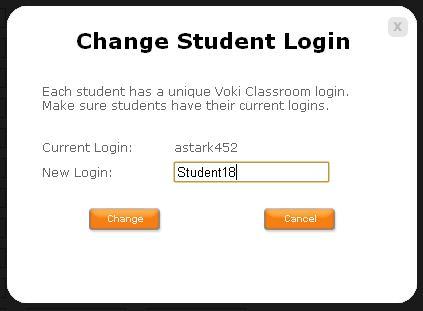
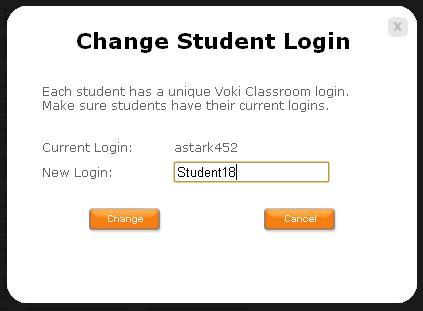
Once you click the blue username, the ‘Change Student Login’ box  will appear.

The rest is up to you! Once you enter the new login, click ‘Change’ and you are  finished!

We hope you are  pleased with this update. We are  always  eager to hear your your suggestions for Voki as we continue to improve your experience.

Should you have any questions, please leave a comment below and we will be happy to answer you, or email us at feedback@voki.com.

Until Next Time,

The Voki Team

Voki Classroom Student Logins Successfully Changed

Voki Classroom Student Logins Successfully Changed

The Voki Team is constantly working on improving your experience with Voki. We recently updated Voki Classroom Student Login names to make them shorter and easier to remember. This change was made due to the input we received from teachers like you and we have so far seen a very positive response!

You may read more about this new feature on our previous blog entry Voki Classroom Student Logins are Being Changed.

We are thrilled that everyone is pleased with the improvement and are happy to report that there was little confusion from students and teachers about this change.

Teacher feedback plays a large role in determining the direction for Voki. We greatly appreciate your suggestions. Should you have any ideas for improving Voki, please leave a comment below or email us at feedback@voki.com.

Thank you!

The Voki Team

Voki Tip of the Week: Give your Voki a Human Voice with a Microphone

Voki Tip of the Week: Give your Voki a Human Voice with a Microphone

Are you looking to get the most human-like Voki voice possible? Why not try recording your own voice on your Voki? Recording your voice on Voki is fun and adds the dimension of hearing your (or a student’s) actual voice. Whether it will be used to practice public speaking, foreign language pronunciation, or to add a dramatic effect to an assignment, voice recording is an easy-to-use tool that can prove to be very useful for Voki lessons.

In our latest “Interview with Educators“, music teacher Lyndell Allen used a Voki voice recording to help create a fun, interactive environment in her music classes.

We have many lesson plans in the Voki Lesson Plan Database that make use of recorded voices, especially in public speaking, ESL, foreign language and arts classes. The ways of using Voki voice recordings are endless!

In order to get the most out of your voice recording experience, it is important to be prepared with the right tools. There are two ways you can record your voice. One option is to use a computer microphone (either internal or external), and the other is to use a phone. Below, we take you through the steps for using a microphone to record your voice on Voki. Get your microphones ready and your voices warmed up!

Voki Voice Recording with a Microphone

You will need:

1.  A computer

2.  A microphone that works with your computer

Steps:

1.  If your computer does not have a built in microphone, plug in your external microphone to the computer.

2.  Test to make sure the microphone is properly connected to your computer:

a.  Go to My Computer

b.  Click on Control Panel

c.  Choose Sounds, Speech, and Audio Devices

d.  Click Sounds and Audio Devices

e.  Click the Voice tab

f.  Under Voice Recording, click Test Hardware

If you have trouble setting up your microphone, ask your IT administrator.

3.  Once your microphone is properly connected, you are set to use Voki voice recording.

4.  Go to http://www.voki.com and log in or go to the Create section.

5.  Design your Voki as you wish.

6.  Under the Give it a Voice section, click the microphone icon.

7.  Choose “Allow” on the screen that pops up asking for Voki permission to access your microphone.

a. Starting with the first tab: 

i. Make sure the box by “Enable Hardware Acceleration” is checked.

ii. “Allow” vhss-d.oddcast.com to access your camera and microphone.

iii. The local storage tab is set at default and should not be changed.

iv. Slide the record volume to max and check the box next to reduce echo.

8.  Close the pop-up.

9.  Prepare what you want to say and press Record.

10. When you have finished recording, press Stop.

11.  Once you are happy with your recording, press Save and Name your audio file.

You will have 60 seconds to record your voice using Voki and 90 seconds with Voki Classroom. Don’t worry if you or your students don’t get it the first time. You can always try again until you are happy with you recording!

Tip: Your saved recordings are available by clicking the Folder icon under Give it a Voice.

Go ahead and try out Voki using a microphone to record your voice! If you have any great lesson ideas that use the voice recording function, please share it with us below in a comment or email to feedback@voki.com.

Until Next Time,

The Voki Team

Voki Classroom Student Logins are Being Changed

Voki Classroom Student Logins are Being Changed

We have some great news for all teachers using Voki Classroom, and (especially) their students!

As you know, we love receiving feedback and ideas from Voki users! Your feedback helps us learn what we are doing right, and how we can make Voki even more useful.

A great suggestion we have received from many teachers using Voki Classroom is to simplify the student login names. Teachers mentioned that the current student logins are rather long, and that students have a hard time remembering them. As you mentioned, students would have an easier time remembering a shorter, simplier login.

So, we have worked hard to implement a solution to this. We are simplifying student logins!

What you need to know:

Below are examples of the current student login formats.

  1. The default student logins are comprised of: First name . Middle name . Last name : Teacher email – this can lead to very long student logins. Also, many teachers don’t want their email address to be part of their students’ logins.
  2. Therefore, we implemented a minor solution called the Teacher ID. Basically, we allowed teachers to choose a unique ID that would replace their email in student logins. Student logins under teachers who had defined a Teacher ID were comprised of: First name . Middle name . Last name : Teacher ID – this led to shorter student logins, but it was not optimal.

The new and improved Student logins will be comprised of: First initial only + Last name + 3 digits – That’s all! This will make for even shorter and easier-to-remember Student logins. This is an example of the new student login format:

Much Better!

Additionally, teachers will be able to easily modify a student’s login name by simply clicking on it. Clicking on the blue login will open a small window where you may edit the student’s login. This is an example of the editing window:

Important! If you currently have a Voki Classroom account:

YOUR STUDENT LOGINS WILL BE AUTOMATICALLY UPDATED ON

SUNDAY, FEBRUARY 26TH, 2012

Everyone affected will receive an email notification, as well as another reminder the day before the change.

You will also see an alert in your Voki Classroom account, which will be dismiss-able after the change takes place. The alert looks something like this (it’s hard to miss):

What you need to do:

Technically, there’s nothing you need to do, since the change will happen automatically. However, you should provide your students with their new logins once the change occurs.

Tip: If you are unable to tell your students about the change, we’ll do it for you. When students log in using their old logins, they will see an alert. This alert will provide their new login and ask them to use it from now on.

Note: Student passwords are not affected, unless you decide to change them.

We hope that the new student logins makes logging in to Voki Classroom a much simpler process for your students!

Should you have any questions, please leave a comment below and we will be happy to answer you, or email us at feedback@voki.com.

Thanks for the great feedback – keep it coming!

The Voki Team

Healthy Living Lesson Plans with Voki

Healthy Living Lesson Plans with Voki

Being healthy is a lifestyle habit that requires guidance beginning at a young age. With some schools serving lunch options  that are highly processed and lacking in nutritional value, students may be confused as to what “good food” actually is. In addition to the difficulties of making healthy eating decisions, students have to balance their personal life with school work, which is often the source of major stress.

In an effort to help students learn how to maintain a happy and healthy life, we have created 3 lesson plans that touch on important health topics. Middle School and High School students will learn techniques on how to cope with stress,  create realistic body image expectations, and understand the potentially harmful effects of some common consumer products.

Stress, unhealthy eating habits, and a lack of regular exercise are a combination that threaten the well-being of many students. These topics deserve much more attention in school than they currently receive, so open up the discussion in your class and let your students share their ideas with Voki!

Remember: The grade level we assign to each lesson plan is not a requisite – you can use most Voki lesson plans that were written for a higher, or lower, grade than the one you teach – if you think they fit! Also, remember that you can adapt Voki lesson plans to fit your style, or your students’ abilities.

Coping with Stress (Health, High School) – Students explore the issue of stress in school and daily life, and understand that it is an issue many people have to cope with. Students make lists of things they have to do in the week and organize them in a way to try and reduce stress. The class discusses different ways to cope with stress and decrease it in daily life. The teacher will lead the students in a meditative yoga practice at the end of the lesson. Students will create a Voki that talks about how they plan to deal with stress in the future.

Body Image and its Influencers (Middle School, Health) – Students think about and discuss body image and where body image ideals come from. Students explore different body image influencers, such as the media, family, and culture, and compare and contrast these ideals with reality. Students will analyze their own perceptions and use Voki to talk about positive perceptions of their, and others’, appearance.

Voki Health PSA (Middle and High School, Health) – Students are assigned various popular consumer products and supplements to research and evaluate. After viewing examples of different health PSAs online, students will have the chance to create their own using Voki. Students will learn about how to maintain good health and the insider information on products that should be avoided or reduced. Students will think about healthier alternatives to the products they research.

As always, we would love to hear how you are using Voki in class. If you have a lesson plan that uses Voki (or that can be adapted to incorporate Voki) and you would like to share, please email us at lessonplans@voki.com.

Sincerely,

The Voki Team

Voki Tip of the Week: Sharing Voki via E-Mail

Voki Tip of the Week: Sharing Voki via E-Mail

Have you ever made a Voki that you wanted to share with specific people (like a teacher, a student, parent, or a friend)? Do you have their e-mail address? If you answered “yes” to both questions, you are in luck!

You can easily email a Voki to anyone using the Voki “Send to a Friend” option. Follow these simple steps and you will be able to correspond with people à la Voki.

1.  Once you have saved your Voki, click the “Send to a Friend” button (under the Voki preview).

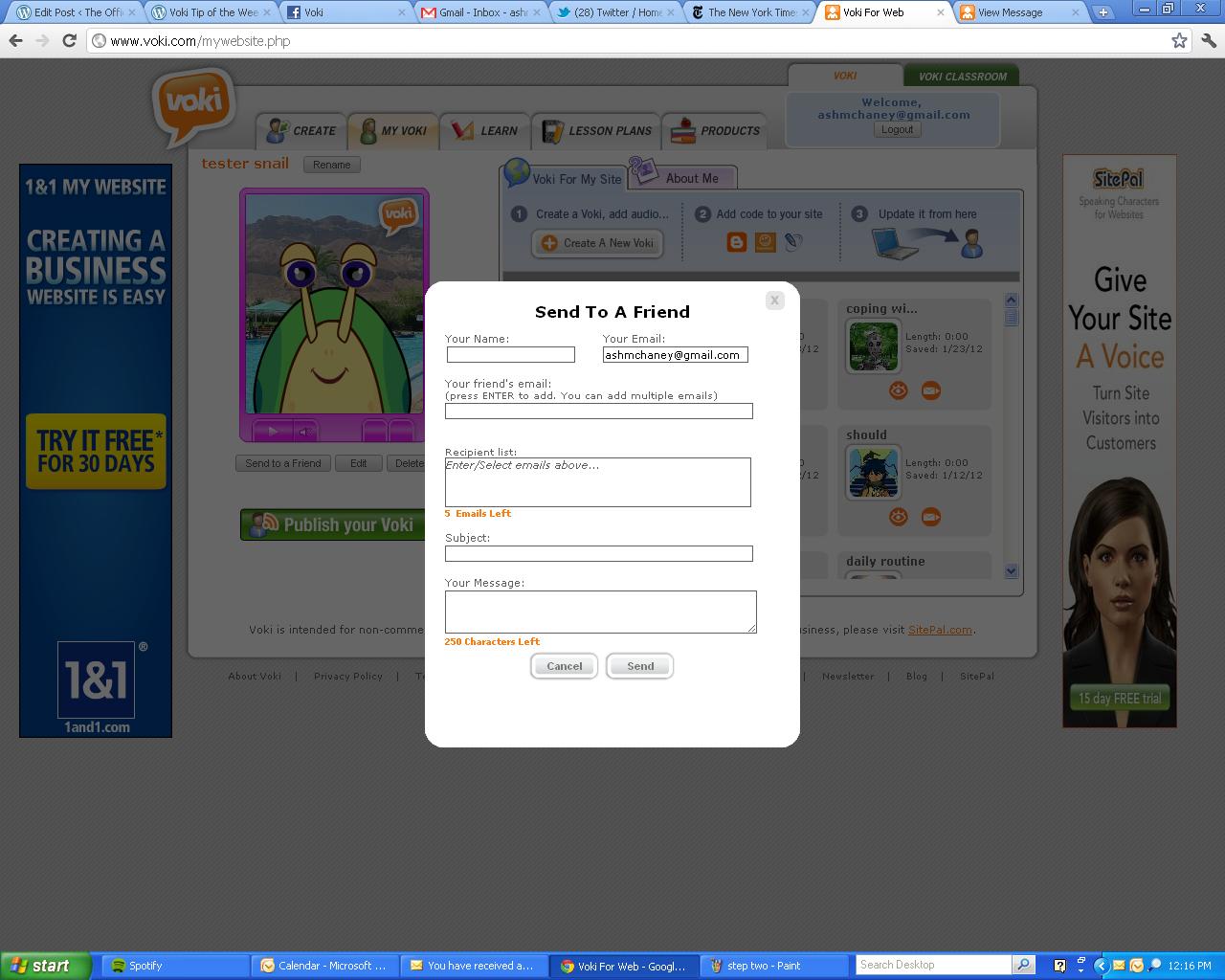
2.  Enter the email to which you want to send the Voki and hit “Enter.” You can repeat this step to add up to 5 email addresses.

Tip: Make sure to enter an email Subject and a message.

3.  Click “Send.”

Step One: Enter Sender and Recipient Information
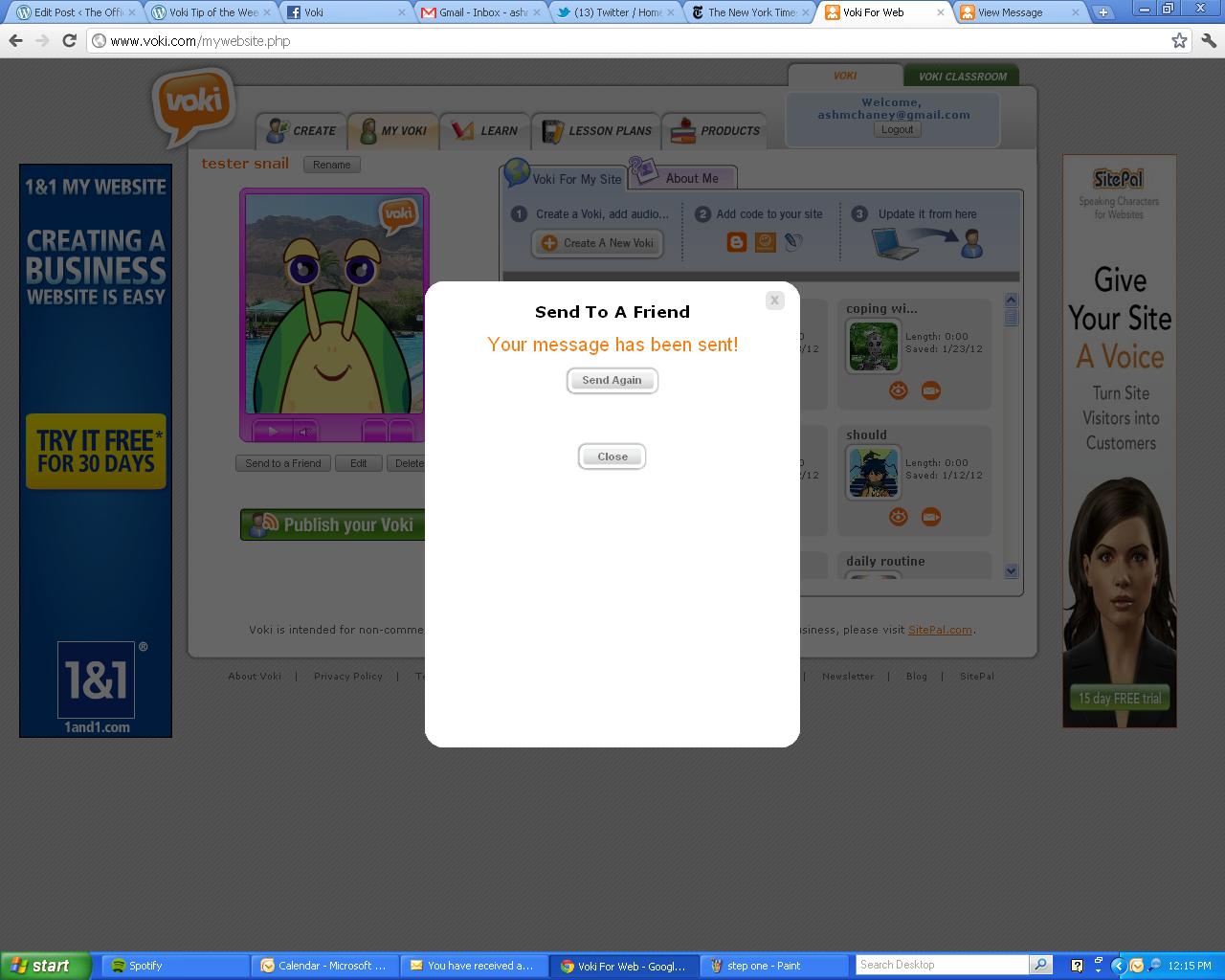
Message Sent

Once your message has been sent, the recipient should receive your Voki immediately. The email that they receive will look like this:

Voki Email

Tip: To make sure you or your recipients receive Voki messages, ask them to add notifications@voki.com to their safe senders list.

When the email is opened, the recipient will be able to view your Voki and will also have the option to reply back with another Voki or forward it to someone else. They will also have the option of saving the Voki to their account.

Tip: Since you can save an emailed Voki to your account, this is also a way to Copy a Voki (just email it to yourself!)!

Recipient Voki View

Have fun using Voki and sharing with your friends! We hope this clears up any confusion you may have had about how to send Voki through e-mail. If you have any questions about this process, leave a comment below and we will be happy to answer you!

Until Next Time,

The Voki Team

Voki Tip of the Week: Voki as a Widget on WordPress

Voki Tip of the Week: Voki as a Widget on WordPress

Question: I noticed the nifty avatar on your blog. How do I make Voki appear as a widget on the sidebar of my WordPress blog??

Answer: There are a few ways to do it. In this post, we’re going to walk you through one of the easier ways. Below, we show you the easiest way to make your Voki widget work without using a third-party. You’re only minutes away from having a Voki greeting on your WP homepage, ready to greet your readers!

Using Voki’s Embed Code

1. Open a Word document or other text editor.

2. Log in to Voki and WordPress.

3. In WordPress, go to the “Appearance” tab, and select the “Widgets” option.

4. Look at your widget options. Choose the “Text” widget and drag it to the sidebar display of your choice.

5. Now, in My Voki, select your Voki of choice, and click “Publish your Voki.”

6. Copy the entire embed code.

Copy the Voki Embed Code

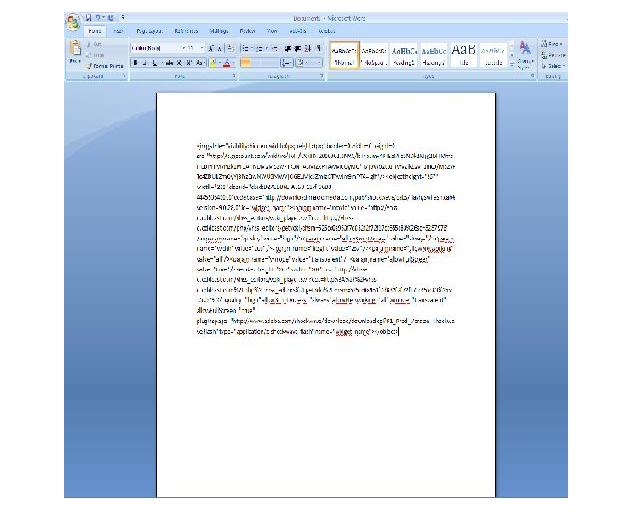
7. Paste the code in your open Word document.

Paste the Voki Embed Code into a Word Doc

Okay! Good job, we have made it this far. Let’s pat ourselves on the back and take a couple of breaths before we move forward. Inhale, exhale. Inhale, exhale…

Almost there! Now for the finishing touches…

8. In the Word doc, highlight the source code, or “src” code. This can be found by locating src= and highlighting the hyperlink that is in between the quotation marks (it’s a pretty long link, so make sure you copy everything in between the quotation marks). See the example below.

9. To make sure you copied the link correctly, paste the highlighted link into your internet browser (but not this window or tab!) and press Enter. Your Voki should appear on the page in full screen (pretty cool!).

10. Paste the long link you highlighted in the code below, where it says [YOUR-CODE] (make sure the brackets come out, and the quotes remain):
***Text version of the code can be found in the comments section towards the end.***

11. Copy and Paste your new embed code from the Word doc, into the WordPress Text box (and click Save).

12. Check out your blog! Your Voki should be happy to greet you!

TIP: If you don’t see the Voki, and you’re certain you followed the steps correctly, try clearing your browser’s cookies and cache, and reopening the page.

For those of you with WordPress blogs, we hope this helps you out! If you know of an (even) easier way to make Voki work with WordPress, please share it with us below in a comment!

And, if you have any ideas for future Voki Tip of the Week posts, feel free to share them below, and we’ll add them to the list!

Until next time,

The Voki Team

http://www.voki.com

Have you seen Voki Classroom?
Check out the new Voki classroom management system, and the intro video, right here.

Interviews with Educators | Lyndell Allen

Interviews with Educators | Lyndell Allen

We love hearing about how teachers from all over the world use Voki in their classrooms. In this edition of our Interviews with Educators series, we get a sneak peak inside of Lyndell Allen’s music classes in Ballarat, Australia! Have we mentioned that we love Australia!?

Lyndell Allen is an engaging and very busy music teacher, and mom of 3 boys. As well as teaching her regular music classes, Lyndell specializes in choral music and is the director of 4 junior choirs, a girls’ chapel choir, a boys’ chapel choir, and the chamber choir at school! Oh, and she’s also a bit of a Web 2.0 enthusiast and practitioner! Lyndell was kind enough to share with us some info about herself, her classes, and how she uses Voki as a tech tool (an “instrument”, if you will) to accompany her in the classroom.

Check out her video below to learn more about Lyndell and how Voki can be musical!

If you’re on Twitter, make sure to follow Lyndell: @lalalyndella

So, what do you think about our latest Voki Interview with Educators? We’d love to hear your thoughts.

Want to be interviewed for this section? Send us a note and a link to your blog/ twitter: submit@voki.com!

Get Creative with Voki – New Arts Lesson Plans!

Get Creative with Voki – New Arts Lesson Plans!

Get out your paintbrushes, glue, and construction paper! Bring out the lights, your best smile, and a script! It’s time to have fun with Voki and Visual Arts! From color studies and collages to instructional videos and personal short films, you can use Voki to help bring out the artist in every student!

Ranging from 6th to 12th grade, these lesson plans are designed to help students explore art, contextualize its meanings, produce artwork of their own, and make connections with light, shadow, color and mood to create a certain effect.

Along with lesson plans that focus on visual arts, we have also included  two lessons regarding the art of film. Your students will be in charge of writing and producing their own short films and using their knowledge of basic art composition to create entertaining and visually interesting shorts.

(We went a little crazy with the art lesson plans; but hey, what kind of renowned art isn’t a little nutty?)

Remember: The grade level we assign to each lesson plan is not a requisite – you can use most Voki lesson plans from a higher, or lower, grade than the one you teach – if you think they fit! Also, remember that you can adapt Voki lesson plans to fit your style, or your students’ abilities.

Art Interpretations (6th Grade, Arts) –  Students are assigned one photocopy of a famous work of art. They research the background and context in which the work was created. Students then create a Voki that interprets the work’s significance at the time it was created, and follow up with a brief, impromptu personal opinion of the piece.

An Artist’s History (7th Grade, Arts) –  Students discover more about notable artists and create a brief presentation that showcases an artist’s information, famous pieces, and a student analysis of the work. Students use Voki to talk about how they feel about the art and what it means to them personally. By the end of the lesson, students will have constructed an artist database to refer to before tests.

Immediate Attraction (8th Grade, Arts) –  This is a quick exercise to help students discover their art preferences and interests. Students will have 45 seconds to flip through art books and find one piece that catches their attention. After they have gone through 3 books, students will analyze each of 3 pieces of art. Students will use Voki to describe the art, how it makes them feel, think, and what kind of reactions their chosen pieces evoke.

A New Family Tree (9th Grade, Arts) –  Students use copies of family photos and magazine clips to recreate a picture of their fantasy family tree. By using various mediums, students will make collages that use real life mixed with various aspects of their imagination to create an avant-garde piece of artwork. Students will then use Voki to describe the brief history of their made-up family.

The Meaning of Color (10th Grade, Arts) – Students work together, and alone, using color to convey a story. Students will be divided into two groups of warm and cool colors. As a team, students work together cutting out colored paper and “collaging” to create a group piece of art. After the group work is done, each student will create a Voki that tells a story that represents the artwork.

The Identity Project (11th Grade, Arts) –  Students use video to create a short film that explores their identity. Students are encouraged to use whatever they would like to make their video and have all creative freedom as long as they remain on topic or can justify any deviation from the topic. Students will then create a Voki that introduces the video to the class.

A Guide to What?! (12th Grade, Arts) – Students draw three cards from a bag that contains different words. Students then create an instructional video that somehow incorporates the three words into the activity or idea being taught. Students will create a Voki that begins the video presentation by explaining what words were drawn and what the instructional video is going to teach.

As always, we would love to hear how you are using Voki in class. If you have a lesson plan that uses Voki (or that can be adapted to incorporate Voki) and you would like to share, please email us at lessonplans@voki.com.

Sincerely,

The Voki Team