Hey everyone! As you may have noticed, Voki was experiencing some difficulties when it came to renaming your already saved Vokis. We have now resolved the issue and you can go back to changing the names of your Vokis as you would like!
Follow the simple steps below if you would like to rename your Voki.
1.Log in to your Voki account.
2. From the My Voki screen, click the Eye Iconto view the Voki you want to rename. (insert pic of the icon)
3. Click the Renamebutton above your Voki and type in the title of your choice.
4. Click Submit.
Voila! Your Voki should reflect the new name after you click submit! We apologize for the inconvenience and if you ever spot an issue with Voki, please let us know by sending us an email to feedback@voki.com.
How doth the little crocodile…
a poem by Lewis Carroll
How doth the little crocodile
Improve his shining tail,
And pour the waters of the Nile
On every golden scale!
How cheerfully he seems to grin,
How neatly spreads his claws,
And welcomes little fishes in
With gently smiling jaws!
Don’t forget to submit your favorite poem as told by Voki! Every Friday, we will post your submissions to our blog! To submit your Voki Poet, send the complete embed code along with the poem title and author’s name to feedback@voki.com.
April is National Poetry Month in the U.S. and to celebrate, we would like to spread the joys of poetry throughVoki! Beginning April 1st (no joke!), we will post your Voki poets every Friday until the end of April. Do you have your own poem or a favorite poem that you would like to share with others? If so, send us the embed code of your Voki poet and we will include it in our weekly poetry post throughout the month of April. Please send the title, text, and author of the poem as well.
Draw a crazy picture, Write a nutty poem, Sing a mumble-gumble song, Whistle through your comb. Do a loony-goony dance ‘Cross the kitchen floor, Put something silly in the world That ain’t been there before.
― Shel Silverstein
To submit your Voki Poet, email us the entire embed code to feedback@voki.com.
Check our blog each Friday to see your Voki give its poetry reading!
Check our blog every Friday to see one of your Vokis give a poetry reading!
There are lots of fun ways to participate in National Poetry Month. Take a stroll through Poets.org, brought to you by the Academy of American Poets, for 30 ideas on how to celebrate. Also, be sure to check back here for poetry lesson plans and to see if your Voki poet has been published on our blog!
As always, if you have any great lesson plans or ideas you would like to share, please feel free to email us at feedback@voki.com.
Last week,when we came across a video of students using Vokito edit their writing, we had to find out who was behind the great production, interesting lesson, and big smiles found on every student’s face. The search led us to Chase Young, a second grade teacher, and Lynda Swanner, the language arts coordinator for McKinney ISD. Chase and Lynda are from McKinney, Texas and have worked together to create interactive and informative environments for students to develop as confident writers. We got in touch with Chase to find out more about how he uses Voki to motivate and improve literacy and he was more than happy to share his and Lynda’s tricks of the trade. Check out the great ideas below!
Conferring with an Avatar
Teachers can use this 21st century method for proofreading when students do not read over, or are unaware of revision or editing needed in their stories. Lynda Swanner and I devised this strategy to motivate students to actively revise and edit their own writing. This strategy helps students discover what they need to revise and edit and also empowers student as writers. They become aware of their own problems in writing, and they can self-regulate the writing process. Students use this self-discovery strategy of revising and editing to privately critique their work before conferring with the teacher. Here are a few brief steps to get you started using this strategy.
1. Students create an avatar using Voki.com. We suggest limiting the time because students and teachers could spend all day creating the perfect avatar.
2. Students type a sentence, paragraph, or section of their stories into the Voki text box.
3. Students listen to the speech and read along several times.
4. Students make corrections.
Consider the following example. The student noted a lack of punctuation after conferring with an avatar.
Mr. Young: What changes are you going to make?
Student: I need more periods.
Mr. Young: How do you know that?
Student: …It wasn’t very good, because it went in one fast glob.
This next example shows how a student caught a spelling error from listening to the avatar.
Mr. Young: What changes did you make?
Student: I needed to fix some spelling errors. I needed to spell “grabbed” correctly.
Mr. Young: How did you know it was spelled wrong?
Student: It sounded wrong.
Mr. Young: Do you remember how the avatar said it?
Student: “grabed” (Student uses a long a sound.)
Mr. Young: We know that you have to do WHAT to the consonant?
Student: Double it!
Based upon the avatar’s rendering, students were able to reflect and make changes to their work without teacher direction.
*The full chapter is currently being published by Corwin Press and will available soon in Writing Strategies for All Students in Grades 4-6: Scaffolding Independent Writing Through Differentiated Mini-Lessons.
Chase Young is a second grade teacher in McKinney, TX. He holds a MS Ed with a specialization in literacy. He is a Doctoral Candidate at the University of North Texas. He has written for the Reading Teacher and Education Review, published a book entitled Teaching Texas History through Readers Theatre, and contributed several chapters to educational books. When he is not teaching, studying, or writing, he is wondering where his free time goes. He enjoys playing the guitar, paintball, racquetball, grilling, concerts, billiards, pools, and golf carts (not to be confused with golfing).
Lynda Swanner has been a teacher, library media specialist, and literacy staff developer. She is currently the English Language Arts and Reading Coordinator in McKinney Independent School District in McKinney, Texas. She coordinates the curriculum, instruction, and assessments for all elementary teachers in the district. She is also a literacy consultant for many Texas school districts. Over the years, she has presented many workshops that integrate technology and literacy for the International Society for Technology in Education.
If you would like to share your tips and tricks on our blog, please email us at submit@voki.com. We always love to hear how Voki is being used to enhance students’ experiences in the classroom!
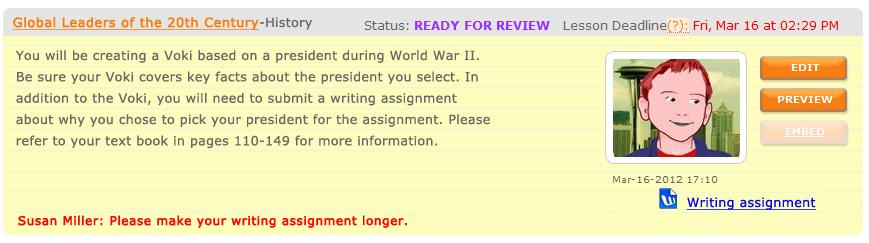
Voki Classroom is constantly improving thanks to your feedback! In this update, we would like to introduce the newest Voki Classroom features. Starting this week, teachers will be able to add a writing assignment to their Voki assignments, set Assignment deadlines, show/hide student names in the Assignment Pages, and give students feedback. Status types have also been updated in both the teacher and student accounts. Read below for more information!
Writing Assignment – Many of the Voki Lesson Plans contain a written requirement. Now teachers will have the option to add a writing assignment to their Voki Classroom Assignments. By selecting this option, students will be able to submit a written portion of up to 500 characters with their Voki. Teachers will also have the ability to make the writing assignment visible on the Assignment Page.
Student View of New Voki Classroom Features
Assignment Deadline – Students usually have due dates for homework and classroom assignments so it only makes sense that teachers be able to set deadlines on Voki Classroom assignments! Now, teachers can assign the date and time the Voki assignment is due. If a student submits their work after the deadline, the teacher will see the date and time of assignment completion in red.
Show/Hide Student Names – We understand that privacy is an important factor when using online tools in the classroom. For this reason, teachers will have the option to replace the students’ full name with their initials in the Assignment Page.
Feedback – Have you ever wanted to leave feedback on your students’ Voki assignments? Now you can! We added a feedback tool which will allow for expanded dialogue between you and your students.
Teacher View of New Voki Classroom Features in the Review Tab
Statuses – Stay up-to-date with your students’ progress with our updated status types. The new categories are named and color coded as follows:
Get Started
Ready for Review
Try Again
Approved
We hope you continue to enjoy Voki Classroom and that your experience is enhanced by these improvements.. As always, we want Voki Classroom to be a tool that is useful for teachers and engaging for students.
If you have any suggestions, please feel free to click the FEEDBACK tab in Voki Classroom, or email us at feedback@voki.com. Your opinions and suggestions go a long way!
The Voki Team is constantly working on improving your experience with Voki. We recently updated Voki Classroom Student Login names to make them shorter and easier to remember. This change was made due to the input we received from teachers like you and we have so far seen a very positive response!
We are thrilled that everyone is pleased with the improvement and are happy to report that there was little confusion from students and teachers about this change.
Teacher feedback plays a large role in determining the direction for Voki. We greatly appreciate your suggestions. Should you have any ideas for improving Voki, please leave a comment below or email us at feedback@voki.com.
We have some great news for all teachers using Voki Classroom, and (especially) their students!
As you know, we love receiving feedback and ideas from Voki users! Your feedback helps us learn what we are doing right, and how we can make Voki even more useful.
A great suggestion we have received from many teachers using Voki Classroom is to simplify the student login names. Teachers mentioned that the current student logins are rather long, and that students have a hard time remembering them. As you mentioned, students would have an easier time remembering a shorter, simplier login.
So, we have worked hard to implement a solution to this. We are simplifying student logins!
What you need to know:
Below are examples of the current student login formats.
The default student logins are comprised of: First name . Middle name . Last name : Teacher email – this can lead to very long student logins. Also, many teachers don’t want their email address to be part of their students’ logins.
Therefore, we implemented a minor solution called the Teacher ID. Basically, we allowed teachers to choose a unique ID that would replace their email in student logins. Student logins under teachers who had defined a Teacher ID were comprised of: First name . Middle name . Last name : Teacher ID – this led to shorter student logins, but it was not optimal.
The new and improved Student logins will be comprised of: First initial only + Last name + 3 digits – That’s all! This will make for even shorter and easier-to-remember Student logins. This is an example of the newstudent login format:
Much Better!
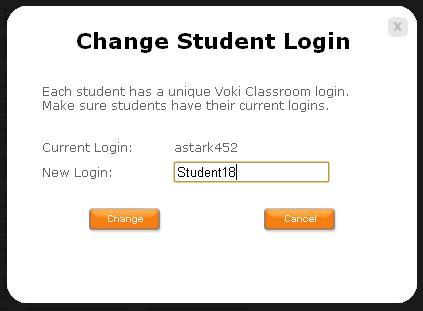
Additionally, teachers will be able to easily modify a student’s login name by simply clicking on it. Clicking on the blue login will open a small window where you may edit the student’s login. This is an example of the editing window:
Important! If you currently have a Voki Classroom account:
YOUR STUDENT LOGINS WILL BE AUTOMATICALLY UPDATED ON
SUNDAY, FEBRUARY 26TH, 2012
Everyone affected will receive an email notification, as well as another reminder the day before the change.
You will also see an alert in your Voki Classroom account, which will be dismiss-able after the change takes place. The alert looks something like this (it’s hard to miss):
What you need to do:
Technically, there’s nothing you need to do, since the change will happen automatically. However, you should provide your students with their new logins once the change occurs.
Tip: If you are unable to tell your students about the change, we’ll do it for you. When students log in using their old logins, they will see an alert. This alert will provide their new login and ask them to use it from now on.
Note: Student passwords are not affected, unless you decide to change them.
We hope that the new student logins makes logging in to Voki Classroom a much simpler process for your students!
Should you have any questions, please leave a comment below and we will be happy to answer you, or email us at feedback@voki.com.
Mrs. Kimberly Church is a Spanish teacher… Kimberly uses Voki in her Spanish classes, and she also teaches other educators about the benefits of using technology (such as Voki) in the classroom. Below is an interview with Kimberly, as well as a couple of videos her and her class created about Voki. Here is Kimberly’s video on how she uses Voki in her Spanish classes. To view more of Kimberly’s class videos, visit her YouTube channel, evansspanishteacher. Below is Kimberly’s interview, as well as another Voki video about using Voki in oral tests.
Q: So, Kimberly, why do you use Voki?
I discovered Voki 2 years ago and just love it! Voki takes the stress out of “presenting” a memory piece in another language in front of the class, and students can focus on the material on the screen in front of them. The kids have fun, (dare I say the words “fun test?”), and of course, I as the teacher have fun reviewing their very best material. 🙂 I emailed the parents the link to the website to view their child’s oral test, (the Voki), and they loved it too. Over the weekend, at least 15 parents embedded their child’s Voki to their Facebook. It’s something the kids are proud of, and instead of dreading oral test day, they really look forward to it. 🙂
Q: Has Voki helped you with assessment?
Using Voki for oral tests allows the student to hear what I hear. I can’t tell you how many times students would ask, “Why didn’t I make a 100 on my oral test?” I would point out that they mispronounced a word, or said a wrong word and they would reply, “I did?” Using Voki allows the students to hear themselves, as an evaluator, and they can re-record until they’re happy with it, and attach the recording to a Voki, making the assessment creative. Students who use to make low assessment grades on oral tests are making perfect scores taking their oral tests using Voki. Efficient and Proficient!!!!
Q: We heard that you’re something of a Voki expert among your peers, right?
I actually enjoy using Voki so much, and use it for so many tasks and assessments in my class, I teach a workshop for teachers about how to apply Voki in their class, (even at the MWALLT conference at the University of Minnesota). I have become known as “that Voki teacher” at my campus, and even in my district. As long as I keep the content fun and integrate technology to make learning efficient, I’ll never stop looking for ways to infuse my lessons with great technology, like Voki. As a foreign language teacher, I’m looking for “efficient proficient,” and Voki gives me that.
Q: Have you had a chance to use Voki Classroom?
I have to say, it has been much easier to sell the benefits, since you have come out with Voki Classroom. It is so much easier to have the students organized in classes, and have their assignments posted and ready to work on when they open up their account. I look forward to spreading the word about Voki and Voki Classroom. Thank you for all you have done for my students. I can’t wait to see what Voki will come up with next, for uses in the classroom. 🙂 k. pura vida — And here are Mrs. Church’s students talking about using Voki in oral tests:
If you use Voki Classroom, you are probably accustomed to the three main sections:
Students: Add and manage up to 100 students.
Classes: Add and manage up to 5 classes and multiple Assignments per Class.
Review: View, Approve, and Share your students’ Voki assignments.
Based on feedback from users, we have just introduced two new tabs, and a side tab!
Support: The Contact Support link located in the top right of the page has been replaced by a complete Support tab, making it more visible for Voki Classroom users. Really – you can’t miss it!
My Account: To make the Voki Classroom pages even cleaner looking, and to give you more control over your account, we have added a My Account tab on the far right. Here, you can view (and edit) your account settings most conveniently (see it below). Here’s what you can do in My Account:
Personal Information: Here, you can add a salutation, edit your name, and add a picture. This is the information your students see when logging in, and what shows up on each Assignment Page, unless you marked it as Private.
Personal Settings: Here, you can edit your Teacher ID, your account email address, and your account password.
Account Settings: Here, you can view your account expiration date (and renew), your account ID, and how long you’ve been a (valued) Voki Classroom user.
Feedback: Since we value your opinion so greatly (!), we’ve also introduced a Feedback tab to the far right of the page. Here, you can provide more general feedback (ideas, issues, praise, questions), which we will use to improve Voki Classroom. Clicking the “Feedback” side tab (on the right side of the page) will launch the feedback widget:
That’s all for now. More enhancements will follow, as we get more of your feedback. So go ahead, tell us what you would love to see in Voki Classroom!
We recently introduced a small-but-nifty new feature, based on feedback from Voki Classroom users.
Each student login that is created by Voki Classroom is based on a student’s name and the teacher’s email address. So, a student login might look like this: First.Last:teacher@longteacheremail.com.
The issue(s): Many teachers use their personal email address for their Voki account, and they are not eager for this to appear in the student login. Also, using the full teacher email means that student logins could get quite loooooong.
The solution – Teacher IDs: To overcome these issues, we implemented the Teacher ID feature. If defined by you (the teacher), the Teacher ID will replace your email address in student logins. Clearly, a Teacher ID can shorten and simplify student logins, while also removing your email address from their logins.
The Teacher ID can include any combination of letters, numbers, and the underscore character, but it must be unique (like you!). Since Voki Classroom is only about 1 month old, most of the cool Teacher ID’s are still available. So, if you set your Teacher ID to, say, “Mrs.Farmer”, your student logins will look like this: First.Last:Mrs.Farmer. Much shorter and easier to remember!








 The Voki Blog - Expanding Education