Voki Tip of the Week: Voki in Quia

Voki Tip of the Week: Voki in Quia

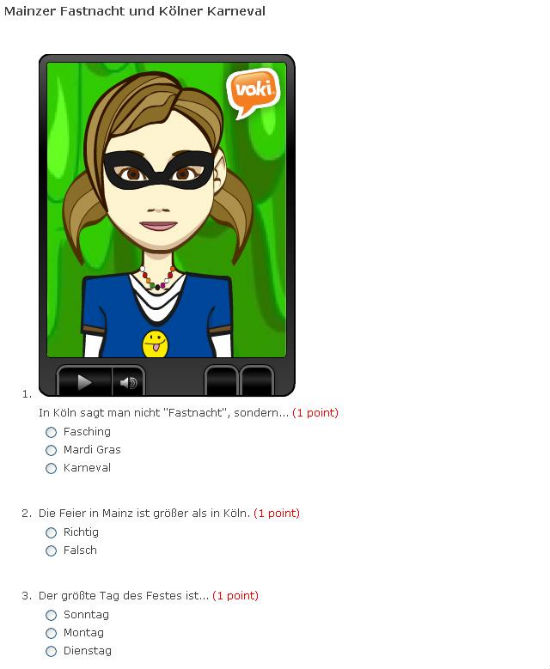
One of our favorite things about our users is that they are always coming up with great and inventive ways to use Voki. In this latest instance, an anonymous tipster posted to Teacher’s Corner how they use Voki with their Quia.com account. Anonymous adds a Voki scene to his quizzes. Here’s what Anonymous has to say:

“I’ve used Quia.com for years. You can include your Voki in a Quia quiz or activity. Next to many of the boxes that you fill out, you’ll notice a blue + sign. You can paste your Voki HTML code in this box, and your Voki will appear in the instructions, questions or answers, wherever you want them. As you make the Quia activity, be sure to check the box that says “Activate HTML and LaTeX.””

Here’s what that would look like:

quia

Got a Voki tip?

Share it in the “Voki in the Classroom” section and we might feature you right here, in the blog!

Interviews with Educators | Erica Hartman

Interviews with Educators | Erica Hartman

Erica HartmanAnother week, another tech-savvy educator bringing you the goods on the most efficient and creative ways to use Voki. Erica Hartman, an Instructional Technology Consultant and Google Certified Trainer and Technology Integration Specialist for Rutgers University CMSCE,  teaches at  Sparta Middle School in Sparta, NJ. Erica has been a Voki User Since 2008 – here’s how she uses Voki for Education in her classroom.

What are your goals using Voki?

I use Voki to give students and teachers an engaging option to express themselves.

How do you use Voki?

I use Voki to create a virtual me when I am away from the classroom or to explain directions to a project. I put the Voki on my classroom blog so students can access it anytime. This especially helps students that are absent or who need to verify instructions. When I train teachers to use Voki in the classroom they come up with some amazing ideas.

Here are just a few:

  • Create speeches for student council election.
  • Create a virtual me of a teacher explaining classroom procedures or directions to a project and post the Voki on your school web site or blog.
  • Create a class Voki mascot.
  • Allow students to summarize current events of the week using a Voki.
  • Create a Voki that will read a poem a student has written.
  • Boost confidence of an ESL student by letting them use Voki to present their work, rather than get up in front of entire class.
  • Create a Voki that will read a primary source document to introduce a new unit to a class.

What are your 3 favorite things about Voki?

  1. Ease of use
  2. Colorful characters
  3. Ability to customize characters

What would you add to the Voki product?

  • Ability to search for character by keyword
  • More kid-friendly avatars (not so racy)
  • Ability to have more than one avatar per scene
  • Ability to cut and paste many characters into the text box

Do you have any Voki tricks up your sleeve?

Students will spend most of their time “blinging out” the characters. I always have them prepare there speech or text first and make sure it is perfect and proofread. Creating the Voki using their own content is the icing on the cupcake!

Check out Erica’s bloghttp://theitclassroom.blogspot.com/

Follow Erica on Twitter: http://twitter.com/elh

————————-

Want to be interviewed for this section? Send us a note and a link to your blog/ twitter at submit@voki.com.

Voki Tip of the Week: Adding Accent Marks to Text-to-Speech

Voki Tip of the Week: Adding Accent Marks to Text-to-Speech

There are many ways to add an accent mark to your text-to-speech audio for your Voki, but this a the coolest tip we found on our Teacher’s Corner Forum.

It looks like a great way to avoid copying and pasting from Word, you can just enter these ALT codes.  Here’s how it works:

“When Num Lock is turned on, students can hold down the ALT key while typing a 4-digit number on the right-hand number pad (NOT the regular numbers which run straight across the top of the keyboard) and it will make the desired character. Examples:

ALT 0231 = ç (c cedilla)

ALT 0232 = è (e grave)”

So, let’s say you want your Voki to recite an excerpt from Federico Garcia Lorca’s “Arbolé, Arbolé . . .”

Here’s what you’d like your Voki to read:

Arbolé, arbolé,
seco y verdí.

La niña del bello rostro
está cogiendo aceituna.
El viento, galán de torres,
la prende por la cintura.
Pasaron cuatro jinetes
sobre jacas andaluzas,
con trajes de azul y verde,
con largas capas oscuras.

Here’s how it would look if you were to type it out using ALT codes:

ArbolALT+130, arbolALT+130,
seco y verdALT+161.

La niALT+164a del bello rostro
estALT+160 cogiendo aceituna.
El viento, galALT+160n de torres,
la prende por la cintura.
Pasaron cuatro jinetes
sobre jacas andaluzas,
con trajes de azul y verde,
con largas capas oscuras.

And here’s an example, using on of the Voki Spanish voices.

You can find the full list of French accent ALT codes here and Spanish accent ALT codes here.

Got a Voki tip?

Share it in the “Voki in the Classroom” section and we might feature you right here, in the blog!

Interviews with Educators | LaQuita Denson

Interviews with Educators | LaQuita Denson

In this interview, instructional technology specialist LaQuita Denson tells us about how she uses Voki to train teachers on effective methods of delivering information during lessons, regardless of a student’s learning abilities.

The three features she finds the most useful about Voki are:

  1. The Language Feature: “This is really great with those students who are struggling readers, as well as students from different countries…”
  2. Multiple Vokis: “This is great when you’re doing an assignment [with multiple students], depending on the outcome or objective of the assignment.”
  3. Audio: “…whether you want to do this by text, or have the students use the microphone, as well as recording by phone, depending on the ability of the student…”

Take a look at this short interview to get an idea of how an educational technology professional uses Voki to enhance learning!

Want to be interviewed for the Voki blog?
Send us an email at submit@voki.com and we’ll get in touch!

Voki in the Languages Classroom

Voki in the Languages Classroom

José Picardo

The ability to speak the foreign language in question can safely be described as the principal objective of learning foreign languages. However, it can often prove difficult to assess your pupils’ ability to speak the foreign language in the classroom, as time and numbers often conspire against us.

If you do find them time, for many pupils, speaking in the classroom involves being put in a very tricky spot. Not only do they have to say something of consequence in front of their teacher and fellow pupils, they also have to pronounce all those strange sounds correctly, while ensuring that they get the grammar right. Rather them than me!

As a foreign languages educator, Voki has provided me with a fantastic way to assess my pupils’ speaking ability, whilst providing them with a means to speak the language in a way they find both engaging and motivating, and that builds their confidence. Speaking in the foreign language is no longer stressful or fear-inducing, but rather an activity they look forward to.

Lesson planning with Voki

My pupils don’t use Voki in every lesson. Approximately once every half term, I plan a series of lessons that culminates in my pupils using Voki as a means of assessment. I generally follow this pattern:

  • Our first lesson in the sequence focuses on revising the appropriate vocabulary and/or grammatical structures. At the end of the lesson, I set a relevant writing task for homework, with the aim of basing our Vokis upon this task.
  • In subsequent lessons we develop the topic further and I return their exercise books with highlighted errors and corrections to their homework. You may prefer to do this digitally using blogs or wikis.
  • Eventually, I will take the class to an ICT room and set the speaking task, explaining very clearly what the expected outcome should be. As Voki is available online, the task can also be finished for homework.
  • Finally, I collect all the Vokis by email, import them into my own account and assess them. If you have your own classroom blog, you may want to publish your pupils’ Vokis in your blog for further peer-assessment, which your pupils could do by leaving comments for one another, as my pupils have done here in our blog.

Voki’s Advantages

As mentioned above, Voki can be accessed both at home and at school, facilitating the transition from teacher-centered, classroom-based learning to personalized learning in which the pupil begins to acquire individual responsibility.

Voki is a Web application, and the Web is where our pupils are spending more and more of their time. Voki is also inherently fun and engaging. All this serves a powerful motivator to our pupils and should not be disparaged.

Still, for me, one of the most striking and unexpected advantages of using Voki in the languages classroom is that it has made it possible for the quieter pupils to make their presence felt and be heard. In my experience, it has often been the case that it is indeed these pupils who have produced the most remarkable Vokis, often outshining their more lively and vociferous counterparts.

In addition to providing me with both a fantastic way to assess the speaking skill and with evidence of learning, all my pupils have gained confidence in their speaking ability as a result of using Voki in this way. Voki has catalyzed pupils’ interest in all things Web and has helped to increase my pupils’ self-assurance when it comes to speaking in a foreign language by allowing them to role-play and become someone else: a more confident self.

———–

José Picardo is Head of Modern Foreign Languages at Nottingham High School.

He also runs two popular blogs: Box of Tricks and JosePicardo.com.

Find José on Twitter: @josepicardo
We Couldn’t Have Done it without You!

We Couldn’t Have Done it without You!

We have finally launched Voki for Education and could not have been more pleased with the results! We’d like to thank you for “hanging in there” and for taking the time to share with us how you would like to see Voki improve.

Thanks to you, Voki is now simpler to use, includes more features, encourages community engagement, and is more reliable and classroom-friendly than ever! We hope you enjoy Voki for Education as much as we do. Here are some highlights:

  • You can now post your Voki to Facebook! You asked for it and we delivered. You can now share your Voki with all of your Facebook friends by easily posting it to your wall.
  • We’ve made posting to your blog or site as easy as clicking on an icon. Just click on the icon, log in, and your Voki is posted automatically!
  • Don’t have a blog or site? No problem. We now offer a Voki link! Copy your Voki link (URL) and paste it into your browser … or email it to a friend … or paste it into your PowerPoint … or … well, you get the idea. There’s never been an easier way to share Voki!
  • Got a question or want to share a tip? Join the Teacher’s Corner community, where you can engage with other educators, ask questions about Voki.com, and share your Voki tips and tricks.
  • To further the use of technology in the classroom, we now offer a Lesson Plan Database where educators can browse and use new Voki lesson plans. And we’re always looking for more great Voki lesson plans from great educators!

Again, thank you for sticking with Voki and for helping us spread the word about our free online educational tool!

The Voki Team

Voki Tip of the Week: Creating Class Accounts

Voki Tip of the Week: Creating Class Accounts

Setting up a class account is not is not difficult at all. In fact, it’s as easy as setting up your own account.

1. Create a generic email address and register it with Voki.com. Make sure the email address is class-appropriate. You may want to create an email address for each of your classes. If you’d prefer to use a school email address, ask your network admin (the IT person(s)) for help.

2. Once you’re done, pick an easy to remember password.

3. Logging in: Here, you have a couple of options. You can choose to give your students the login info, so they can login in and create/ save Vokis from home. This obviously requires an honor system. Alternately, you can log them in yourself, on multiple machines, during every class. This would give you control over the account password.

Students can access the account at the same time, edit and save their work all in one place. And you have access to every Voki all in one dashboard.

Enjoy!

Tip of the Week: Voki as a Newsletter

Tip of the Week: Voki as a Newsletter

One of our users gave us a great example of how she uses Voki: she records a welcome message on her newsletter! You can see an example of the newsletter here.

Sra. Silvey creates a newsletter for her Spanish Language students’ parents. As part of a voluntary contest, she asks her students to create a welcome message. The winner gets to create their own Voki and gets featured in that news letter. Pretty cool, huh? See the discussion here.

You can also check out Sra. Silvey’s teacher blog!

Got a Voki tip?

Share it in the “Voki in the Classroom” section and we might feature you right here, in the blog!

The “Missing” Voki Embed Code

The “Missing” Voki Embed Code

Quite a few Voki users have reported that they cannot see the Voki embed code, after clicking Publish. We have identified the issue and we would like to tell you about it here, as well as the solution we’ve implemented.

The New Voki for Ed uses a new type of publishing called Gigya. The Gigya publishing tool (or, panel) lets Voki users easily and automatically post their Voki to many, many types of blogs and websites. The Gigya panel also includes an embed code that you can copy and paste into your site, blog, or profile.

The Issue: As many of you have noticed, some schools have blocked Gigya. What this means, is that the school’s network settings prevents accessing (seeing and using) the Gigya panel, which includes the publishing options (icons) and the embed code. Keep in mind that you should still be able to access the Voki link. This was obviously a significant issue for many teachers! This is also why you can probably access everything just fine from home, but not from school (where you need it!).

The Solution: One solution would be for the school’s network administrator to allow use of Gigya in your school. If this is not possible, we’ve implemented another solution. When Voki senses that Gigya is blocked (i.e. when your system will not allow you to see the Gigya publishing options), you now automatically see the Voki embed code, which you can paste into your site, blog, or profile. This code also provides you with your Voki scene ID.

That’s it! Our embed code solution is now live and working. We hope it serves you well!

Sincerely,

The Voki Team

Voki Tip of the Week: Posting your Voki on PBworks.com

Voki Tip of the Week: Posting your Voki on PBworks.com

Since the launch of Voki for Education, there have been several questions (and, yes, concerns) about publishing Voki scenes on various platforms, such as PBworks.com.  Some Web-savvy Voki educators decided to share a “fix” in the Teacher’s Corner community. So, this Voki Tip is dedicated to posting Voki on your PBworks.com page!

Step 1

After creating and saving your Voki, click on Publish and Copy the embed code.

Step 2

On the edit page of PBworks, go to Insert, but instead of [More Plugins > Interactive Media > Voki Speaking Avatar], just click HTML/JavaScript.

Step 3

Paste the code into the box provided and select “Allow JavaScript.”

Step 4

Save your work. The Voki should appear/speak. That’s it!

Did this fix work for you?

Want to share a tip? Let us know at submit@voki.com.