Season’s Greetings: Lesson Plans to Spread Cheer

Season’s Greetings: Lesson Plans to Spread Cheer

You can feel it in the air and see it in every shop window. The holidays are here and there is a lot to celebrate! Students are already itching for Winter break. Now is the perfect time to indulge in those happy thoughts and wishes, and learn a little along the way!

We have created three Voki lesson plans that can be used for any grade level. These lessons will give students a chance to discover the perfect winter wonderland in lands unknown, find out how different cultures celebrate Christmas, and learn about Chanukah customs and traditions.

Remember: The grade level we assign to each lesson plan is not a requisite – you can use Voki lesson plans from a higher, or lower, grade than the one you teach – if you think they fit! Also, remember that you can adapt Voki lesson plans to fit your style, or your students’ abilities.

Christmas Around the World (Any Grade, Geography and Social Studies) – Students will research Christmas traditions in different countries. They will prepare a presentation for the class that will consist of an oral presentation, a PowerPoint and a Voki. This activity will give students a chance to learn more about different cultures from around the world and how they celebrate one of the most important days in the Christian religion.

The Story of Chanukah (Middle School, Social Studies) – Students will learn more about the customs and traditions associated with the Jewish holiday of Chanukah. Students will gather into groups and be assigned a Chanukah research topic. Once the groups have completed their research, students will make a group presentation using Voki.

The Best Winter Vacation Ever (Any Grade, Geography) – Students will write a paragraph that describes a book or movie character in detail.  After the paragraphs have been written, students will be able to design their Voki according to the description and present their Voki character description. Classmates will try to guess who the character is based on the description.

As always, we would love to hear how you are using Voki in class. If you have a lesson plan that uses Voki (or that can be adapted to incorporate Voki) and you would like to share, please email us at lessonplans@voki.com.

Happy Holidays!

Sincerely,

The Voki Team

Voki Classroom: More New Updates

Voki Classroom: More New Updates

We’ve just introduced some exciting updates to Voki Classroom, and we wanted to share them with you. There’s nothing you need to do; these changes are already “live” in your account!

Voki Classroom is getting easier to use and navigate thanks to your suggestions! Our newest upgrades and updates for version 1.2 include some minor changes that make a big difference and help make your (and your students’) Voki experience more valuable. Take a look at the main changes below – you might even recognize your suggestion!

  • Additional Students and Classes – The current student limit per teacher (100) is more than enough for most teachers. However, some of you superstars have even more than 100 students (incredible!) with whom you’d like to use Voki. The same holds true for the 5 class limit. So, if you need more student accounts, or more classes, you can now easily add more of each. Simply click on My Account, and you’ll see your current limit, as well as what you’re currently using. Next to your Classes and Student Account info, you’ll see a link to Add More. Additional Student accounts come in batches of 10 ($0.50 per student), and individual Classes cost $5.00 each. Remember: Each Voki Classroom Class can have multiple Assignments!
  • Review Tab Filters – Searching for submitted student work can be difficult, but with our new filtering options on the review tab, finding specific items is easier. When you go to the Review Tab, the display will always show scenes that belong to one class. You will be able to filter the information shown by Class, Assignments within the Class,  or Students for the selected Class or Assignment. Also, the Review tab view will now land on the Ready for Review view by default (as opposed to All). This means that your Review section will now load even faster! Finally, if you are reviewing Vokis in a certain Class, when you navigate away from Review, and then come back later, your last selection will be remembered, so you don’t have to re-select the Class you were working on!
  • Time Stamp on the Review & Student View – This one was very important to many of you… Now, when you review students work, you’ll see a “time stamp” (date and time the Voki was saved by the student). Like the teacher always says, “Don’t forget to put your name and date at the top of your paper!” The timestamp will be visible to both you and the student who created the Voki.
  • Embed Button in Student View – Many of you have class (or student) websites and blogs, where you would like students to embed their finished Vokis. Now, students have an EMBED button for each Voki, right there in the student view. After a Voki is approved by the teacher, the EMBED button in the Student View becomes clickable. When clicked, it will open the sharing/ embedding window. Note: students will only be able to click the EMBED button after you have approved their Voki.
To check out these updates now, Log in to your Voki Classroom account.
We hope you continue to enjoy Voki Classroom and that you get even more value from these changes. As always, we want Voki to be a tool that works seamlessly into your classes and busy schedule.
If you have any suggestions, lease feel free to click the FEEDBACK tab in Voki Classroom, or email us at feedback@voki.com – we consider each and every suggestion! That’s all for now – stay tuned in to learn about future changes and updates to Voki and Voki Classroom!

Until next time,

The Voki Team

The Voki Classroom User Guide

The Voki Classroom User Guide

If you are a Voki Classroom user, you might want some help getting started. Depending on how much detail you want, you should take a look at the Voki Classroom Getting Started Guide, or the complete User Guide. This post is about some of the things you can learn in the User Guide.

If you have a question about Voki Classroom, the Voki Classroom User Guide probably has the answer! Chock full of step-by-step instruction and interesting tidbits, we have composed an easy to follow guide that will ensure a fun and successful Voki Classroom experience for teachers and students. Divided into three parts, the Voki Classroom User Guide takes you on a tour from initial set-up to reviewing and embedding your students’ Vokis.

Part I

What is Voki Classroom? Why should teachers use it? What are the benefits to using Voki Classroom? How is it organized?All of the questions above are answered in Part I, accompanied by visuals and information to help distinguish the difference between our free Voki service and Voki Classroom.

The Voki Classroom hierarchy is an important concept for every teacher to be familiar with as it is the key to understanding how data is organized and how it can be utilized efficiently. The classroom hierarchy serves as a useful visual that can help you understand the role of Voki Classroom for the teacher and the students. Once you understand how Voki Classroom is structured, the other elements become even easier to follow!

Part II

Next up is everything you need to know about getting started with Voki Classroom. Here, you will learn about the interface, as well as how to use some of the available tools to make logging in quick and easy.

Ultimately you, the teacher, are in charge of the information displayed in your account. Personal settings can be edited as you see fit and editing is a cinch! In this section you will also learn about Voki Classroom support and feedback.

As a Voki Classroom user, you are able to get unlimited e-mail support from our dedicated Support team (only available to Voki Classroom users). By taking advantage of the support tab in Voki Classroom, you won’t have to wait to get the answers you need. One of our support representatives will get back to you promptly with an answer!

Part III

Last but not least, our guide takes you through the process of putting Voki Classroom to use! Adding and editing students and their logins, creating and editing classes, and embedding and reviewing Vokis are all covered in Part III.

Here you will learn how to enter in your students’ information individually or by importing a list. Once you have added your students, you can assign them to the classes you created. The guide will show you how to do all this, as well as other tricks, such as making an Assignment “hidden” (making it invisible to the student until it is time to complete the assignments).

One of the advantages of using Voki Classroom is that you are no longer required to embed student Vokis onto a separate webpage. Voki Classroom provides a configurable Web page for each Assignment , and student Vokis are displayed automatically!

Voki Classroom is easy and fun but if you have any questions, keep in mind that you have the Voki Classroom User Guide and unlimited e-mail  support to help you out.

To view the Voki Classroom User Guide, visit Voki.com and click on the “Learn” tab. There, you will find the User Guide among many other useful tools to help you get the most out of your Voki experience.

Thank you for your support and on behalf of the entire Voki Team, we wish you a happy school year!

Rediscovering America: Columbus Day Lesson Plans

Rediscovering America: Columbus Day Lesson Plans

The ways in which we have celebrated Columbus Day have varied greatly throughout American history. Some use this day to honor Italian-American immigrant ancestors and others observe the achievements that have been made in America since it became a place on the map. On the other hand, many people don’t think about anything at all! Today’s Columbus Day celebrations, like the man himself and the stories that followed his ‘discoveries’, are wide-ranging.

Although we can’t tell you what to do or think (or celebrate) on Columbus Day, we are here to help you plan your class with ease! So, let’s make this Columbus Day a day of rediscovery. With a fresh new batch of lesson plans, we aim to break down some myths that surround American history and rediscover these same histories with a different and more inquisitive lens, using Voki of course!

Below are the Voki Columbus Day Lesson Plans, which are now live in the Voki Lesson Plan Database!

(Remember – the grade assigned to each lesson plan is our best guess – you can use Voki lesson plans from a higher, or lower, grade than the one you teach – if you think they fit!)

  1. Who was Christopher Columbus? (5th grade): Columbus and his voyages are investigated using primary sources and critical thinking.
  2. Discovering America (4th grade): Who did the Europeans encounter when they landed in America?
  3. Deconstructing the American Revolution (7th grade): Students learn about the policies that led to the American Revolution and analyse their effects on a society on the brink of chaos.
  4. America: Before and After the Industrial Revolution (10th grade): Students learn about how American industry became more efficient and modernized after an industrial invention boom.

Rethinking what are often considered to be facts is a great exercise for students. By questioning history, students will discover for themselves that this subject is one that has been passed down from human to human through many different perspectives. By combining primary sources with critical thinking, these lessons bring history to life and show students that various stories make up each historical event or period.

Along with helping students analyze the murkier parts of history, the lessons will help students discover new ‘facts’ for themselves, which is a valuable tool for developing thought processes and is essentially related to Christopher Columbus!

Each lesson contains the intended grade level and subject(s), the time recommended for completion, resources needed, as well as a list of objectives and activities. The lessons are easy to follow and can be adapted according to your own personal teaching style.

As always, we are interested in hearing about how you have used Voki in class. If you have a lesson plan that uses Voki and you would like to share, please email us at lessonplans@voki.com.

Happy Columbus Day and have fun rediscovering America!

New in Voki Classroom: 2 New Tabs!

New in Voki Classroom: 2 New Tabs!

If you use Voki Classroom, you are probably accustomed to the three main sections:

  1. Students: Add and manage up to 100 students.
  2. Classes: Add and manage up to 5 classes and multiple Assignments per Class.
  3. Review: View, Approve, and Share your students’ Voki assignments.
Based on feedback from users, we have just introduced two new tabs, and a side tab!
  • Support: The Contact Support link located in the top right of the page has been replaced by a complete Support tab, making it more visible for Voki Classroom users. Really – you can’t miss it!

  • My Account: To make the Voki Classroom pages even cleaner looking, and to give you more control over your account, we have added a My Account tab on the far right. Here, you can view (and edit) your account settings most conveniently (see it below). Here’s what you can do in My Account:
    • Personal Information: Here, you can add a salutation, edit your name, and add a picture. This is the information your students see when logging in, and what shows up on each Assignment Page, unless you marked it as Private.
    • Personal Settings: Here, you can edit your Teacher ID, your account email address, and your account password.
    • Account Settings: Here, you can view your account expiration date (and renew), your account ID, and how long you’ve been a (valued) Voki Classroom user.

Voki Classroom - My Account

  • Feedback: Since we value your opinion so greatly (!), we’ve also introduced a Feedback tab to the far right of the page. Here, you can provide more general feedback (ideas, issues, praise, questions), which we will use to improve Voki Classroom. Clicking the “Feedback” side tab (on the right side of the page) will launch the feedback widget:
Voki Classroom - Feedback tab
That’s all for now. More enhancements will follow, as we get more of your feedback. So go ahead, tell us what you would love to see in Voki Classroom!
Until next time,
The Voki Team
New in Voki Classroom: Teacher IDs

New in Voki Classroom: Teacher IDs

We recently introduced a small-but-nifty new feature, based on feedback from Voki Classroom users.

Each student login that is created by Voki Classroom is based on a student’s name and the teacher’s email address. So, a student login might look like this: First.Last:teacher@longteacheremail.com.

The issue(s): Many teachers use their personal email address for their Voki account, and they are not eager for this to appear in the student login. Also, using the full teacher email means that student logins could get quite loooooong.

The solution – Teacher IDs: To overcome these issues, we implemented the Teacher ID feature. If defined by you (the teacher), the Teacher ID will replace your email address in student logins. Clearly, a Teacher ID can shorten and simplify student logins, while also removing your email address from their logins.

The Teacher ID can include any combination of letters, numbers, and the underscore character, but it must be unique (like you!). Since Voki Classroom is only about 1 month old, most of the cool Teacher ID’s are still available. So, if you set your Teacher ID to, say, “Mrs.Farmer”, your student logins will look like this: First.Last:Mrs.Farmer. Much shorter and easier to remember!

UPDATE: Here’s how to set up your Teacher ID:

  1. Log in to Voki Classroom and click on the My Account tab.
  2. Under Personal Settings, next to Teacher ID, click Edit.
  3. Enter a unique Teacher ID and click Save. That’s it!
FYI:
  • To learn more about the Teacher ID, click the (?) symbol next to “Teacher ID”
  • Remember: Once you create/ edit a Teacher ID, your students’ logins will also be updated – make sure you provide them with the updated login info.

Let us know what you think about Teacher IDs!


Next time, we’ll introduce you to two (and a half) New sections in Voki Classroom.

Until then,

The Voki Team
http://www.Voki.com

Technology: It exists. Make it come alive!

Technology: It exists. Make it come alive!

At its most basic level, technology is the advancement of knowledge through the use of new tools, trades, and methods. This in mind, we can say that technology is not, and has never been, a new concept to society, or to school districts. Here’s a short video to illustrate the point:

Before we had ball point pens, we had fountain pens and before we had wood based paper, we had the costly and elusive rag-based paper made from textiles and linens. Today, we have paper, pens, desktops, laptops, smart phones, touch pads and much more. It is now time we maximize each item’s potential as our predecessors did when paper was no longer an item of the elite, but could be used by everyone.

The speed at which new educational tools are introduced is staggering, and it can be overwhelming for educators to think about maintaining an up-to-date classroom on top of everything else. For this reason, we have created Voki Classroom. Serving as a platform for teachers to manage all of their students’ Voki assignments, Voki Classroom makes integrating technology and education a breeze. To make things even easier, we have also been adding lesson plans created with Voki Classroom in mind. We’ll continue adding new lessons, for both Voki and Voki Classroom, throughout the year.

Keeping up with the technological Joneses may seem daunting but Voki Classroom, along with other online tools, exists to make the transition very smooth. If you are interested in Voki Classroom, you can get all the info – such as features, pricing, and so on – at www.voki.com.

Also, check out these links below for technology tips for teachers:

Ten Tips by Jose Picardo

Ronn Waters, Technology Proponent

Until next time!

The Voki Team

Voki Classroom Intro Video

Voki Classroom Intro Video

Hi Everyone!

We are about to launch Voki Classroom. Before we do, we thought we’d share the official intro video.

UPDATE: Voki Classroom is now Live!
Check out the official press release here:  http://www.prweb.com/releases/2011/8/prweb8716302.htm

This short video is an overview of the main features of Voki Classroom. Let us know what you think!


The Voki Team

Introducing Voki Classroom – Part 3

Introducing Voki Classroom – Part 3

We hope that you’re having a great summer, and you’re probably starting to think about the start of the upcoming school year ? Below is the final, and most informative post of our 3-part announcement about Voki Classroom.

In Part 1 of the Voki Classroom announcement, we introduced you to Voki’s new classroom management system. In Part 2, we told you more about some of the features you’ll have access to with Voki Classroom. In this final post, Part 3, we’re going to discuss some additional features included in Voki Classroom, as well as the pricing and schedule.

Last time, we discussed:

This time, we’ll talk about:
  • Student View
  • Assignment Showcase
  • Voki Classroom Support
  • Voki Classroom Pricing
Student view. After logging in to Voki Classroom, students can easily view all of their Vokis by Assignments, and by complete or incomplete Assignments. Under each Assignments, they will see the instructions that the teacher has provided. Clicking the Edit button will open the Voki editor (the same editor you’ve always used in Voki.com/Create) and let them create (or edit) their Vokis. With Voki Classroom, students will create their Vokis in a secure and ad-free environment.

Bonus: As an added feature, when students create their Vokis in Voki Classroom, they will be able to create audio messages that are 50% longer than the current limit! The longer 90-second audio limit will enable students to prepare more detailed Voki messages.

Assignment Showcase. Each of your Assignment automatically generates its own Web page (an Assignment Page), where you can showcase your students’ work. You can easily configure each Assignment Page – select a layout and font. You can also set the Assignment to Private and add password protection to the Assignment Page. TIP: you can also set the Assignment Page as “hidden” so it not viewable while students are working on their Vokis.

Unlimited Support. Voki Classroom also includes unlimited email support from our dedicated support team. While logged in, simply click on Contact Support, choose your topic, and send us a note! Our support team is here to help you with any questions you might have.

Voki Classroom Pricing. We know all too well that teachers don’t usually have much of a budget to work with for technology. With that in mind, we’ve made every effort to reduce the price of Voki Classroom down to a very manageable amount. Below is the pricing of Voki Classroom. Here are a couple of things to keep in mind:

  • Currently, the pricing is based on an annual or bi-annual plan. The 1-year and 2-year plans help reduce the monthly cost.
  • We’re very confident that educators who use Voki will Love Voki Classroom, and we’re backing it up with a full 30-day money-back guarantee. Here’s what that means: If you’re not satisfied for any reason within, 30 days of purchasing Voki Classroom, simply contact support and ask for a refund. You’ll receive a Full (100%) refund of your purchase price.

Without further ado, here is the pricing for Voki Classroom:

  • 1 Year Subscription: $29.95/year ($2.50/month)
  • 2 Year Subscription: $44.95/2 years ($22.48/year, or $1.87/month) – a 25% discount
Additional Discounts. In addition to the 2-Year discount of 25%, schools can get an further discounts when they purchase multiple accounts (Multiple-Account Discounts):
  • 10% Discount when purchasing 5 to 9 accounts
  • 15% Discount when purchasing 10 or more accounts
Note: The 2-Year account discount and multiple-account discounts are separate from each other. You don’t need one to get the other, but you can get both!
.
So, when is this happening?
All this talk about Voki Classroom – but we haven’t told you when Voki Classroom will be Live! Well, we can now tell you that Voki Classroom will be ready and live around Mid August, just in time for the upcoming school year.
.
That’s it, you’re officially schooled on Voki Classroom. Don’t worry, since school is out, there won’t be a quiz.
.
Let us know what you think in the comments area below. We’d love to hear your thoughts/ questions/ concerns about Voki Classroom.
.
Until next time,
The Voki Team
Introducing Voki Classroom – Part 2

Introducing Voki Classroom – Part 2

In Part 1 of the Voki Classroom announcement, we introduced you to Voki’s classroom management system. We received some great feedback and we’d like to share more about Voki Classroom. In Part 2, we’re going to tell you more about some of the additional features you’ll have access to with Voki Classroom.

Last time, we discussed:

This time, we’ll discuss:
  • Managing Classes and Assignments
  • Reviewing Student Work
Just a quick note – we wanted to let you know that we’re very close to the launch of Voki Classroom – it’s only a matter of weeks now. We want to make sure that we polish every edge, and end up with a product that is completely intuitive, easy to use, and foolproof for even the least tech-savvy user! In short, using Voki Classroom will be even easier than using Voki itself. And now, more about Voki Classroom:

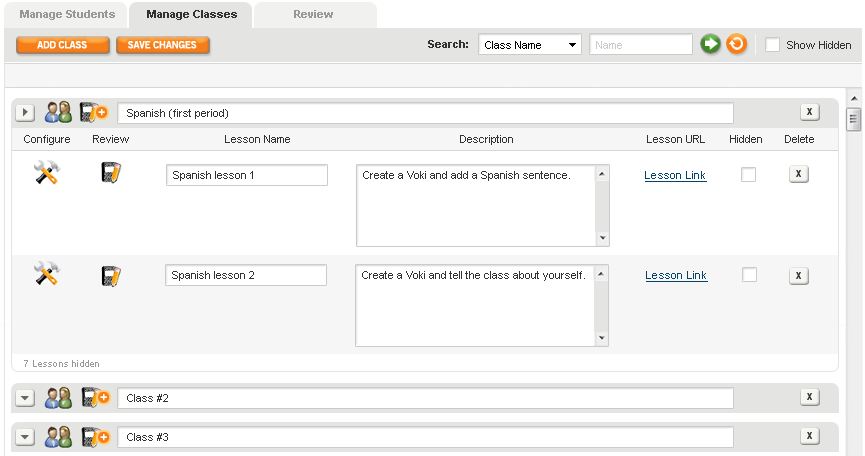
Manage Classes & Assignments. Voki Classroom lets you add and manage your Classes, as well as Aassignments within each class. When you add a new class, a new row will appear (see below). You can then name your Class – i.e. “Spanish (first period)” and add Assignments to it.
.
To add an Assignment, simply click on the Notepad+ icon next tot he class name. Then, give your Assignment a name, and add a description. You can also customize the layout and coloring of each Assignment by clicking on the Configure icon. Each Assignment comes with an Assignment Page – a Web page where you can feature all of the approved Vokis created for that Assignment. Or, if you prefer, you can set the Assignment Page to Private and require a password to view it. If you have your own class site, you can still easily embed each Voki using the embed code.
Voki Classroom - Manage Classes and Lessons
Review Student Work. Review and approve your students’ Vokis within your Voki Classroom account, all in one page. You can view all students Vokis for a given Assignment (view “By Assignment”), or look up and review all Vokis created by an individual student (view “By Student”). You can also choose to view only incomplete, completed or un-reviewed Vokis.
Clicking the Preview icon (the little person button) will open a new window with the Voki scene. If approved, just click the Approve icon (green check mark), and the Voki will appear on the Assignment Page. To get the code, click on the Code icom (<>).
Voki Classroom - Review by Lesson
That’s all for Part 2 of our introduction to Voki Classroom.
Next time, we’ll discuss
  • Student View
  • Assignment Showcase
  • Voki Classroom Support
  • Voki Classroom Pricing
As always, we’re eager to get your thoughts – comments or questions – about Voki Classroom. Feel free to leave a comment below!